The ask? Fix a failing Power Automate cloud flow. In short, the flow is using a Get files (properties only) action to query a growing SharePoint Online (SPO) library. Everything worked as expected last week, but now, the maker is reporting an error that:
- “The attempted operation is prohibited because it exceeds the list view threshold”:

The issue? The document library has just grown to 5,000+ items, which isn’t too large because SPO can handle millions of items, but large enough that cloud flow performance is now a concern. Under the hood, the Get files (properties only) action uses a HTTP GET request and as every lists grows, at some point there are too many items to GET without breaking things up.
The fix? Open the Advanced parameters of the action, then add a Filter Query. Instead of trying to return all of the items, return what is needed, the necessary subset of the much larger dataset:
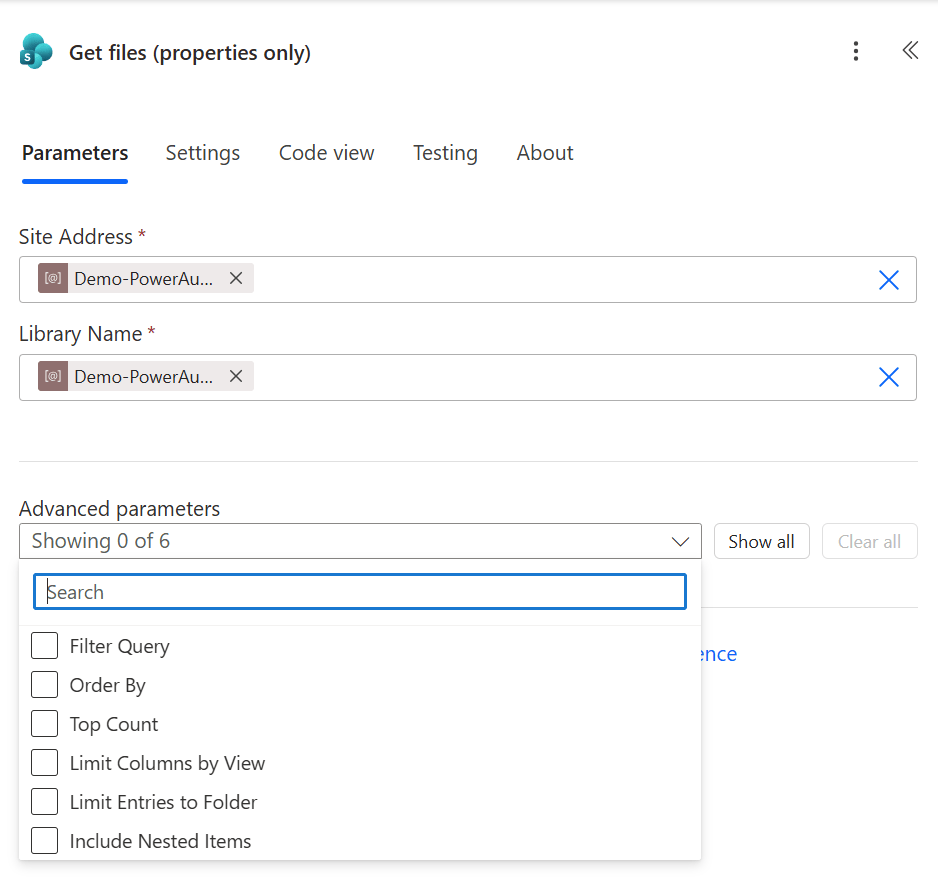
Because SPO cloud flow actions execute SharePoint REST requests behind the scenes, use OData query operations to filter the dataset. Follow the OData formatting and add a “filter query to restrict the entries returned”:
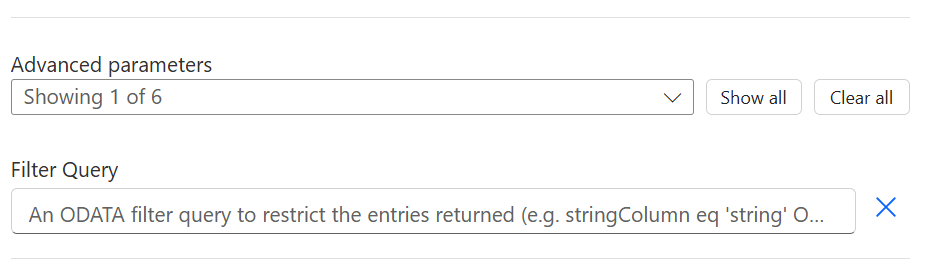
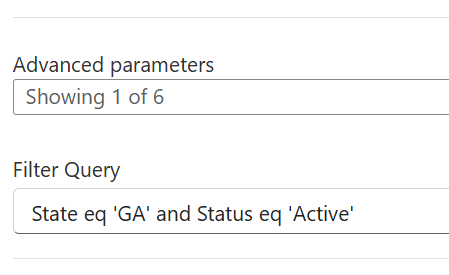
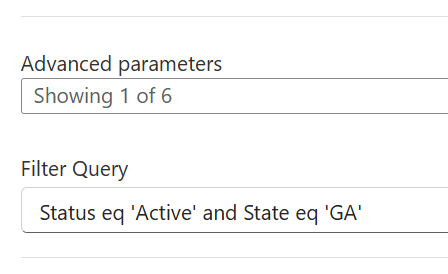
For this particular cloud flow, the maker needed to process the ‘Active’ files for all of their Georgia deals. Instead of querying and returning all files for all states and all status values, then filtering to find the subset of files using a flow loop or Array filter action, they can filter and only return the necessary subset in the initial GET request.
Now, both of the following filter examples will work, but as the dataset continues to grow, the maker could experience the same list threshold issue in the coming months. Getting ahead of future performance issues, have the first filter be the bigger slice. For example, if filtering against the ‘State’ column would return less total list items than filtering against the ‘Status‘ column first, then go with Filter Query #1. Otherwise, go with Filter Query #2:
Conclusion:
Power Automate cloud flows are so easy to create that, as low-code makers, we sometimes forget to ensure we’re integrating with the other systems efficiently. Ideally, the Filter Query should always be used. Rarely are our flows needing to query the entire dataset. For most of our automation needs, we only need to work with a subset of the data.
“Knowing what must be done does away with fear.”
Rosa Parks
#BlackLivesMatter

