The ask, query and return the .zip files found at the root of a SharePoint Online (SPO) document library, then unzip their contents to a series of regular folders.
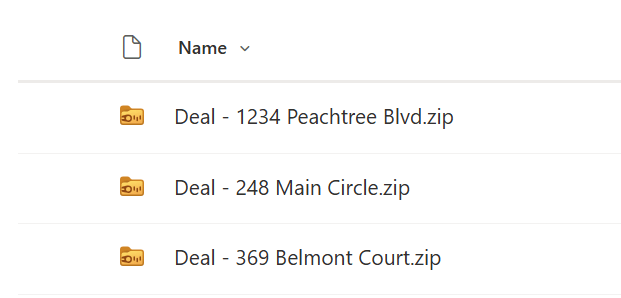
Once upon a time, it was necessary to zip files and save space, but these days, with the cloud, the juice really isn’t worth the squeeze. Unfortunately, there are already hundreds of .zip files from years of this behavior and because SPO search results don’t include their zipped content, the business now wants these compressed files unzipped:
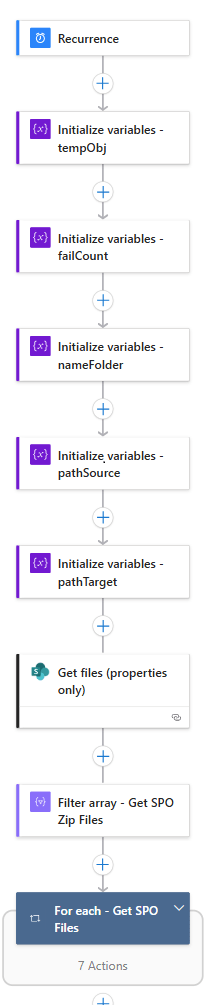
At a high-level, this flow could run on a schedule, allowing it to make multiple passes, catching .zip files it may have missed on an earlier run. Once triggered, there are 4 flow variables necessary for a successful run:
(1) Initialize tempObj variable of type Object. This will be used to store response objects during the iteration of queried SPO .zip files.
(2) Initialize nameFolder variable of type String. As the name suggests, this variable will store the name of the extracted folder within the loop.
(3) Initialize pathSource variable of type String. To perform the unzip, the extraction action will need the SPO path of the .zip file within the loop.
(4) Initialize pathTarget variable of type String. During the extraction action, the flow will need to specify where to unzip the compressed files.
Now, with the flow variables initialized, add an action to Get files (properties only), which will return an array of SPO library items. Worth noting, the export of this action could return non-zipped files. As a precaution, add a Filter array action and use the Get files (properties only) action’s output as input. This ensures only .zip files are iterated in the loop:
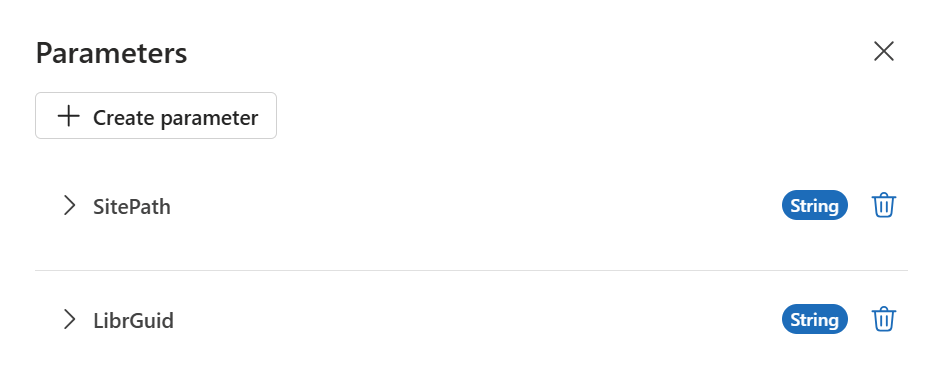
Taking a step back, an optional step is to create two flow parameters of type String. Here, flow parameters act as global variables, accessible to all flow steps:
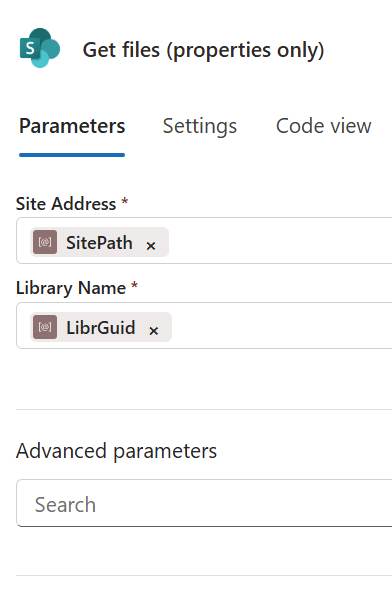
If opting to leverage flow parameters, then they could be used in the Get files (properties only) action.
Also worth noting, depending on the size of the library, it may be necessary to select and open the Advanced parameters and add filter conditions, slicing the dataset:
The output of the Get files (properties only) action becomes the input for the Filter array action. Per the requirements, this flow only needs to process .zip files, so filter on the “{FilenameWithExtension}.” Only return files that end with .zip extension:
- item()?[‘FilenameWithExtension’]
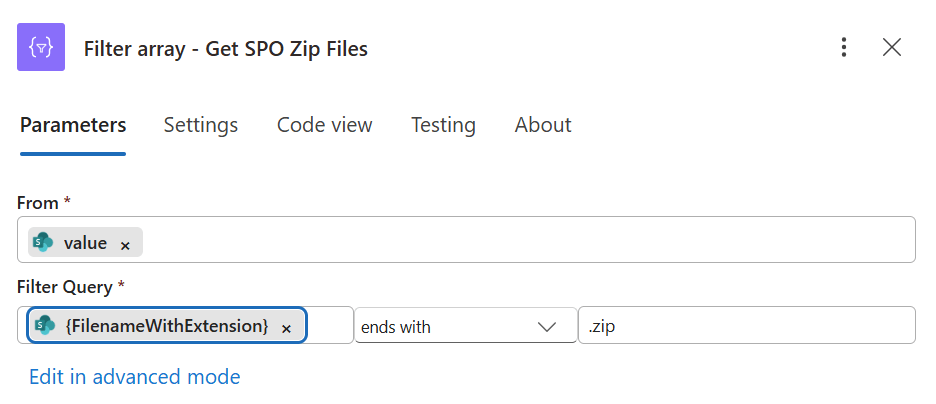
So far, the flow has queried a SPO document library and returned an array of files. That array of files is then filtered to find only the files with a .zip extension. This filtered array output is now provided as input to the For each loop to process each zipped file.
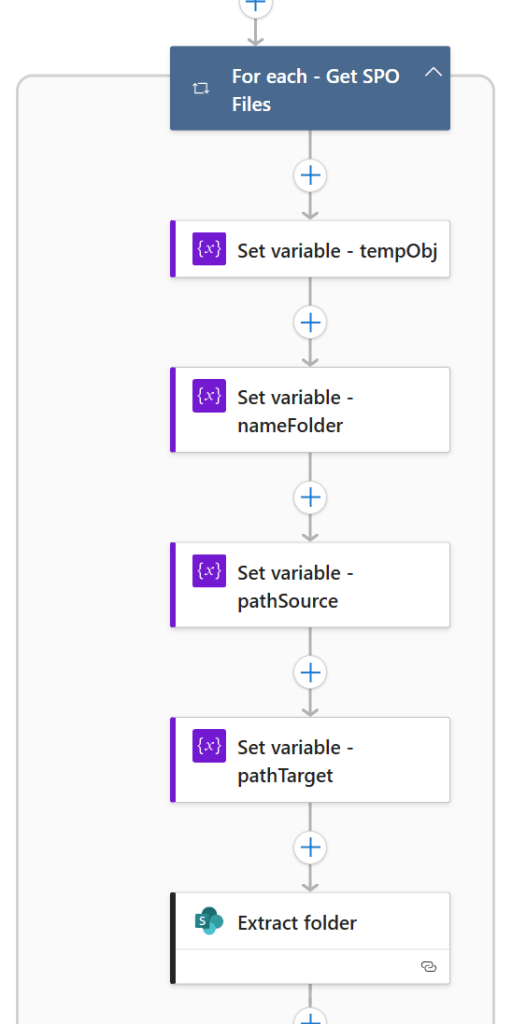
Take the Current item of the loop and assign it to the tempObj flow variable. This variable will now contain a JSON object representing each .zip file as the For each loop iterates. In each loop, parse the values for flow variables nameFolder and pathSource, then assign a value to pathTarget:
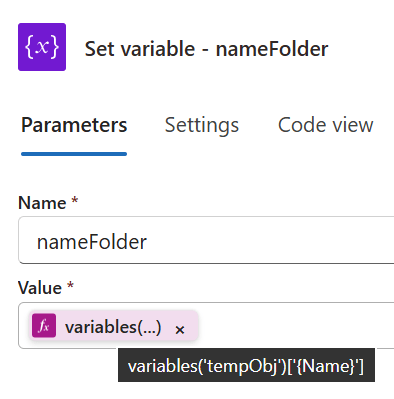
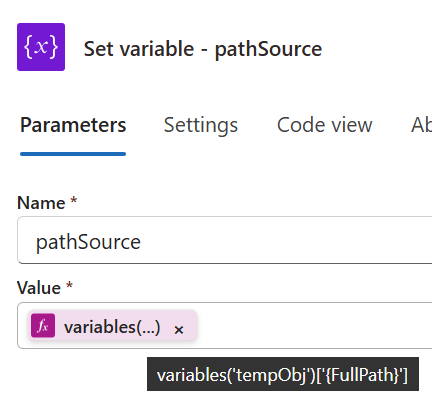
Parse and assign values to nameFolder and pathSource, respectively:
- variables(‘tempObj’)[‘{Name}’]
- variables(‘tempObj’)[‘{FullPath}’]
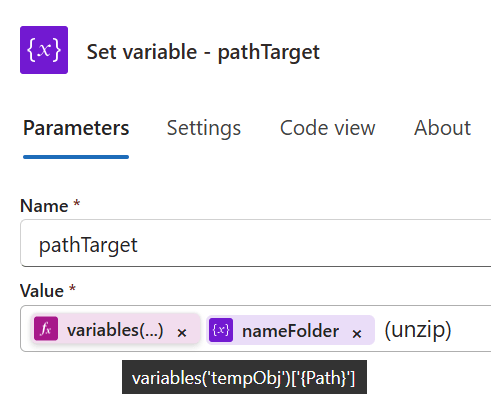
Parse and concatenate a value for pathTarget, then use the nameFolder to specify the target for the Extract folder action:
- variables(‘tempObj’)[‘{Path}’]
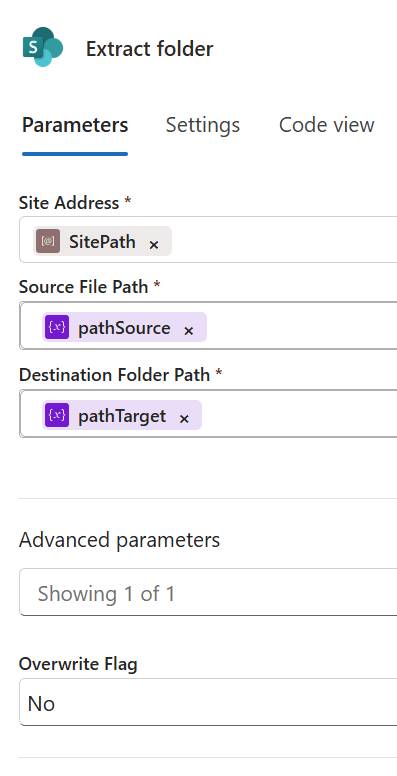
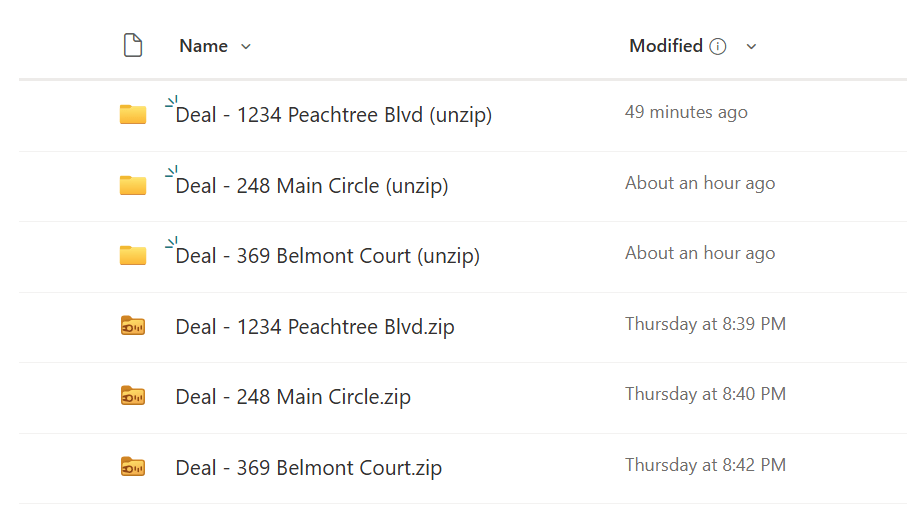
Finally, save and run. If the same directory was chosen, then the SPO library should now list the unzipped content:
Conclusion:
For those with Power Automate cloud flow experience, they should feel pretty comfortable with Azure Logic Apps and should be empowered to scale their flows.
“My silences had not protected me. Your silence will not protect you.”
Audre Lorde
#BlackLivesMatter
 console.log('Charles');