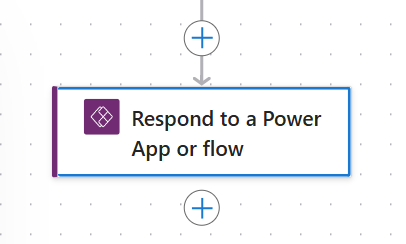
The ask, convert a whole number to binary. The approach, use a do-while loop and the cloud flow to calculate the power of a number, calling it as a child flow. At some point, this flow may also be used as a child flow, so create it using the Respond to a Power App or flow trigger:
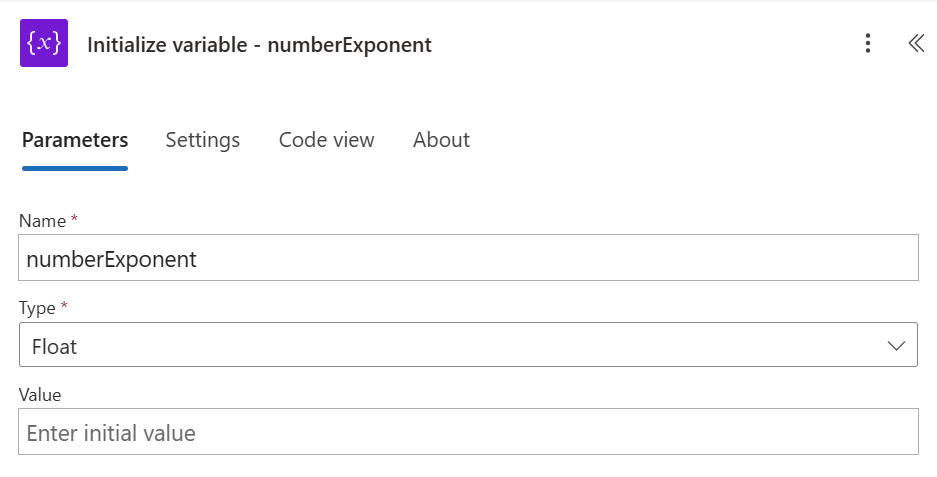
Again, the ask is that this flow converts a whole number to binary, so Add an input to the trigger, receiving a Number to convert as a parameter. To help with the flow logic, initialize two flow variables, numberBase and numberExponent:

The two initialized variables should both be of type Float. For the numberBase variable, assign the trigger input parameter as its default value. For the numberExponent variable, its default value can be left blank because it’s going to be assigned later:

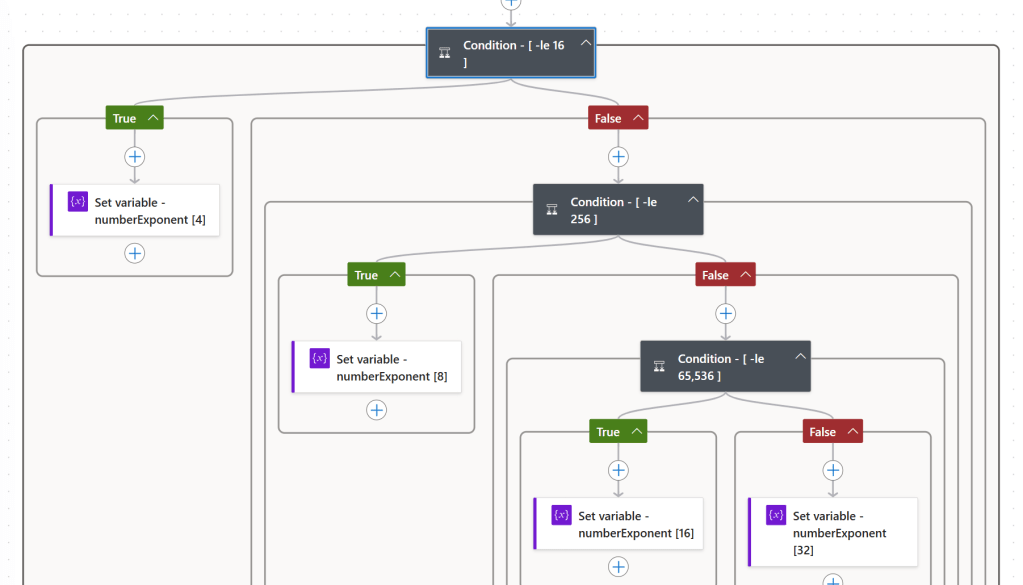
Next in the flow, this is an optional step, but add a Condition block, with some nesting. Admittedly, these nested conditions look complicated, but they’re actually pretty straightforward. Essentially, to reduce the number of unnecessary flow runs, this block is assigning an exponent value that’s reasonable for the child flow’s input value. For example, if the input value is less than or equal to 16, then assign 4 to the numberExponent variable. Otherwise, the input is greater than 16, so a larger exponent is needed, like 8 if the input value is less than or equal to 256:
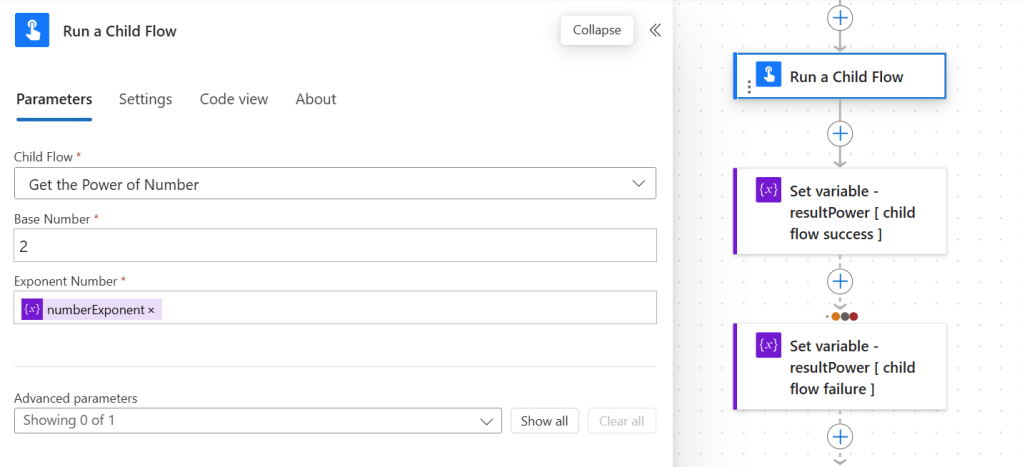
Now, with the numberExponent variable assigned a value, initialize an additional flow variable, resultPower of type Float, and add the Run a Child Flow action, ensuring both flows are part of the same solution. To calculate binary, the Base Number will always be 2, but assign the numberExponent variable to the Exponent Number parameter, then assign the result of this child flow action to the resultPower variable, which should be initialized prior to the Run a Child Flow action, and configure the Run after settings:
Okay, there are still two more variables to initialize, resultBinary of type String and tempNumber of type Float. After creating them, also add a Do-While loop control. Inside of this loop, decrement the numberExponent variable, which controls how many times the loop should iterate, then assign resultPower to the tempNumber flow variable:

Still, from within the loop, add a condition, checking whether or not the resultPower variable is greater than the flow’s input Number. If TRUE, then append a blank. If FALSE, then nest a Condition checking whether or not the resultPower variable is less than or equal to the numberBase variable. From here, append 0 if FALSE. Otherwise, append 1 if TRUE and decrement the numberBase:
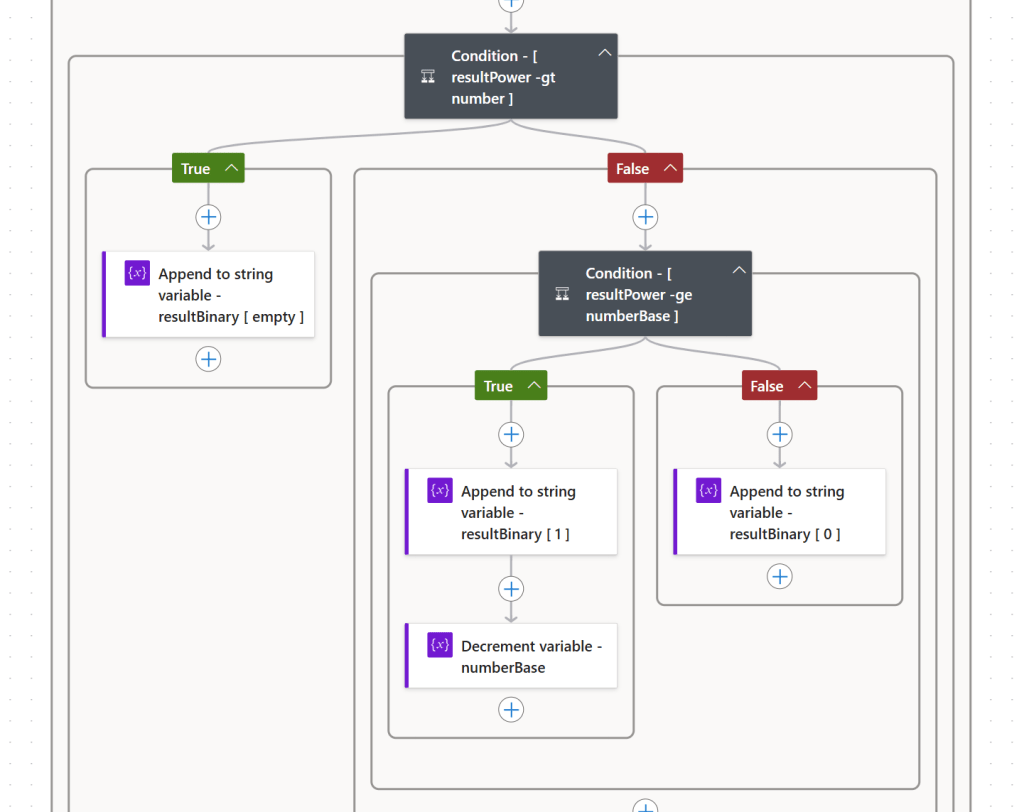
Wrapping up the internal loop logic, recalculate the value of the resultPower flow variable using the tempNumber variable:
- div(variables(‘tempNumber’), 2)
And from outside of the loop, add a Respond to a Power App or flow action to the end of the cloud flow, returning a string, the resultBinary variable:
- trim(variables(‘resultBinary’))

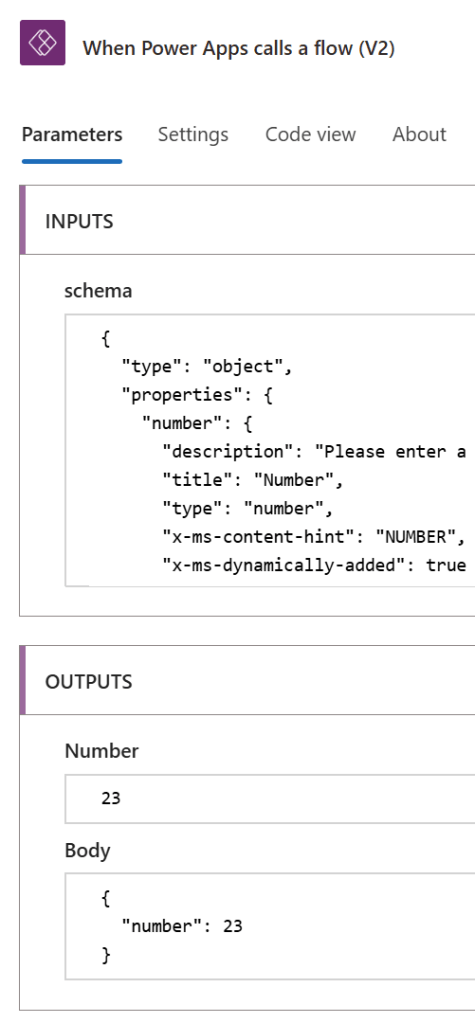
Finally, testing the completed flow, enter an input Number like 23 ( Figure 10 ). When the child flow is called, the Base Number should be 2 and the Exponent Number will be whatever is calculated in the nested conditions and return a numerical Result like 256 ( Figure 11 ). That will ultimately return a binary result like “10111” ( Figure 12 ):


Conclusion:
Child flows are helpful for outsourcing tasks, keeping parent flows lean and efficient. Take advantage of them when it makes sense.
“Beloved community is formed not by the eradication of difference but by its affirmation, by each of us claiming the identities and cultural legacies that shape who we are and how we live in the world.”
Bell Hooks
#BlackLivesMatter
 console.log('Charles');