The ask, determine whether or not a document set exists before Power Automate tries to create one. Otherwise, the cloud flow will run long, appear stuck, and eventually fail. The flow could check for an existing document set by Name, but because SharePoint Online (SPO) isn’t the source of truth system. this column value isn’t reliable. An alternative approach, create and use a Deal ID column, unique for each deal:

Before jumping into Power Automate, make things easier for later and index the Deal ID column. Navigate to the SPO library, open the library settings, scroll down to Indexed columns and index this column:

After indexing the Deal ID column and before leaving the library settings, scroll to the Content Types section and select the document set. Copy the ctype value from the URL from the query string and save for later:

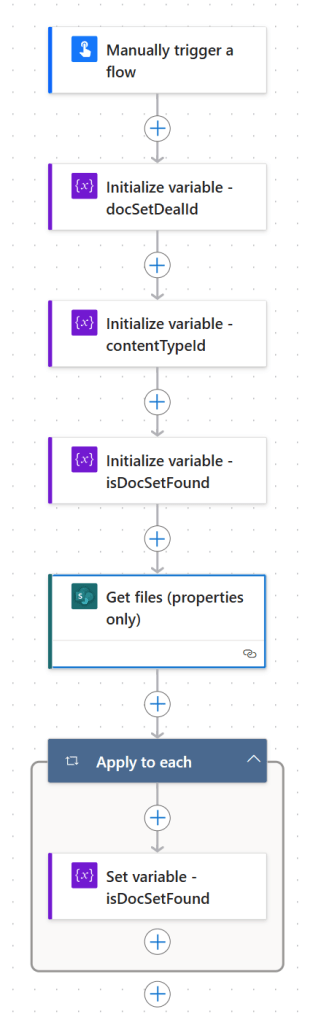
Now, navigate to the Power Automate portal and create a cloud flow with a manual trigger, just to test the logic. Next, create three flow variables. For variable #1, docSetDealId is type string. Add a hardcoded Deal ID value, again for testing because for go-live, this value would be dynamic and received from the flow trigger. For variable #2, contentTypeId is type string. Paste in the ctype value copied from above. Lastly, for variable #3, isDocSetFound is type Boolean with a default value of FALSE:
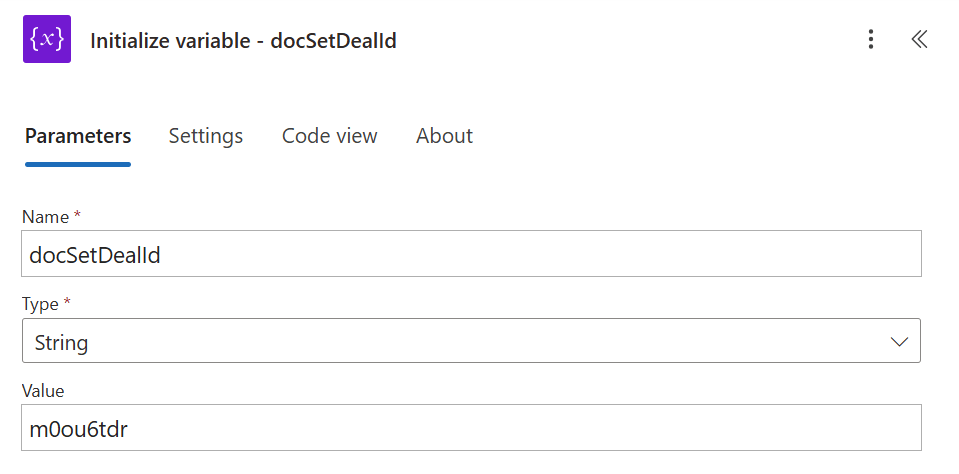
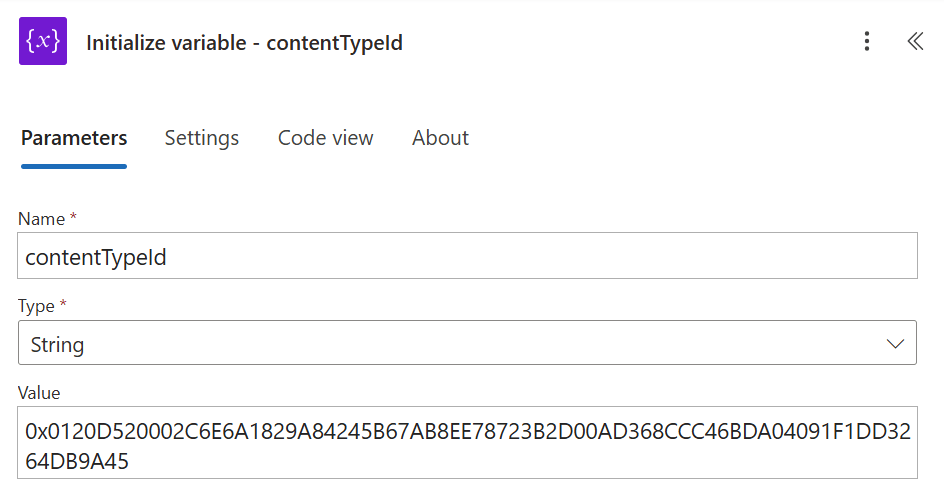
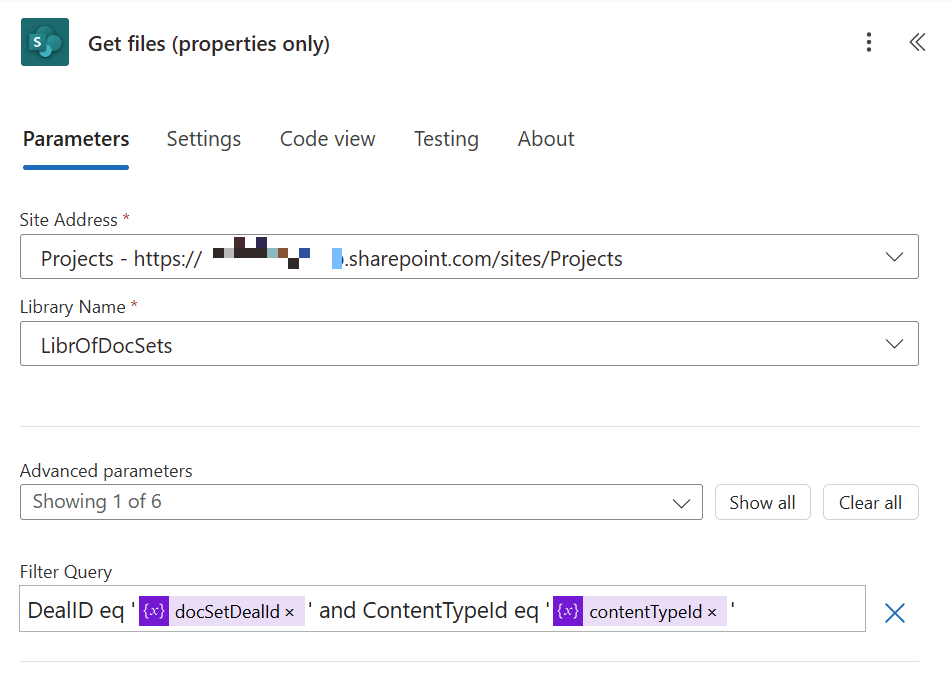
With the flow variables created, add the Get files (properties only) SPO action. Because document sets have metadata, the flow needs to query against the item properties, so add the Filter Query parameter, then filter on the DealID and ContentTypeId, using the internal name of each column:
Wrapping up the flow logic, add a loop control. Because isDocSetFound is initialized to FALSE, set it to TRUE within the loop. If nothing is returned, then the loop is skipped, and the variable value remains FALSE. However, if anything is returned, then the loop is iterated and the document set exists, so set the variable value to TRUE:
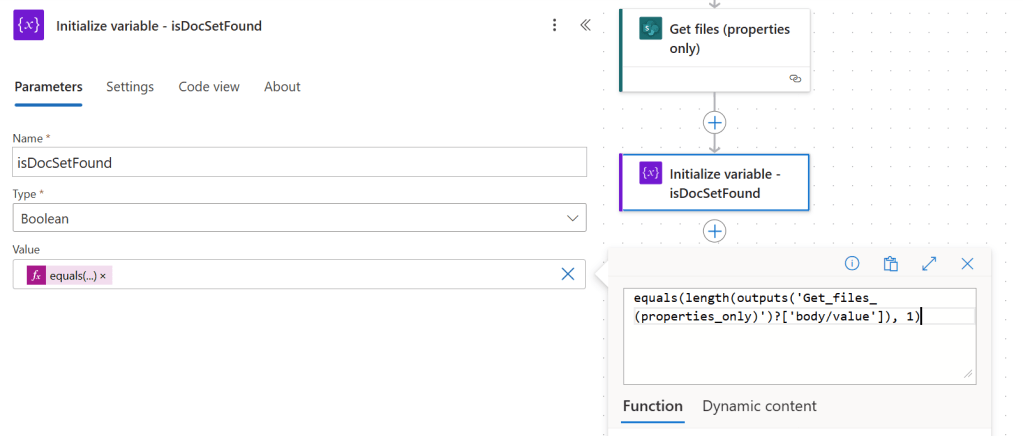
For those opposed to using the loop control, there is another way. Remove the loop and move the Initialize variable action for isDocSetFound after the Get files (properties only) action, then use Power Automate expressions to assign the value. The prior action returns an array, so check the length of the array. If the array is 1, then something was returned and found is TRUE. Otherwise, the array is 0 and nothing was returned, resulting is found to be FALSE:
Conclusion:
When requirements change, Power Automate is flexible. When it isn’t feasible to check for document set name, query against another column as a key, then update the metadata, keeping things in sync with the system of truth.
“Success is to be measured not so much by the position that one has reached in life as by the obstacles which he has overcome while trying to succeed.”
Booker T. Washington
#BlackLivesMatter


Pingback: Power Automate: SharePoint Online | Check If Document Set Exists [ v3 ] | console.log('Charles');