SharePoint Online (SPO) permissions are similar, but a bit different than permissions typically applied to the file share. Partly because SPO is designed to be self-servicing, meaning that it could be managed by end-users, the non-IT people. Historically, the IT group was responsible for configuring all permissions for all business content. Now, the site owner, whether it be an IT person or a non-IT person, is responsible for the site permissions, dictating which actions those accessing the site are allowed or not allowed to perform.
Site owners are site admins and are given full control over the site, the least restrictive access. Their only limitations would be any tenant-wide settings configured by the tenant admins, a level above them. Otherwise, owners can do whatever they want with their SPO site, like granting access to others.
To help grant others site access, every SPO site is created with three generic SharePoint groups. There is (1) the owner’s group, again with full control and the least restrictive access, (2) the member’s group for colleagues needing to collaborate on site content, and (3) the visitor’s group, ideal for people not collaborating, but needing to view content only, the most restrictive access.
Adding anyone to these groups grants them access to the site with the respective group’s level of access:
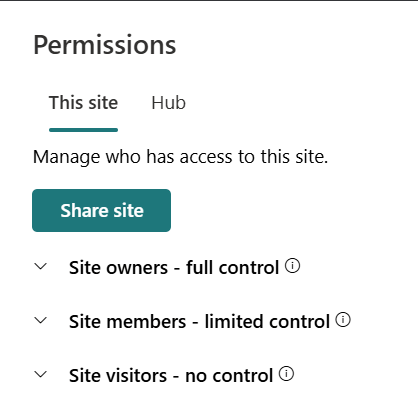
Now, the three groups don’t actually have to be used. User accounts and/ or security groups can be added to the site explicitly with specific permissions, but the three groups are there if they’re needed:
https://<tenant name>.sharepoint.com/_layouts/15/user.aspx
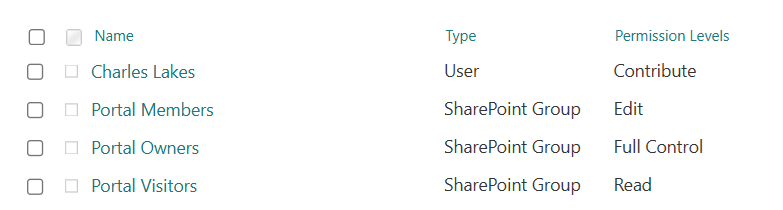
Important to remember, the three default groups are mutable. Site members are usually colleagues to collaborate with, but sometimes they shouldn’t have access to alter the site structure, which the Edit permission level does allow. If they only need access to add and update content, then Contribute is what they likely need. The name of the permission level is unique to SPO, but Contribute is essentially Modify from the on-premises file share world:

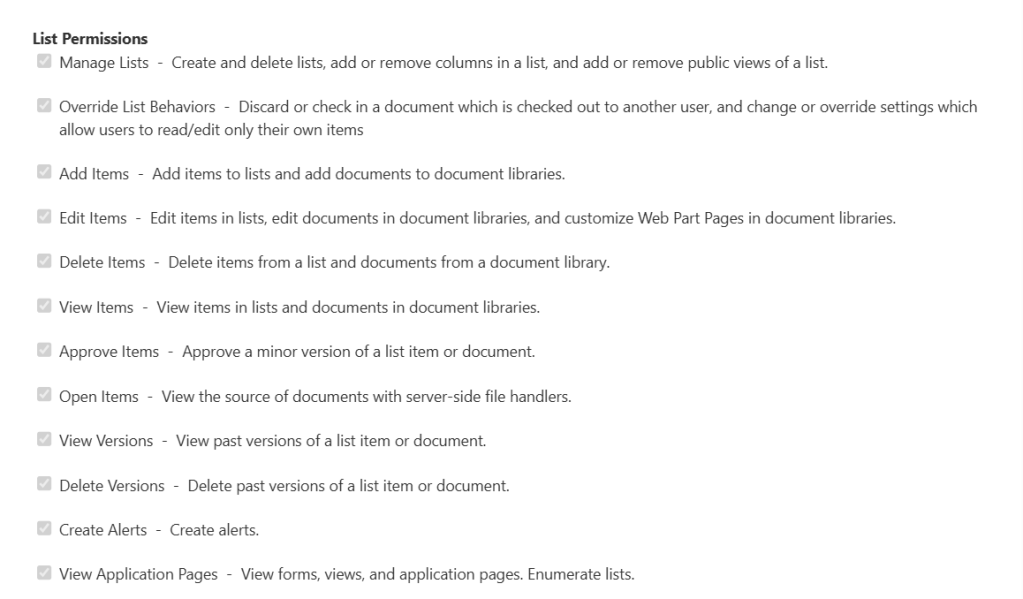
Additionally, when necessary, SPO site permissions can be extremely granular. Each permission level is a series of checkboxes specifying what one can and cannot do. As expected, Full Control has everything checked, which allows site owners to manage lists, override permissions, add items, delete items, etc.:
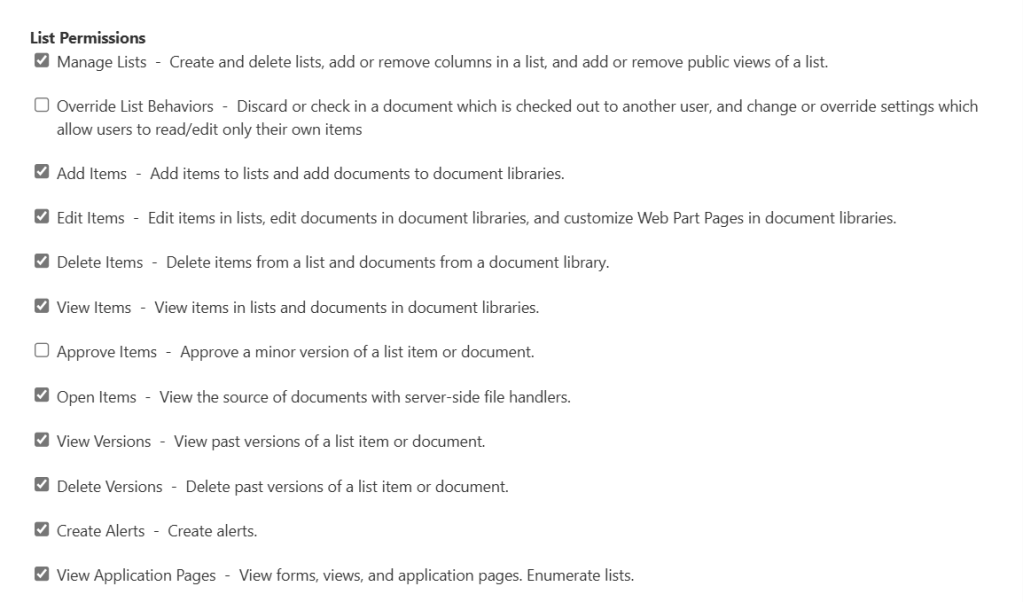
Now, reviewing the configuration for Edit, it checks many of the same boxes as Full Control. If team members are empowered to be pseudo admins, then Edit is perfect for them. Or maybe even Design. However, if collaborators shouldn’t wield that much power, then either uncheck a few boxes in the Edit permission, change their access to Contribute, or create a new permission level with only the necessary permissions:
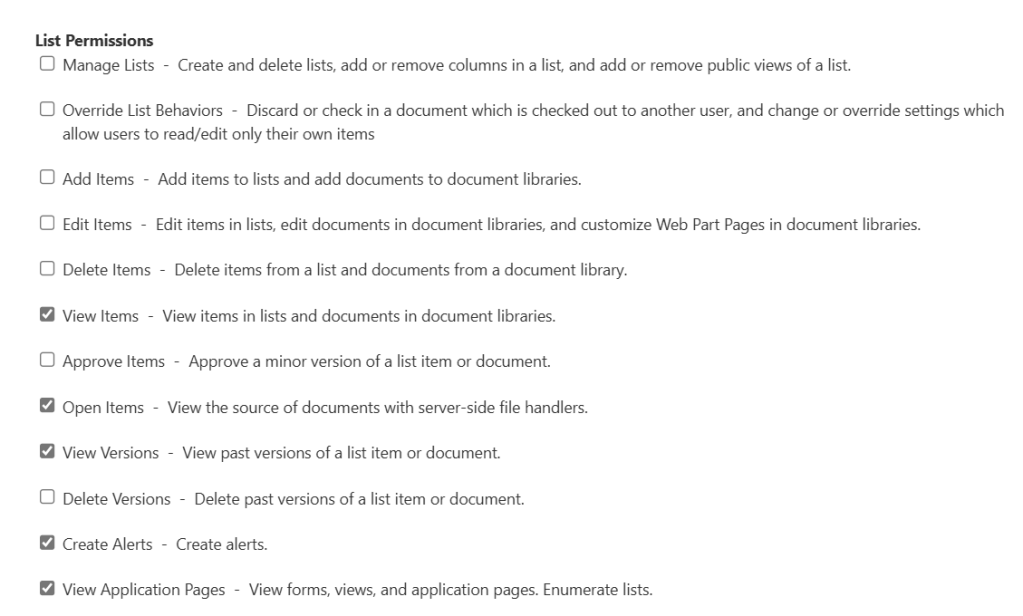
At the bottom of the permission level tree, the most restrictive level, is Read. Plenty of boxes are unchecked here because as a visitor, people don’t need to add, edit, or delete anything. They simply need to access and view the content:
Conclusion:
SharePoint Online site owner, member, and visitor groups cover most scenarios with their respective permission levels. However, when the need arises to be more flexible, the permission levels can have their boxes unchecked, or new permission levels can be created, addressing more unique use-cases. Well, except for Full Control. It can’t be changed, but it can be copied, then that copy be customized.
“Every black person should please remember that you were Africans before you were anything else.”
Mama Burna
#BlackLivesMatter
 console.log('Charles');