As the series continues, there is a common element among the apps. At their core, many popular apps have gallery experiences. Even the OneDrive app could be created using a vertical gallery for its photo grid…
Setting the app foundation, count the total number of images in the data source. The app displays three images per row, so divide the total number of images by three to calculate the total number of rows needed for the grid:
Set(rowsOfSource, CountRows('appMockup-OneDrive'));
Set(rowsOfGallery, RoundUp((rowsOfSource / 3), 0));
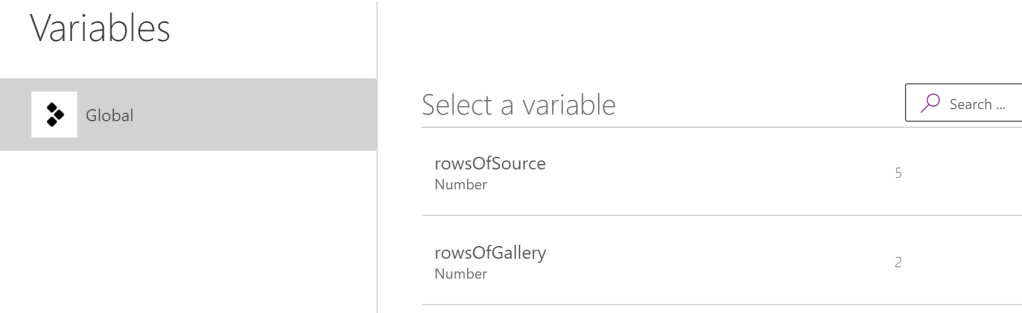
Variable rowsOfSource counts the total number of images. Variable rowsOfGallery calculates the number of rows for the grid. Next, build and populate the app collection objects:
- photoGrid composes an array of absolute photo URLs.
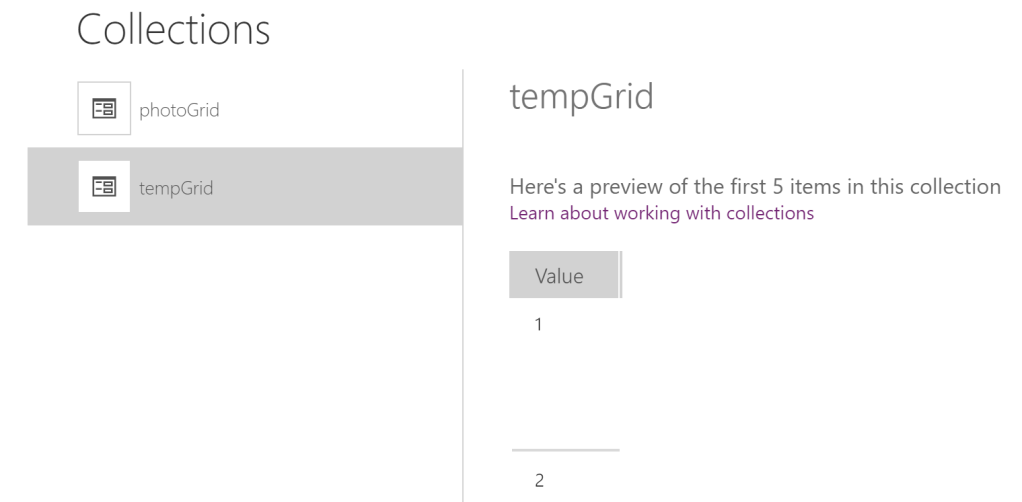
- tempGrid uses Sequence() to compose a dummy table.
Clear(photoGrid);
Clear(tempGrid);

ForAll('appMockup-OneDrive',
    Collect(photoGrid,
        { Path: ThisRecord.'Link to item' }
    )
);
ClearCollect(tempGrid, Sequence(rowsOfGallery) );
FYI: This app is using a SharePoint Online document library as the data source.
Again, the grid will render 3 images per row. Insert three image elements to the gallery, then size and space accordingly. The app vertical gallery will use tempGrid as its data source:
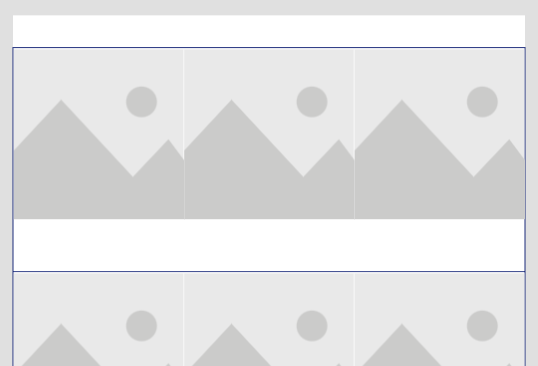
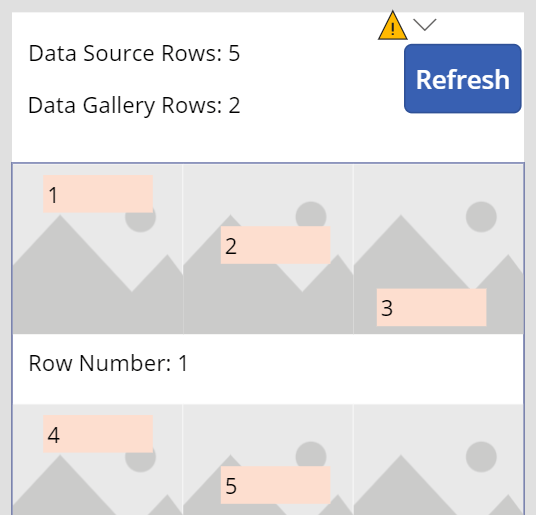
Not really required for the app, but helpful, insert three labels to the gallery. These labels will serve as a visual check of the calculated image indexes. Previously, the Sequence() function created a 1-based array. The below calculations subtract 1 to pretend it was a 0-based array:
- E.g., label indexes per record…
- ( ( ( {row index} -1 ) * 3 ) + 1 )
(((ThisItem.Value - 1) * 3) + 1)
(((ThisItem.Value - 1) * 3) + 2)
(((ThisItem.Value - 1) * 3) + 3)
Bonus Tip #1: File > Variables.
Bonus Tip #2: File > Collections:
Unfortunately, Power Apps isn’t a high-level programming language. With that in mind, it doesn’t directly retrieve array and table records using their indexes. Instead, use the First() and LastN() functions together to achieve a similar result. Image elements 1, 2, and 3 are assigned using the earlier label index calculations:
- Use LastN() to return value at index N and the successive records.
- Use First() to return the value at the front of the line.
First(
     LastN(
          photoGrid, (
               rowsOfSource - Int( lblIndex01.Text ) + 1
          )
     )
).Path
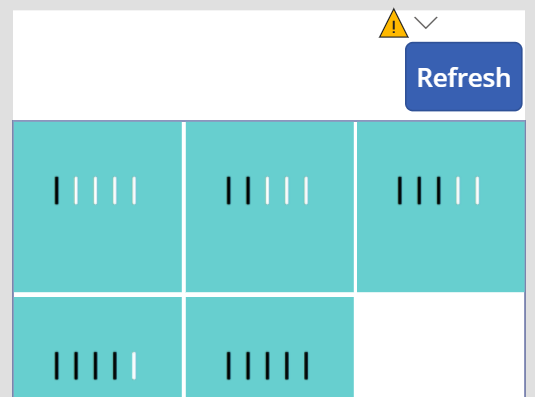
With the image indexes calculated, save and test the app:
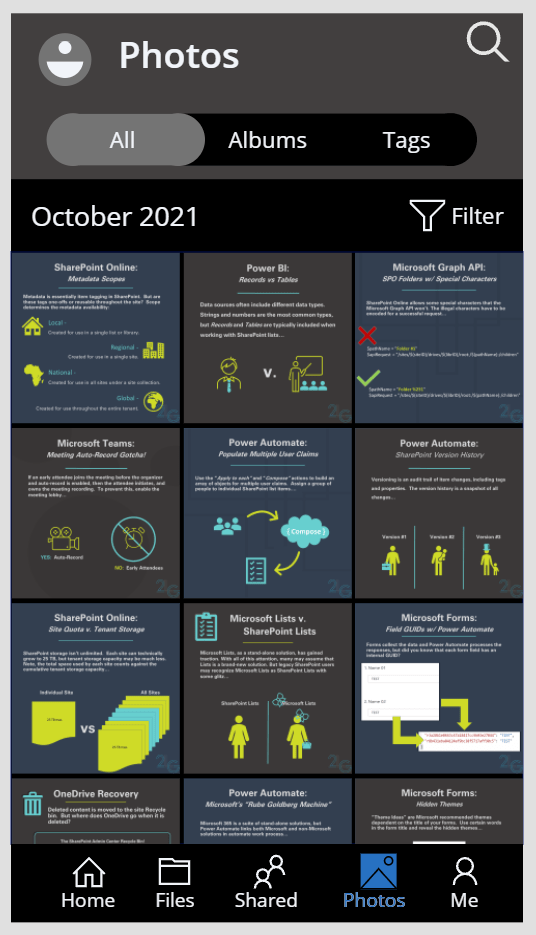
Along the top, the app should display the current Month(). Get this using the Now() function as a parameter:
Set(indexMonth, Month(Now()));
And use a series of nested if-then-else statements to specify the month name:
If(indexMonth = 1, "January",
   If(indexMonth = 2, "February",
      If(indexMonth = 3, "March",
         If(indexMonth = 4, "April",
            If(indexMonth = 5, "May",
               If(indexMonth = 6, "June",
                  If(indexMonth = 7, "July",
                     If(indexMonth = 8, "August",
                        If(indexMonth = 9, "September",
                           If(indexMonth = 10, "October",
                              If(indexMonth = 11, "November",
                                 "December"
                              )
                           )
                        )
                     )
                  )
               )
            )
         )
      )
   )
)&" "&Text(Year(Now()))
- E.g.,.
If(<condition>, <true result>, <false result>)
Now, the app is ready to be published. Just, upload some extra images and refresh the data source:
Conclusion:
Galleries are powerful. Even a single gallery becomes more powerful with a few variables and functions…
“My fear was not of death itself, but a death without meaning.”
Huey Percy Newton
#BlackLivesMatter
 console.log('Charles');
Pingback: Power Apps: Recreating… Twitter | console.log('Charles');