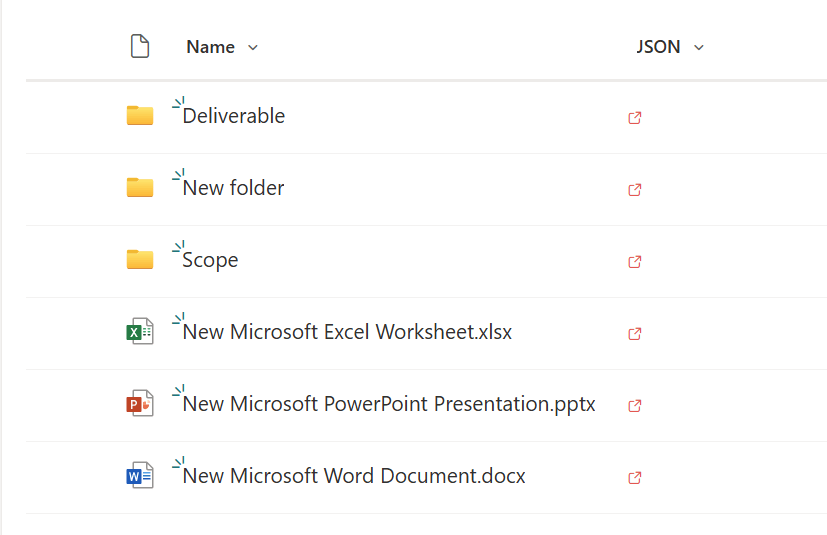
The ask, update some JSON column formatting. Someone reworked a Microsoft sample snippet and added a clickable icon to their SharePoint Online document library, but the icon is visible for all library items. For their project, the icon needs to only be available for specific items, not all folders or file types.
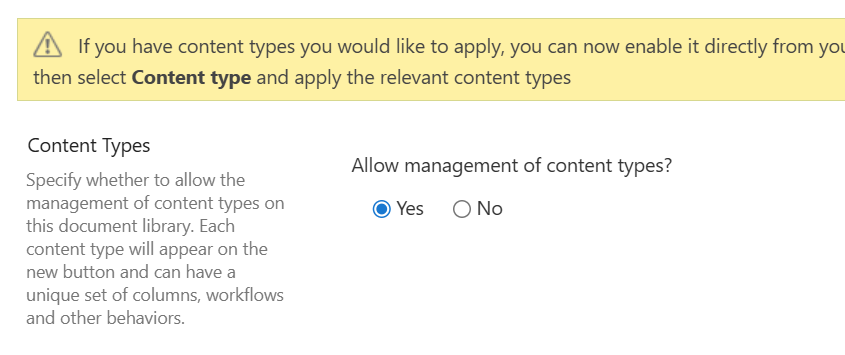
Now, before tweaking the JSON snippet, open the document library’s Advanced settings and toggle “Allow management of content types” to yes. Otherwise, the JSON-to-be won’t recognize the [$ContentType] property:
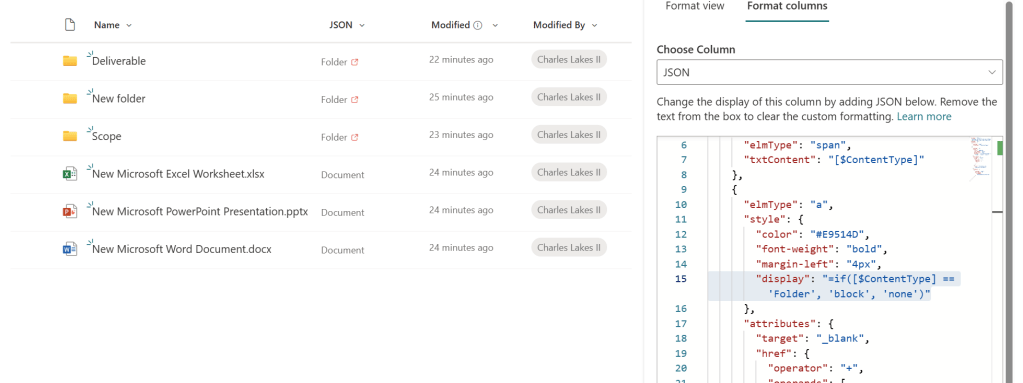
With content type management enabled, format the column in question and add a display parameter to the icon element’s style object. Because the icon shouldn’t be listed for documents, use If-Then conditional logic and hide the icon if the [$ContentType] isn’t a folder:
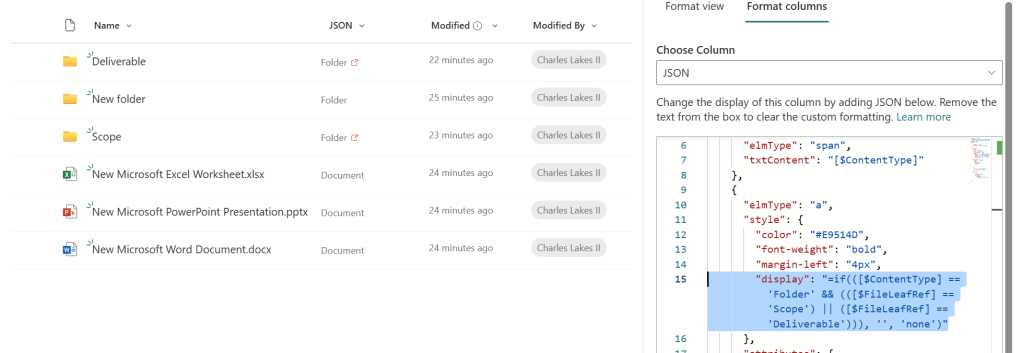
Building on the above snippet, the If-Then logic can use the [$ContentType] property to confirm item type, then use the [$FileRef] property to confirm item name. Now, the JSON snippet checks whether or not the content type is a folder, then checks whether or not the folder’s name is “Scope” or “Deliverable”:
Conclusion:
JSON is highly extensible and If-Then conditional logic extends it even further. Dynamically show or hide HTML elements using formulas, targeting content types, item names, etc.
“Freedom is never voluntarily given by the oppressor; it must be demanded by the oppressed.”
Martin Luther King, Jr.
#BlackLivesMatter
 console.log('Charles');