The ask, combine PowerPoint slide Transitions and sequenced Animations to create a follow-along focus effect. Simply, the asking trainer wants something unique added to their presentation. So, for today’s steps, darken the slide with a transparent rectangle, introduce an oval, then combine the two shapes into a freeform shape and animate that shape along several motion paths:

Getting started, Insert a rectangle and open the PowerPoint Format Shape pane. With this pane open, expand the “Fill” section, then assign the rectangle a darker gray color and increase its transparency. To each their own, but 48% transparency is a good value to start with. Also, scale the rectangle to be several times larger than the visible area of the slide:

After formatting the rectangle, Insert an oval and size it above the initial focus area of the background image. Optional step, make the oval larger than the visible area on a prior slide, then use the “Morph” transition to zoom it down:

Now, open the PowerPoint Selection pane and select both shapes, but select the rectangle first, then open the “Shape Format” menu area of the ribbon. Here, again with both shapes selected, select “Merge Shapes,” to the left, then choose to “Combine,” which will create a new freeform shape:
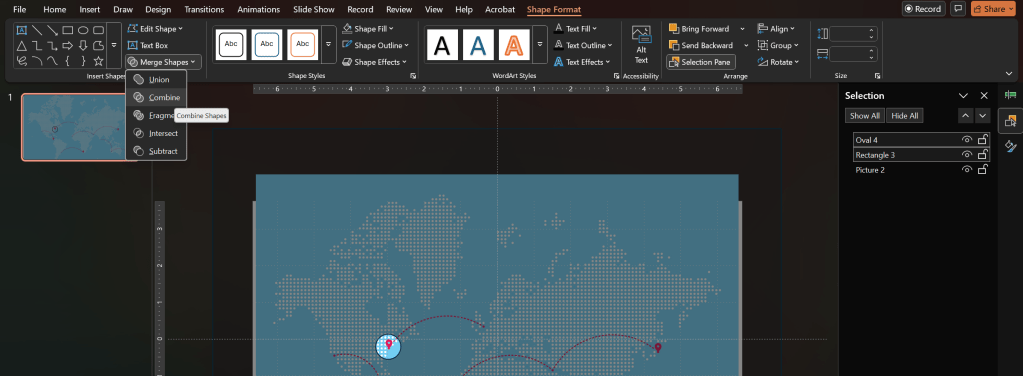
This newly created freeform shape is what the trainer will need to animate. Transitions are used to introduce the rectangle and oval, but once they’re combined, the new shape is going to be animated along several “Arc Up” motion paths:

Bonus tip, if the arc path isn’t a perfect fit, then right-click on its path and select “Edit Points.” This lets the trainer take the default motion path and shift several of its predefined points:

Finally, as with the prior ask to animate a shape, add additional arc paths to the freeform element. Optionally, add placeholder shapes to help align the starting and stopping points of the arc paths. Also, another bonus tip, animations can be configured to automatically reverse after completing their path, potentially saving the trainer a step that they would have to otherwise sequence:

Conclusion:
Transitions offer a lot to a presentation. Animations offer a lot to a presentation. Together, they open a new realm of possibilities for more unique and engaging presentations.
“There’s no problem on the planet that can’t be solved without violence. That’s the lesson of the civil rights movement.”
Andrew Young
#BlackLivesMatter
 console.log('Charles');