The ask, propose an alternative configuration option for a Power Platform solution. The maker created a Power Apps canvas app and a Power Automate cloud flow. When items are submitted, others are prompted via email, sent by the cloud flow, to open the canvas app and complete an action.
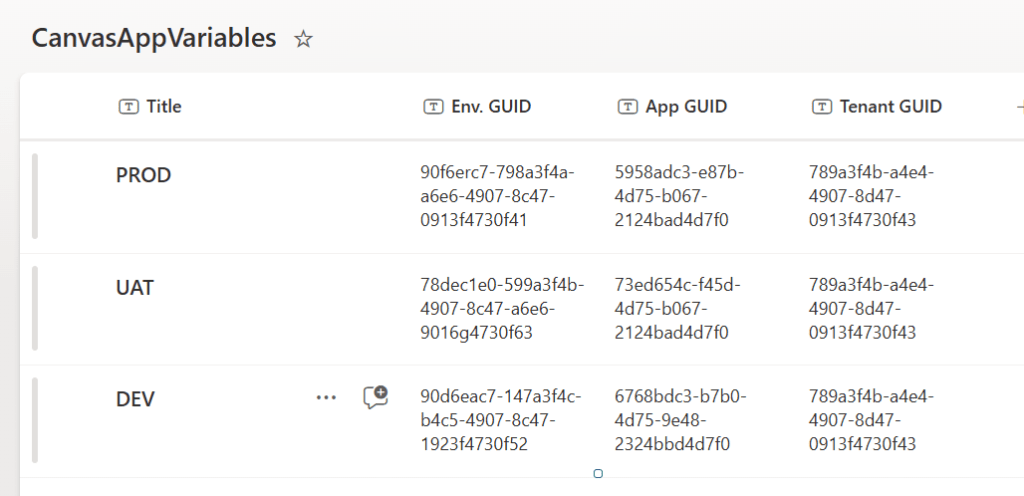
Following best practice, the maker created everything within a solution to adhere to application lifecycle management. They’re expecting to have at least DEV, UAT, and PROD environments, so their flow will need to allow dynamic values, not hard-coded app URLs. Also, they want to use a SharePoint Online (SPO) list to store the GUIDs of their canvas app URL. The proposed solution is to create a “Text” environment variable, then use the “Title” column of the list to indicate which GUIDs are associated with each Power Platform environment.
Now, navigating to the Power Platform solution, select “New” in the menu bar. Doing so opens a dropdown list of project assets that could be created for this solution.
Honestly, the maker is likely already familiar with the Environment variable option listed under “More” if they’ve created data source variables, but today, they need to create a different type of variable.

For those unfamiliar with Environment variables, they offer flexibility to Power Platform solutions. Whether they’re an experienced or newbie maker, hard-coding values in a solution is typically frowned upon. Why? Because the code has to be updated, compiled, and deployed every time a value needs to be updated. The alternative? Use environment variables to hold solution parameters for the code. These parameter values can be unique in each Power Platform environment without breaking the solution.
Here, the maker needs to create a “Text” environment variable, provide a “Name,” and assign a Default Value. Because they’re building the solution in their development environment, provide a value of “DEV,” matching the “Title” value of the SPO list item.

Finally, open the Power Automate cloud flow and add a SPO Get items action. Following best practice again, use a connection reference to connect to the SPO site, not the maker’s personal account, and use a data source environment variable for the Site Address field. In the List Name dropdown, specify the target list, ideally with another data source environment variable, then filter against the “Title” column using the environment variable in the Filter Query parameter.
This is an example of using an environment variable to introduce dynamic values. These values can be used in the Filter Query parameter to return only the GUID’s of the specified environment. So, when the maker deploys their solution to UAT and finally PROD, they’ll simply update the environment variable value to reflect the respective Power Platform environment.

After a successful run, the Power Automate Get items action receives the environment variable, and its input reflects the dynamic value.

And as expected, the output returns what the maker needs for their solution in DEV. When they deploy to UAT, then the app and flow will return the UAT GUIDs. Likewise, when they deploy to PROD, the PROD GUIDs will be returned. With these GUIDs, the maker can build the canvas app URL in their cloud flow, and send the emails as necessary.

Conclusion:
Power Platform solutions can do a lot, and environment variables help them do more. Introducing solution-aware values give makers the ability to create more robust canvas apps and cloud flows.
“Emancipation wasn’t a gift bestowed on the slaves; it was something they took for themselves, the culmination of their long struggle for freedom.”
Jamelle Bouie
#BlackLivesMatter
 console.log('Charles');