The ask, add some animation to a technical trainer’s PowerPoint deck. Their content is solid, but they’re looking for help drawing attendee attention to specific elements of their presentation. The recommendation, add morph transitions to a few of their slides:

An often-overlooked feature of PowerPoint, Morph is found under “Transitions” in the ribbon and has some helpful configuration options to personalize the animation:

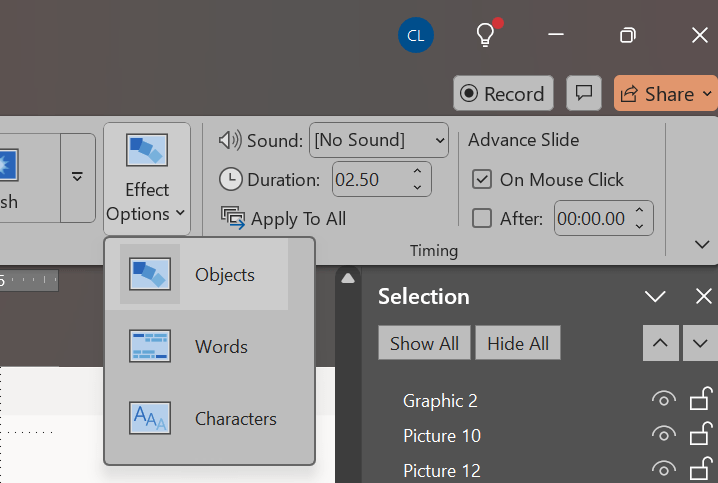
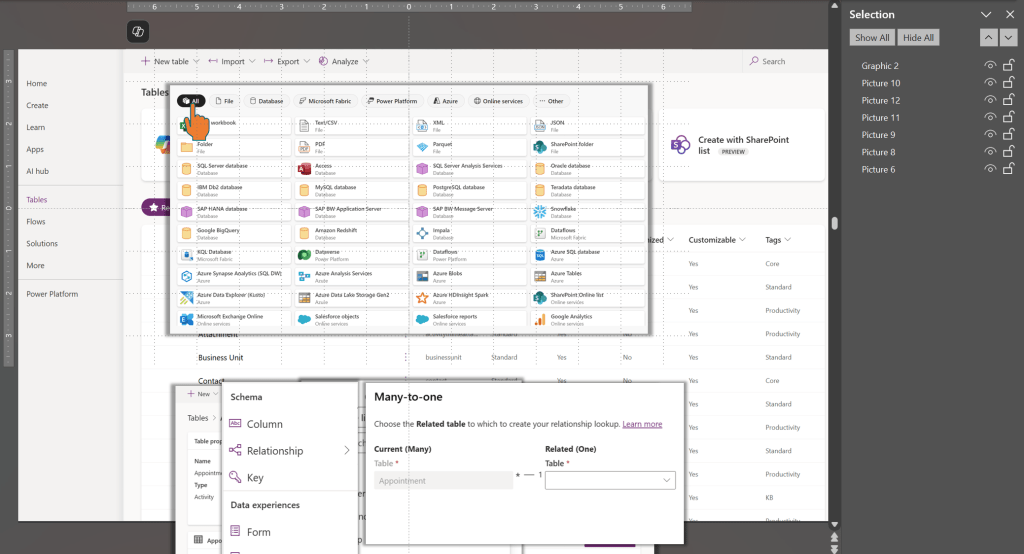
Now, for the trainer to animate their slides, they could use Morph a few different ways. To create a zoom-in effect, create a copy of the slide, then on the copied slide, make the image much larger. Bigger the better, so it’s perfectly fine to make the image larger than the visible area of the slide. To create the zoom-out effect, make the image smaller on the next slide. Additionally, other images and icons can be placed outside of the visible area on one slide, then within the visible area on the next slide, creating sliding animations. Preview the transitions and watch morph work its magic:
Conclusion:
Morph has been available for a while and is an untapped tool of the PowerPoint toolbox for trainers and presenters. The effects, while simple, easily adds some polished animation to your slide decks.
“I would unite with anybody to do right and with nobody to do wrong.”
Frederick Douglass
#BlackLivesMatter
 console.log('Charles');
Pingback: PowerPoint: Morph + Highlight | console.log('Charles');
Pingback: PowerPoint: Animations + Animations | Gear Shifting | console.log('Charles');