The ask, get the appended comments of a SharePoint Online (SPO) list item. One of the makers is working on a Power Apps canvas app and their data source is an existing SPO list.
In this list, the maker has a “Comments” column with the Append changes to existing text setting enabled. Per the project requirements, end-users must now have the ability to see the item’s comments from the canvas app.
Unfortunately, appended comments are part of the item’s version history, so the maker needs to build a Power Automate cloud flow for their canvas app solution.

The short of it, this cloud flow will function as a child flow, so its trigger will be When Power Apps calls a flow, and the canvas app will need to pass along the SPO item’s ID as a flow parameter:

After the flow trigger, it’s a good idea to initialize a few variables to help with flow readability: objItem and objVersion both of type Object, listGuid of type String, and arrayOfComments of type Array. Next, add the Get items action to return array of SPO list items.
Because this maker is building everything in a solution, as they should, they can take advantage of environment variables. They’ve already created environment variables for the SPO site and SPO list as data sources. Assign the SPO site environment variable to the listGuid flow variable, but leave the other three flow variables empty:

Skipping down to the Get items action, use the environment variables for the SPO site and SPO list to populate the Site Address and List Name parameters respectfully, then add the Filter Query parameter and build a simple filter to match against the “ID” of the list item, using the ItemID passed in as a flow parameter:

After the Get items action, add an Apply to each control, allowing the flow to iterate the array returned from the Get items action. Because the Get items action is filtered on the item “ID,” there should only be 1 record returned in the array, so a single loop.
Within this loop, assign the Current item to the objItem variable as an optional step to make it easier to troubleshoot future flow runs. Now, take the “ID” property of this object variable and add an action to Send an HTTP request to SharePoint, and another Apply to each control, which will receive the response array of the HTTP action:

Illustrating the HTTP request action, populate the Site Address using the SPO site environment variable, then populate the Uri. This action leverages the SPO REST APIs to query a specified site list using its listGUID, then query a specific list item using its “ID”, then returning an array of that specific item’s versions:

Now, within the nested loop, assign the Current item to the objVersion variable and use that to append the “Comments” property to the arrayOfComments variable:

Again, assigning the Current item to object variables is helpful because these can be later reviewed in the flow runs. Often enough, someone doesn’t realize a property is missing or misspelled, so these objects help troubleshoot potential flow failures. And reviewing a successful run, the HTTP request returns the response as a JSON object:

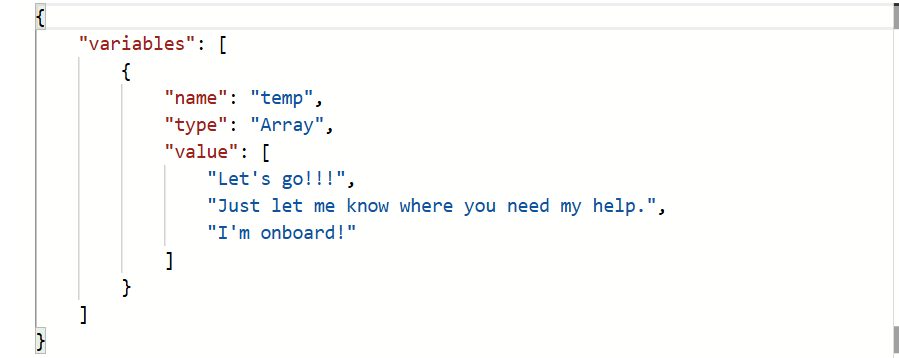
Finally, with the comments append to the array variable, that can be returned to the canvas app:
Conclusion:
In hindsight, the maker does realize that this solution could have been architected differently. Microsoft Dataverse is a great option, but it is a premium connector. Alternatively, they could have created another SPO list, “Comments” with a lookup to the primary list, but their customer had already gone too far down the path of a single list. Nonetheless, they were still able to extend their canvas app leveraging a child cloud flow.
“The first step toward tolerance is respect and the first step toward respect is knowledge.”
Henry Louis Gates
#BlackLivesMatter
 console.log('Charles');