The ask, create a dynamic link from a SharePoint Online (SPO) document library, navigating end-users to a Power Apps canvas app. This app expects “deal_id” as a parameter, Param(), which would be the id of the library item.
Is it possible? Yes. Is it complicated? No. SPO libraries, which inherit from lists, are relatively easy to customize with some JSON formatting and it’s simple enough to format a view’s column, creating the dynamic link with the “deal_id” parameter, without any overly complicated development effort. This static library view can have dynamic elements, more fancy than calculated columns:

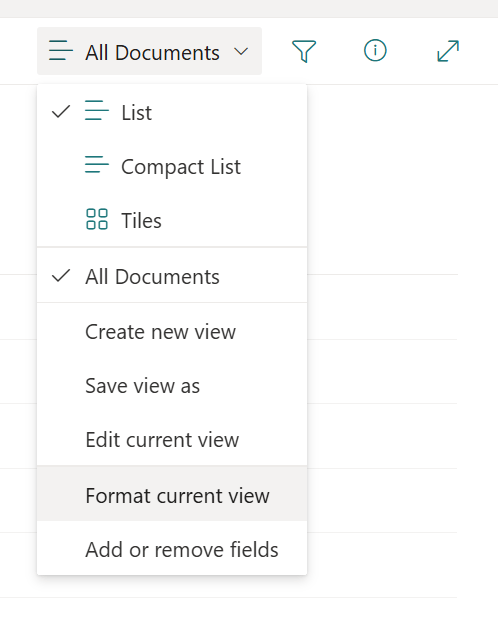
To get started, select and open the dropdown of library views. Quick note, everything listed here isn’t visible to everyone. Only power users, owners, and/ or admins with elevated permissions will see all of these options.
Select Format current view, near the bottom, which will open a pane on the right-hand side of the screen:
There are two options in this new pane view. Select Format columns, then choose which column to format from the Choose Column dropdown:
E.g., Name.
With a column chosen, select Advanced mode towards the bottom of the pane:

This advanced view is where the JSON formatting does its magic. For demo purposes, copy this snippet from my GitHub, paste the JSON into the designer pane, then “Preview” the changes. Previewed changes aren’t saved, so don’t worry about messing up anything:

For those unfamiliar with JSON column formatting, Microsoft has created a formatting syntax reference, outlining the formatting options available, which largely mirror CSS styling:

Now, hopefully the snippet doesn’t appear too scary. Essentially, on line 2, the JSON is being told which schema to adhere to, detailing how the structure should be formatted. Next, on line 3, the column being formatted is going to be a div with its children being an array of HTML objects. Child #1 is a span tag with its text set to the current field’s text value. Child #2 will be an anchor tag, but this anchor is going to be an icon and its href target is concatenated from an array of operands. The highlighted lines are dummy GUIDs and should be replaced with valid values to the canvas app’s environment, app, and tenant GUIDs, respectfully. And finally, on line 34, append the library item’s ID:
{
  "$schema": "https://developer.microsoft.com/json-schemas/sp/v2/column-formatting.schema.json",
  "elmType": "div",
  "children": [
      {
          "elmType": "span",
          "style": {
              "padding-right": "8px"
          },
          "txtContent": "@currentField"
      },
      {
          "elmType": "a",
          "style": {
              "text-decoration": "none"
          },
          "attributes": {
              "iconName": "PowerApps",
              "class": "sp-field-quickActions",
              "target": "_blank",
              "title": "Click here for canvas app...",
              "href": {
                  "operator": "+",
                  "operands": [
                      "https://apps.powerapps.com/",
                      "play/",
                      "e/",
                      "ty32sa0p-708a3f4a-a6e6-4907-8p36-0913f4733f49/",
                      "a/",
                      "a9ca0c79-d08a-450f-c623-6e4f01d2de88",
                      "?tenantId=",
                      "458a3f4a-a6e6-4907-8c36-0913f4730f41",
                      "&dealId=",
                      "[$ID]"
                  ]
              }
          }
      }
  ]
}
For many, they would likely prefer creating a new column for this. Others may choose to format a different existing column. Either works, but the end result is the anchor tag being appended to a span tag, providing a means to navigate end-users to the canvas app with the “deal_id” included in the query string:

Conclusion:
The SharePoint Framework (SPFx) is great for extending SharePoint Online (SPO) with custom development, but often enough, JSON can get the job done. Not everything needs to be a custom development effort.
“I learned that racism, like most systems of oppression, isn’t about bad people doing terrible things to people who are different from them but instead is a way of maintaining power for certain groups at the expense of others.”
Alicia Garza
#BlackLivesMatter
 console.log('Charles');
Pingback: SharePoint Online | Column Links to Power Apps: JSON for Prod + NonProd | console.log('Charles');