Nested folders are abundant in many, many SharePoint Online (SPO) tenants. Largely because a lot of organizations aren’t ready to adopt a flat content architecture. Fortunately, plenty of their root directories adhere to strict folder naming conventions, so several of those root folders can be recreated as document sets. One perk of document sets is reducing overall folder path lengths and avoiding potential problems in the near future.
E.g., extract client city, state, and postal code from long folder names.
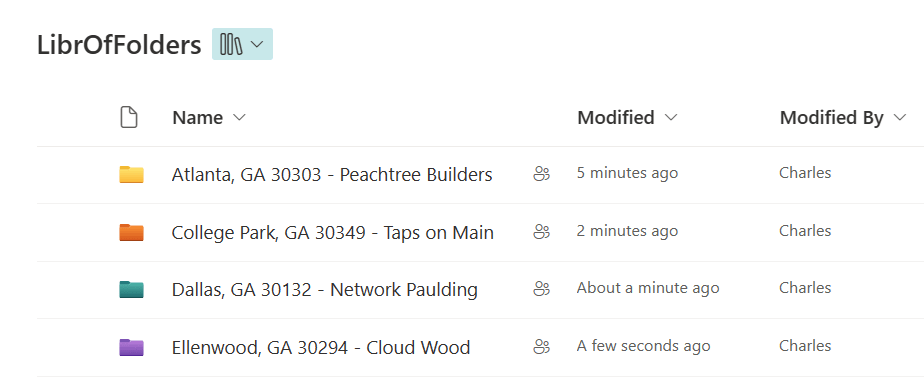
Document sets are essentially a special type of SharePoint folder with metadata applied. The client information from these regular folders can be extracted and used to populate the document set values, creating a new folder with a new icon and a reduced path length:
E.g., assign client city, state, and postal code as metadata values.
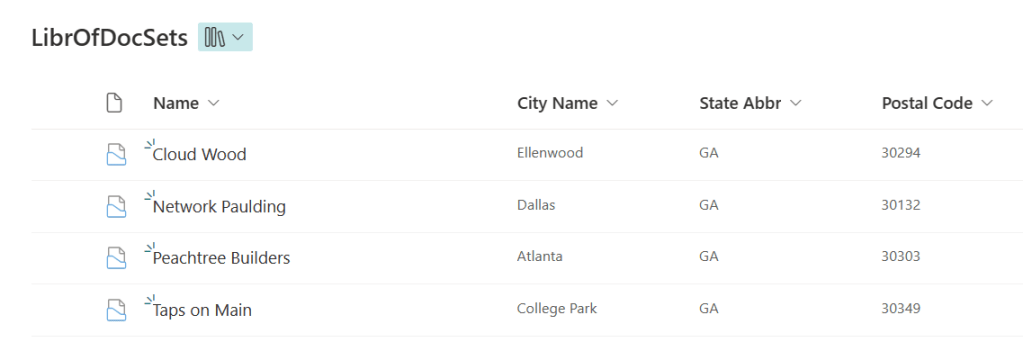
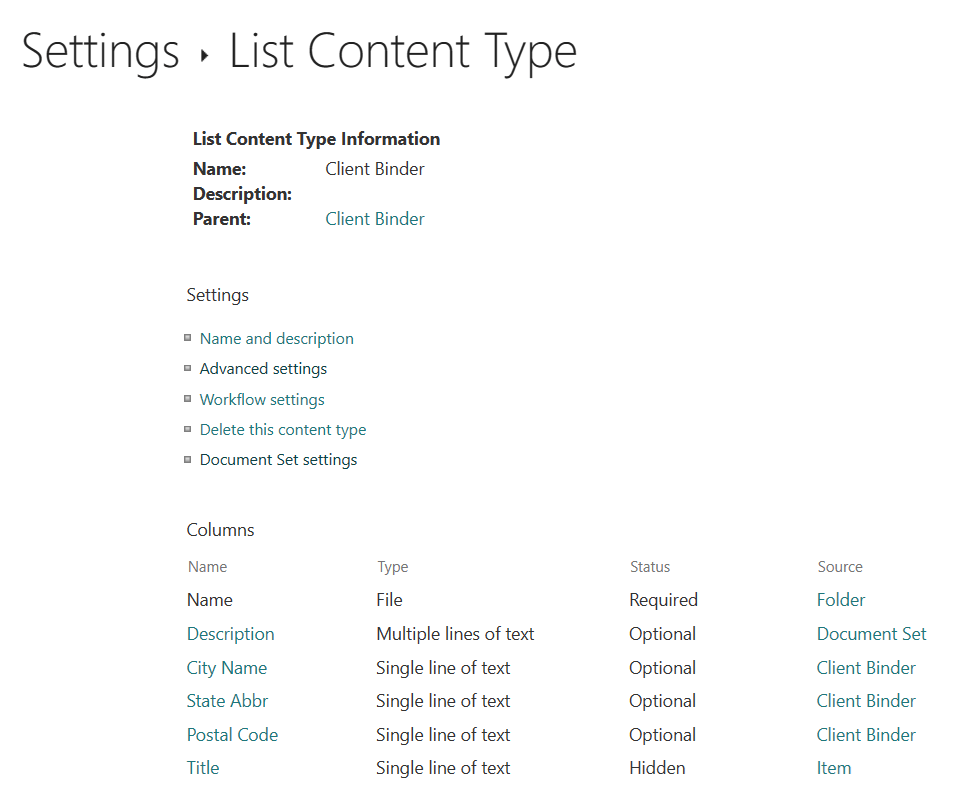
For ease, these metadata columns were created as Single line of text fields, but additional columns could be created with different data types for even better content organization:
To automate the provisioning process, create an Instant cloud flow with Power Automate and initialize some variables for storing the extracted metadata values. In this example, there is the client’s name, city, state abbreviation, and postal code.
Also, for consideration, create temporary variables for flow data objects and strings:

FYI, object values are stored and retrieved using key-value pairs:
variables('tempObj')['Name']

Next, get a list of root folders from the source library. Use the List folder action and return an array of folders. Have the flow loop through this array and for each record, set the folder data to the temporary object variable, then set the folder name to the temporary string variable:

One thing to be cautious of, when using the List folder action to get library root folders, the array includes the hidden “Forms” folder. Iterating and reading this folder isn’t a problem. However, this folder should be ignored because accidentally trying to recreate it as a document set will cause the cloud flow to hang:
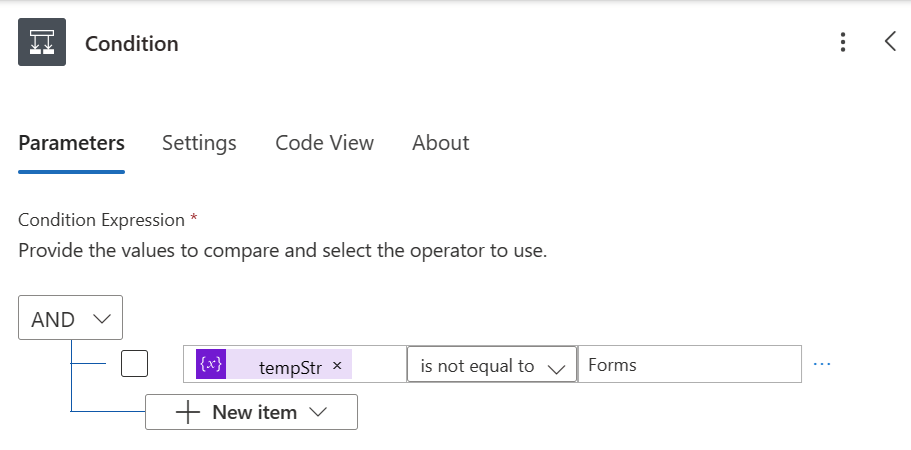
Inside of the TRUE condition block, for each array record, extract the client’s name, city, state abbreviation, and postal code from the temporary string variable:
E.g., extracting the client’s name.
trim(
   last(
      split(variables('tempStr'), '-')
   )
)
Perform similar extractions and set the other values to their respective flow variables, then create the document set in the target document library.
Another interesting quirk, the cloud flow hung when trying to Create new document set if the item already existed. To avoid this, add a Get folder metadata by path action before the create action and only create if this action fails:

Honestly, a flow variable for each value isn’t necessary, but it does make things easier when creating the document set. Because the values have already been set to their respective variables, just plug in each variable for the corresponding metadata column in the Create new document set action:
E.g., variable clientFolderName is the name of the new document set.

FYI, for the document set check action, use the Get folder metadata using path action because again, document sets are still folders, just more fancy folders:

Conclusion:
Making the move to metadata isn’t easy. Shifting from folders with long, descriptive names to document sets could be an easier transition, though. With enough easy wins, metadata eventually gets its foot in the door and more organizations can adopt flatter architecture.
“You have the right to be involved. You have something important to contribute, and you have to take the risk to contribute it.”
Dr. Mae C. Jemison
#BlackLivesMatter
 console.log('Charles');