Some time ago, I architected a low-cost “service management”-esque app combining Microsoft Teams, SharePoint Online (SPO), and Power Automate. As a Power Platform low-code solution, I could piece everything together and demo a working ticketing system in a few hours.
However, I never packaged the deliverable as a Power Platform managed solution, adhering to proper application lifecycle management. Because I have environments provisioned for development (DEV), quality assurance testing (QAT), and production (PROD), I should have created similar channels in my team:
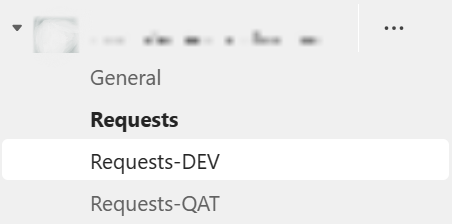
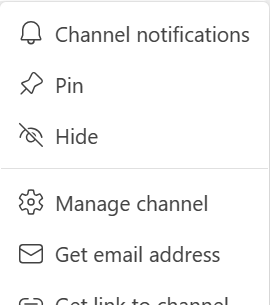
Just as with the production “Requests” channel, select the ellipsis menu and choose Get email address. Each channel will have its own unique email address, as well as a newly created folder in the SPO document library for received files. Also, choose Get link to channel, and save the link for each channel:
Okay, that wraps up part one of the deliverable. For testing, I decided to send a dummy email to the DEV channel:
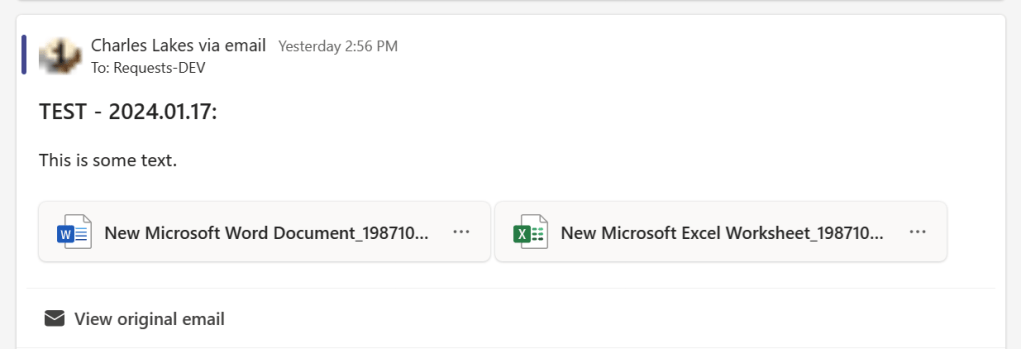
After the message posts to the team channel, I can confirm that the .eml file has been successfully uploaded to SPO in the background. Two things to note:
(1) Uploaded files are suffixed with unique Id values, distinguishing them from other received files, preventing duplicates.
(2) However, emails share suffix values with their attachments, making it easier to group related files:
- E.g., 1987108616

Okay, now I should create my managed solution. From the Power Apps portal, select Solutions and create a new solution, include the necessary connection references, then add an environment variable for the Microsoft Teams channel Id. Using an environment variable, I can change the Id in QAT and PROD, ensuring the Power Automate cloud flow points to the correct channel.
In “Classic Teams”, the channel Id references Skype:
19%3B1364c7d57125417681147ae487764607%40thread.skype
Extracting the Id and decoding the value, it becomes:
19:1364c7d57125417681147ae487764607@thread.skype
However, in “New Teams”, the channel Id looks like:
19%3A54e82d5e7eec4ee98691d3bae39e2ad8%40thread.tacv2
And decoded, it becomes:
19:54e82d5e7eec4ee98691d3bae39e2ad8@thread.tacv2
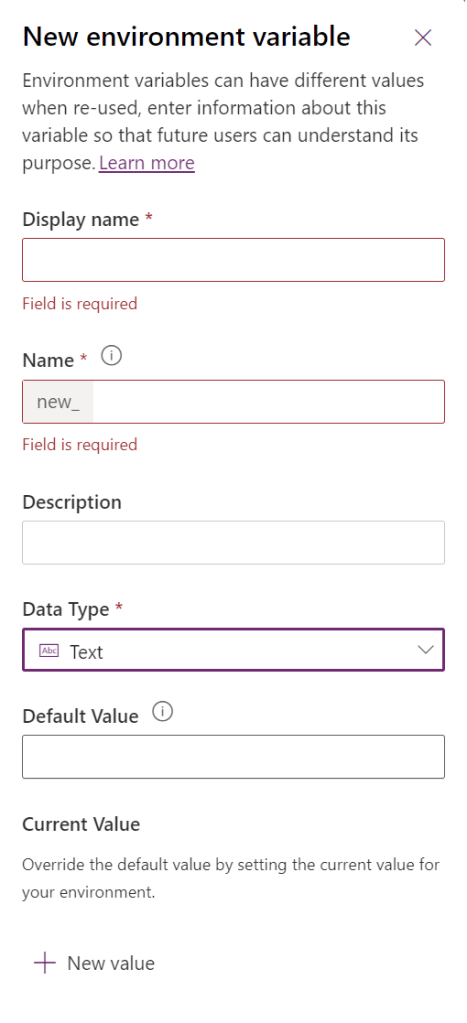
Finally, add a new Power Automate cloud flow to the solution. Ultimately, the flow will use three connection references:
- SharePoint Online
- Microsoft Teams
- SendGrid (or service for email)

Kicking things off, this cloud flow uses the Microsoft Teams trigger for a new channel message. Specify the team, but use the environment variable for the channel Id:

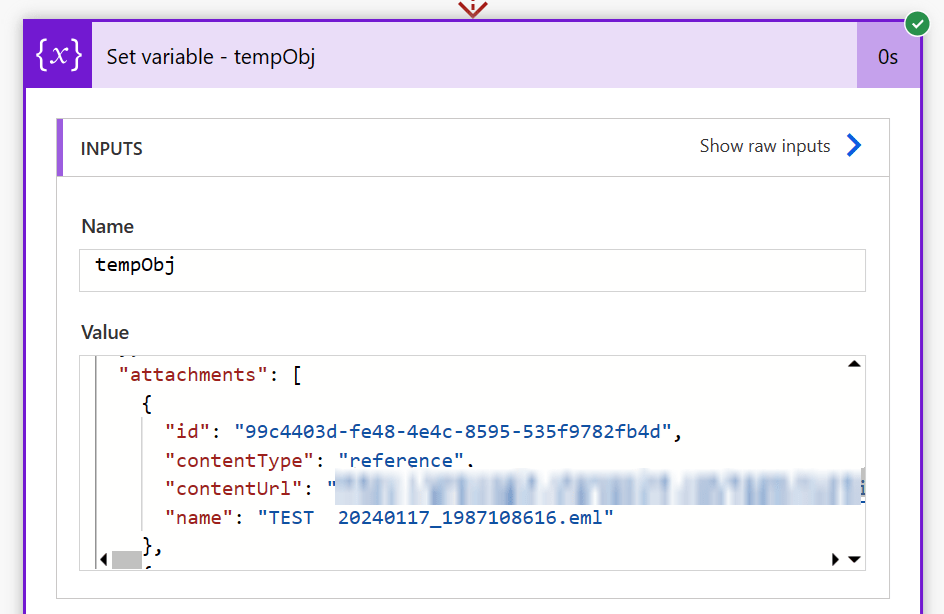
Not a required step, but helpful nonetheless, I created an object variable called tempObj after my trigger. Here, I’m storing the data body of the Microsoft Teams trigger output for use later in the flow:
Onward to the remaining cloud flow logic. This process is triggered whenever an email is received because it posts a message to the target Microsoft Teams channel. From newly posted messages, filter the attachments and get the .eml file, which is helpful for populating the SPO list item fields. After the list item is created, filter and iterate the remaining attachments, then add them as list item attachments:
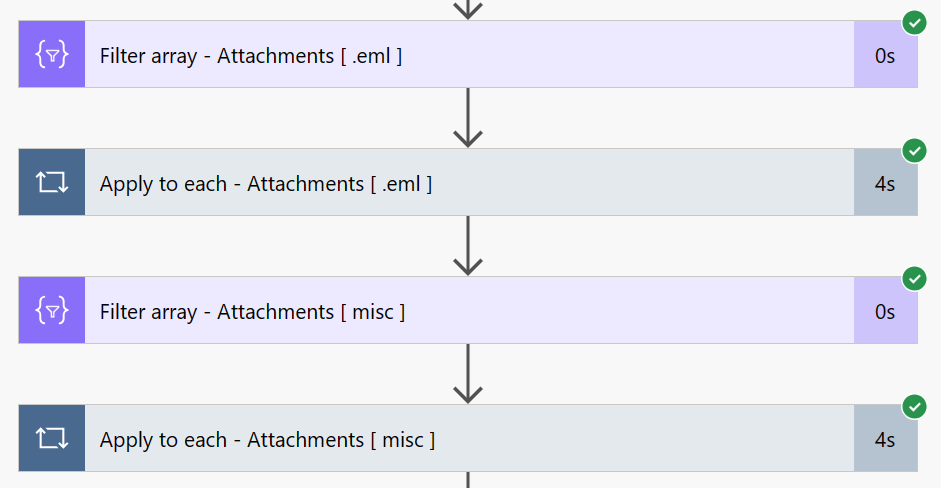
Add the Filter array control and get the .eml file, using “ends with” as the condition, which checks for the file extension. To get the regular attachments, just negate the condition:

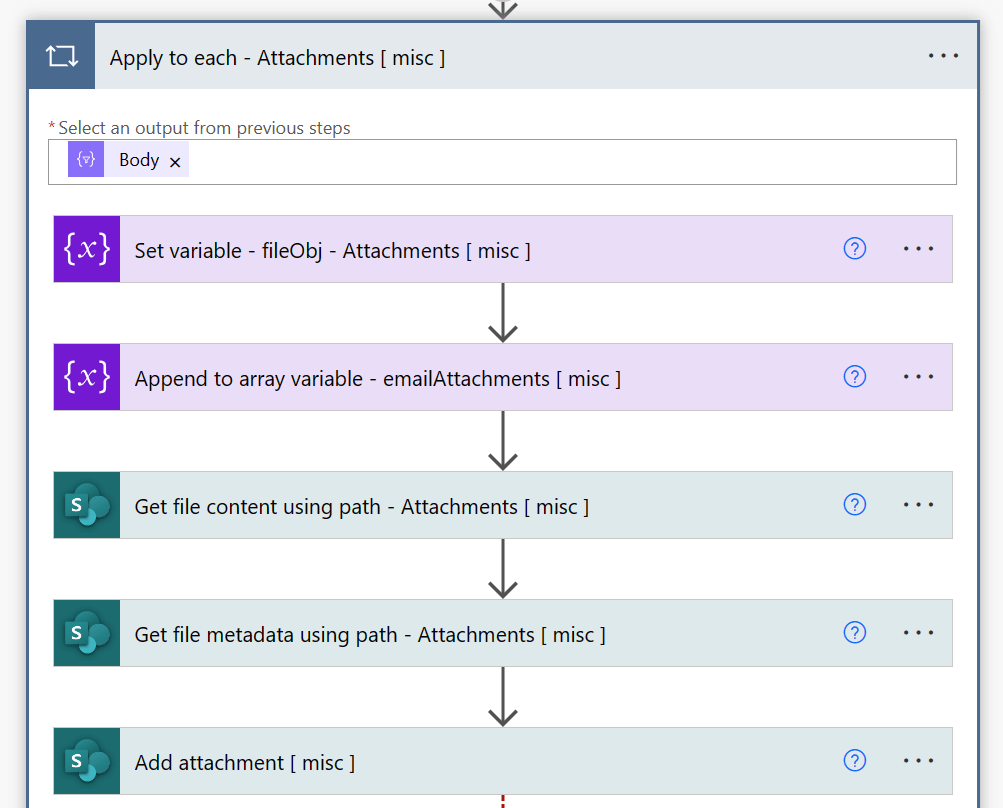
When processing the remaining attachments, and making it easier for end-users to work with the list items, I get the contents of each, then add them as attachments to the SPO list item:
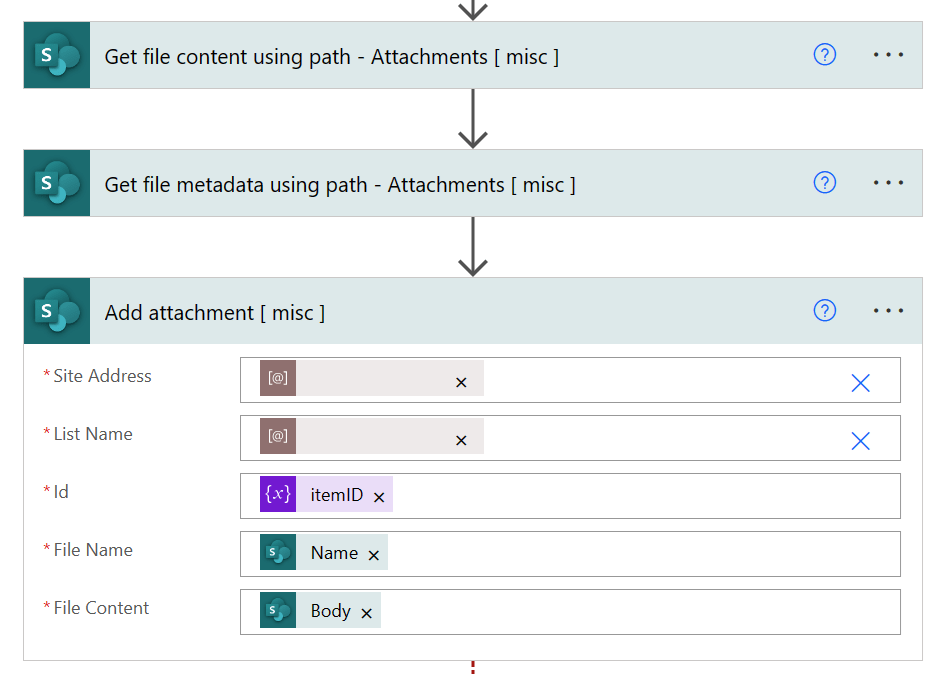
To add an attachment, provide the target SPO site address, target site list, the target item Id, name of the attachment, and the content of the attachment:
Finally, test again. The cloud flow is pointing to DEV, but the solution can be deployed to QAT, then PROD. Just remember to update the environment variable value in each deployment. The managed solution has connection references, an environment variable for the Microsoft Teams channel Id, and a Power Automate cloud flow.
Conclusion:
Packaging the app as a managed solution adheres to better application lifecycle management. This way, I’m able to slowly introduce enhancements without worrying about crashing the PROD app.
“I believe unconditionally in the ability of people to respond when they are told the truth. We need to be taught to study rather than believe, to inquire rather than to affirm.”
Septima Poinsette Clark
#BlackLivesMatter
 console.log('Charles');