Scenario: There is a canvas app with a text box, two radio choices, a vertical gallery, and two data sources. Toggling the radio button changes which data source is filtered and used to populate the gallery.
Problem: The data sources don’t have any data columns in common and Power Apps doesn’t like that.
Solution: Create a data column for the data sources to share within the app.
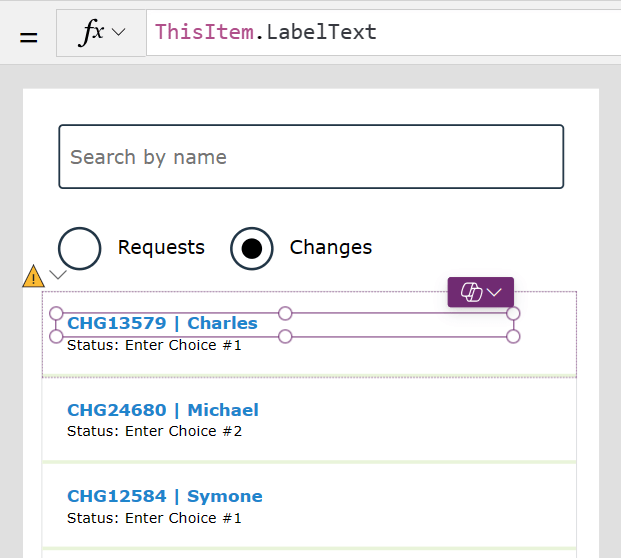
Because the data sources don’t have any columns in common, one needs to be created. Important to note, this only shapes the data within the canvas app. The data tables in their data sources aren’t impacted whatsoever. For simplicity, create a new column titled “LabelText” using the AddColumn() function. This dynamic column is added to the app’s local instance of the data:
AddColumns(
    "NameOfNewColumn",
    "ValueOfNewColumn"
)
AddColumns(
    "LabelText",
    ThisRecord.ProductName
)
In this scenario, the data sources are (1) a list of change tickets and (2) a list of support requests. The changes are largely deployments into the production environment. The requests are general asks for IT Support, whether it be password resets, permission issues, etc.:


Because changes typically involve code deployments, they require different information to be collected and tracked than general support requests:
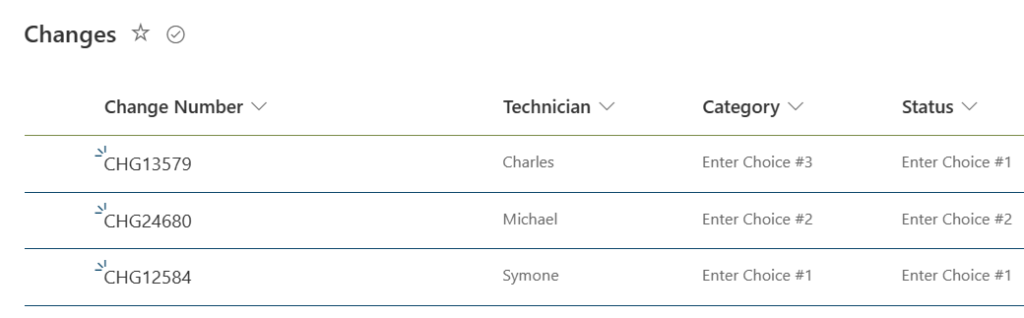

Adding the two lists as data sources to the canvas app, they’re used to populate the vertical gallery. The input of the text box is used to filter each of these data sources. If the radio button is toggled to “Requests”, then filter and return the results of the first data source. Otherwise, filter and return the results of the second data source, while also adding a new column to be shared by each data source, LabelText:

With the vertical gallery items toggling between data sources with a common column, run the app and search for a name:


Conclusion:
Vertical gallery data sources can be dynamic, but there needs to be a column or two shared amongst the sources.
“In order to see where we are going, we not only must remember where we have been, but we must understand where we have been.”
Ella Baker
#BlackLivesMatter
 console.log('Charles');