Canvas apps are Microsoft‘s low-code business apps of the Power Platform, capable of interacting with data from a variety of data sources. Keeping that in mind, app makers should design their apps with data refreshes in mind because after the initial app start, users are working with copies of the loaded data, not live data. Any and all changes made to the external data sources are not reflected in the app until users close and reopen their apps, unless the app is intentionally designed to refresh these data connections. But should the data refresh be on-demand or scheduled via a timer?
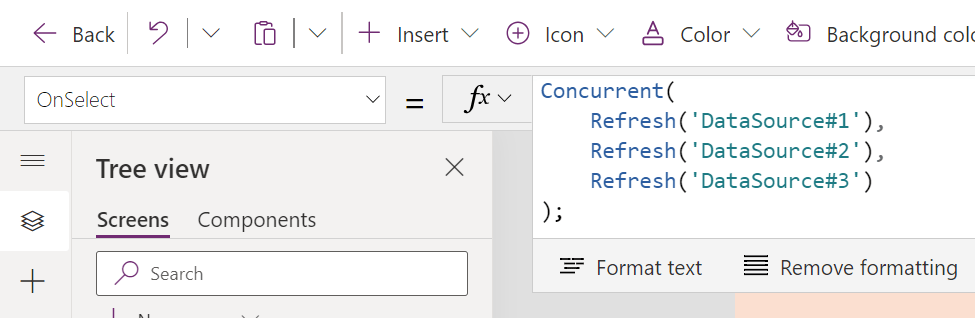
To make data refreshing easy, Power Fx offers a Refresh() function. The function accepts a single data source as its parameter which lets app makers refresh individual data connections. For an on-demand data refresh, apps typically have refresh buttons and/ or icons, both having an OnSelect property, perfect for the data refresh action(s):
E.g., insert the Reload icon.

Tip: Use the Concurrent() function to refresh multiple data sources asynchronously. Otherwise, the data sources are refreshed sequentially. Sequential isn’t necessarily bad, but if DataSource#1 takes a while to refresh, then the app is stuck waiting for it to finish before it can refresh DataSource#2, then finally refresh DataSource#3. Alternatively, doing the refreshes concurrently kicks each action off at once.
E.g., OnSelect property of icon.
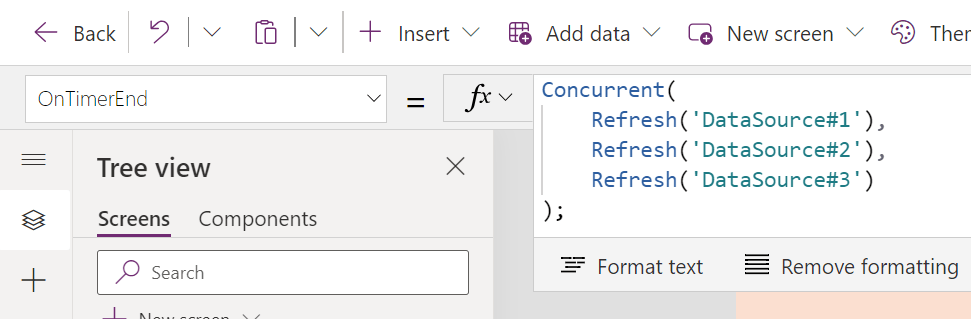
Now, if on-demand data refreshing isn’t preferred for whatever reason, then schedule the data refreshes using a Timer control. Though, this control doesn’t have an OnSelect property. Instead, use the control’s OnTimerEnd property:
E.g., insert Timer control.

E.g., OnTimerEnd property of control.
Also, configure the Timer control to auto start and repeat, then specify the timer duration, which is measured in milliseconds:
E.g., additional properties of Timer control.

Conclusion:
Each approach has its pros and cons but do what is best for the user experience.
“To deny people their human rights is to challenge their very humanity.”
Nelson Mandela
#BlackLivesMatter
 console.log('Charles');