The Power Platform is Microsoft’s collection of low-code, citizen developer solutions. Being low-code, makers don’t need coding experience to build their apps, bots, automations, and/ or dashboards. Even so, makers still need to decide where their data should ultimately live.
For most people, SQL is typically the go-to data storage consideration. And honestly, SQL isn’t a bad choice. SQL is easily the backend of thousands of other solutions. However, to use the SQL Server connector in the Power Platform, makers MUST have a premium license because Microsoft categorizes it as a premium connector. Also, everyone using the app needs to be licensed as well, so expenses can quickly add up in total licensing costs. For those needing to be more cost-conscious, an alternative approach is to use Microsoft Lists, which are SharePoint Online [SPO] lists behind the scenes.
Acknowledging that SPO isn’t the perfect data source, it does get the job done. Especially for those new to the Power Platform. More seasoned makers might prefer building their solutions using Microsoft Dataverse, but SPO is sufficient to get started. So, why are SPO lists suitable data sources?
Well, SPO lists are actually structured like data tables. Imagine a database with a collection of data tables. There could be a People table, an Addresses table, Invoices table, etc. Surprisingly enough, that maps directly to SPO. Instead of a database, imagine a SPO site with lists for People, Addresses, Invoices, etc.
E.g., create lists from scratch, existing lists, Excel files, CSVs, or list templates.
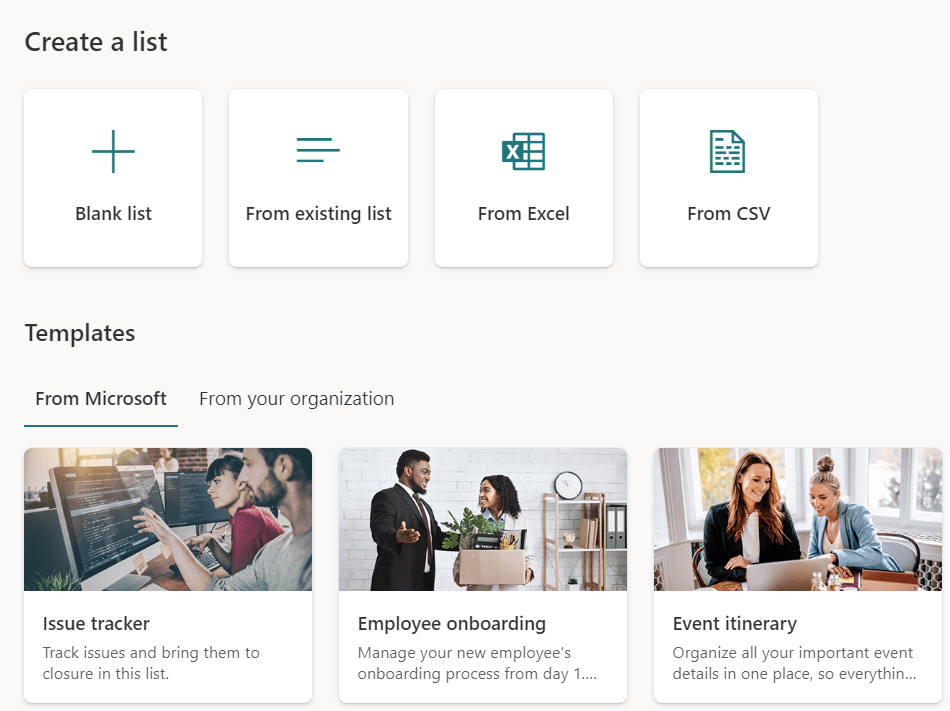
To quickly visualize a sample list with data, choose and select a Microsoft-provided list template. Note that the data is presented in a table format with several prepopulated columns.
E.g., list to track work progress.

Also, similar to SQL, list data is returned as a data view. There is a single default view, but makers can create additional views to order, filter, and group their data differently. However, unlike SQL views, these SPO List views can be easily updated via the UI.
E.g., toggle which columns are visible, change their order, and apply filters.

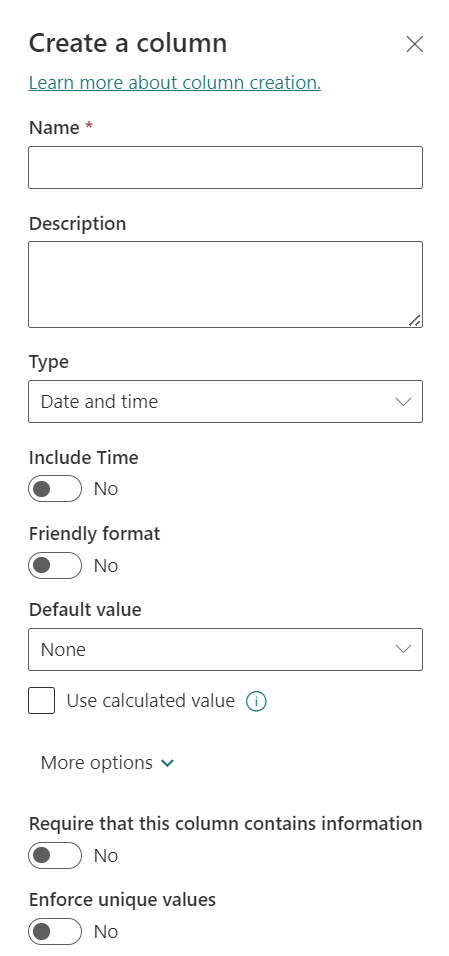
Another perk to using SPO lists, the column data types can be strongly enforced and validated. Also, lists are bundled with prebuilt forms to create new items, edit existing items, and view individual list items.
E.g., create columns as text, number, choice, date, etc.

Create a Column Examples:


One more reason why SPO Lists work well as data sources, list columns can be indexed. And makers don’t need database experience to do so. With some elevated list access, open the list settings and specify which list columns to index, which helps to optimize large datasets.
E.g., index simple columns like single line text, numbers, date and time, and person.

Conclusion:
Keeping solutions built with the Power Platform low-code, Microsoft Lists are a low-code data option. With it, makers can build almost any solution and remain low-code.
“You’re not supposed to be so blind with patriotism that you can’t face reality. Wrong is wrong, no matter who says it.”
Malcolm X
#BlackLivesMatter
 console.log('Charles');