!JeOpArDy was my last canvas app game, so it’s been a while. Working on another canvas app, I wanted to give “Nerdle” a try. Important to note though, I’m only replicating maybe 80% of the game. With this in mind, puzzles are hardcoded and not loaded from an external source. Also, keeping this post from being too lengthy, not everything is detailed here. However, the canvas app .zip is available for download on my GitHub, for those interested.
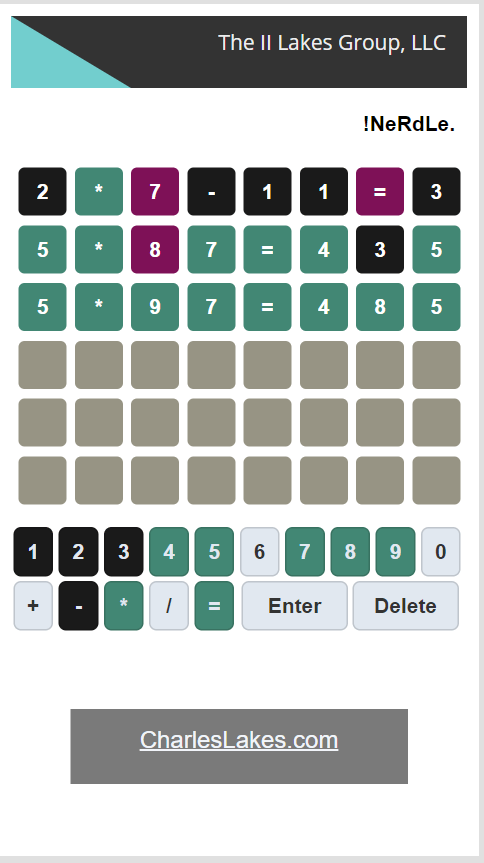
Providing a quick overview of “Nerdle“, instead of guessing words in six guesses like “Wordle“, you’re guessing arithmetic problems. Numbers and operators are defaulted to a pale, gray color. Incorrect guesses turn black, correct guesses with proper placement turn green, and correct guesses with incorrect placement turn purple:
Building out the canvas app, the project has two screens:
- Screen #1: Home screen to play the game.
- Screen #2: Hidden screen for the game colors.

Now, before building any of the core game logic, initialize some game variables in the OnStart property of the app.
There are three variable groups:
- Group #1, track the number of guess attempts and the current guess key presses.
- Group #2, track the game state. Is the game over? If so, did the person win or lose?
- Group #3, create collections for hard-coded problems and the player guess attempts.
//  Initial guess variables
Set(vGuessCount, 1);
Set(vGuessPresses, "");

//  Initial game Booleans
Set(vBoolGameOver, false);
Set(vBoolGameWon, false);
Set(vBoolGameLost, false);

//  Initial equations
Set(vIndexOf, Weekday(Now()));
ClearCollect(vArrayOf,
    {  Index: 1,
        Equation: "7*8-6=50" },
    { Index: 2,
        Equation: "24/6+5=9" },
    { Index: 3,
        Equation: "123/3=41" },
    . . .
);
ClearCollect(vGuessOf,
    { Index: 1,
        Equation: "        " },
    { Index: 2,
        Equation: "        " },
    { Index: 3,
        Equation: "        " },
    . . .
);
With the game variables initialized, start designing the game layout. Because “Nerdle” gives players six guesses, the screen needs a vertical gallery with six items, which creates six rows:

And to create the 8×6 grid, nest a horizontal gallery inside the vertical gallery with eight items, because each problem is a combination of characters (operands, operators, and a result):

As the canvas app gradually comes together, it doesn’t have to be pretty yet. Add labels and text inputs with bright colors as you like to track values, calculations, statuses, etc. Resuming the app structure build, add another horizontal gallery to the screen, but beneath the earlier, vertical gallery. This third gallery control will be for app number and operator buttons. With a wrap count of 10, set the Items property to a split string and insert a button control:
Split("1234567890+-*/=","")

Again, things don’t have to be pretty at this stage. Add contrasting colors to distinguish elements. Now, work on some button OnSelect actions. Each time a number button is pressed, append the values to the vGuessPresses variable. And for the nested gallery of guesses, update the text input’s Text property of the input controls of the horizontal gallery. . .
If(vBoolGameWon = false &&
    vBoolGameLost = false,
    Set(vGuessPresses,
        With({
            vCurrentText: vGuessPresses,
            vCurrentPress: ThisItem.Value
        },
            Concatenate(
                Left(vCurrentText, 7),
                vCurrentPress
            )
        )
    )
)
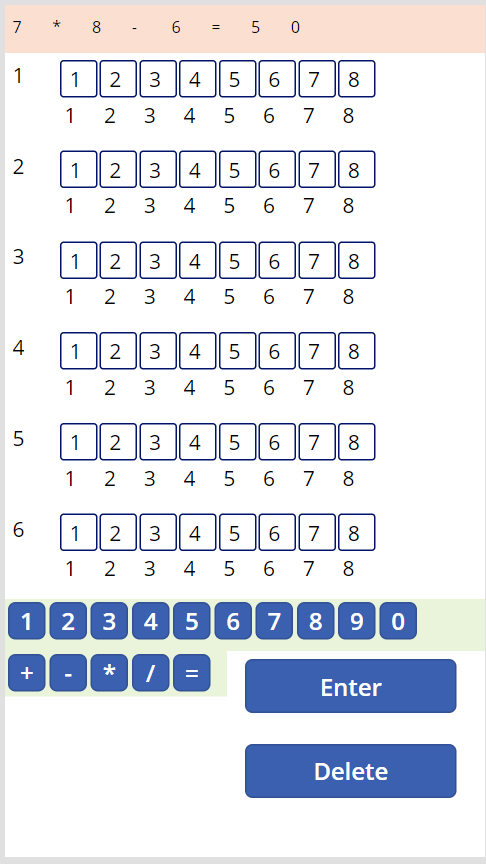
Playing around with the layout a bit more, I temporarily added label control along the top of the app to preview today’s hardcoded problem. Then, created a label inside the nested horizontal gallery to track player guesses. This label will be hidden later, but for now, I used it to track each character of the guess, then changed its Text property to specify whether not there is a match:
With({
    vIndex: ThisItem.Value,
    vGuessText: lblHiddenEquationGuess.Text,
    vActualText: lblHiddenEquationActual.Text
},
    With({
        vGuessChar: Last(FirstN(Split(vGuessText, ""), vIndex)).Value,
        vActualChar: Last(FirstN(Split(vActualText, ""), vIndex)).Value,
        vActualSplit: Split(vActualText, "")
    },
        If(vGuessChar <> vActualChar,
            If(CountRows(Filter(vActualSplit, Value = vGuessChar)) = 0,
                -1, // Nowhere in equation
                1 // Elsewhere in equation
            ),
            0 // Exact match
        )
    )
)
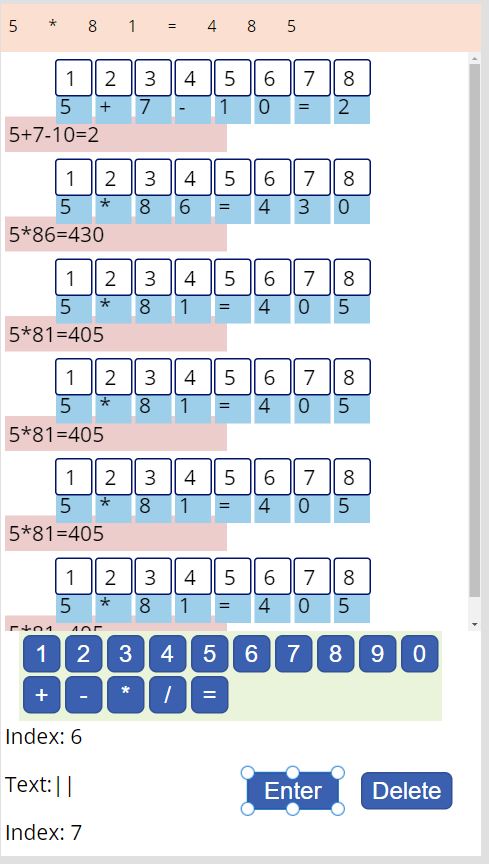
Using the newly hidden label Text property, set the Fill property of the text inputs. If there are no guesses, then use the default gray fill. Otherwise, use a Switch() function to toggle the fill:
If(Int(lblHiddenRowCount.Text) >= vGuessCount,
    AppColorGray.Fill,
    Switch(Int(lblHiddenGuessBit.Text),
        -1, AppColorBlack.Fill,
        0, AppColorGreen.Fill,
        1, AppColorPurple.Fill
    )
)

Tweaking the above snippet, set the Fill property of the number and operator buttons:
With({
    vChar: ThisItem.Value,
    vActual: Trim(lblHiddenEquationActual.Text),
    vGuess: Concat(vGuessOf, Trim(Equation), ";")
},
    With({
        vFoundInActual: (Len(Find(vChar, vActual)) <> 0),
        vFoundInGuess: (Len(Find(vChar, vGuess)) <> 0)
    },
        If(vFoundInActual = false && vFoundInGuess = true,
            AppColorBlack.Fill,
            If(vFoundInActual = true && vFoundInGuess = true,
                AppColorGreen.Fill,
                AppColorBlue.Fill
            )
        )
    )
)
Finally, update the OnSelect of the “Enter” button. If the player runs out of guesses, then they lose. Else, they won!
If(vBoolGameWon = false && vBoolGameLost = false,
    If(lblHiddenEquationValid.Text = "true",
        If(Len(vGuessPresses) = 8,
            Patch(vGuessOf,
                LookUp(vGuessOf, Index = vGuessCount),
                { Equation: vGuessPresses }
            );

            Set(vBoolGameWon, (vGuessPresses = lblHiddenEquationActual.Text));
            Set(vBoolGameLost, (vGuessCount >= CountRows(vGuessOf)));
            Set(vBoolGameOver, (vBoolGameWon || vBoolGameLost));

            Set(vGuessCount, (vGuessCount + 1));
            Set(vGuessPresses, "");
        )
    )
)
Conclusion:
Games are great ways to stretch the capabilities and your understanding of Power Fx. Can it do this? Can it do that? How about this other thing?! Give it a try…
“A man is either free or he is not. There cannot be any apprenticeship for freedom.”
Amiri Baraka
#BlackLivesMatter
 console.log('Charles');