Application lifecycle management is the governance, deployment, and maintenance of applications. Even though the Power Platform is “low-code”, makers should still adopt the practice. More specifically, when deploying their projects as solutions across environments. So, what are solutions and what are environments?
Solutions are bundled project assets. In the Power Platform ecosystem, these project assets can be canvas apps, cloud flows, connection references, environment variables, etc. Once bundled, these solutions can be copied to other environments, and bring their project assets along for the ride.
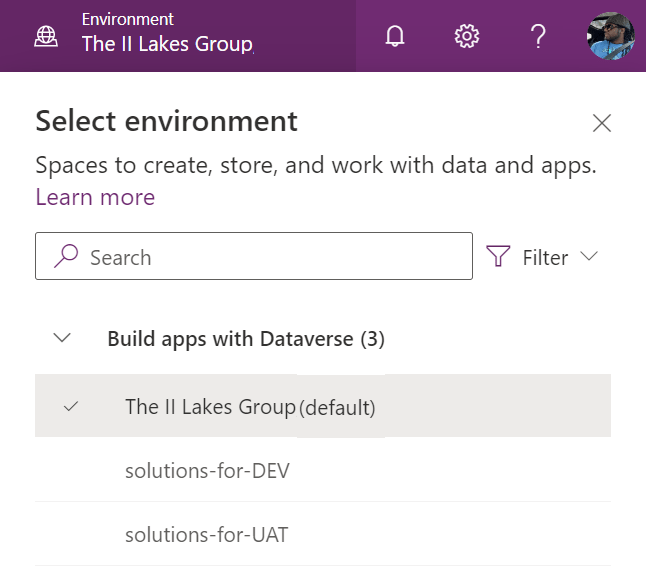
Environments are the dedicated spaces for the solution to live. There can be dozens of environments, but at minimum, there are usually three:
- DEV (or TEST)
- UAT (or QA)
- PROD
Build and test everything in DEV first. If something goes wrong, scrap it and start again. Deploy to UAT when solutions are ready for end-user testing and quality acceptance, before finally being deployed to PROD for the larger end-user audience.
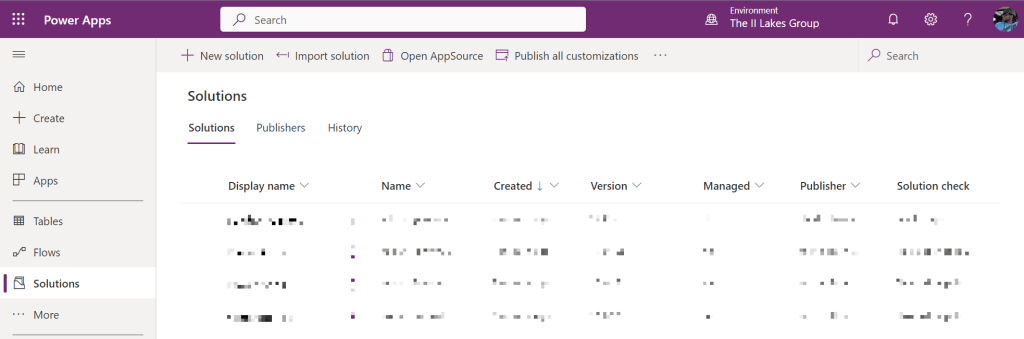
Now, to start working with project files, select Solutions in the left-hand menu of the Power Apps landing page. There may be a few Microsoft-provided solutions already populated, but this is where all solutions of the current environment are listed.
Along the top of this screen, makers can choose to create a New Solution, which walks them through creating a solution, or Import solution, which prompts them to upload a copy of a project from another environment to the current environment. Though, if the solution already exists, then the upload wizard will prompt the maker to either upgrade or update their project.
Selecting and opening a solution, makers can review all of the project assets. If the solution is unmanaged, then these assets can be modified and additional assets can be bundled. But if the solution is managed, everything is essentially read-only. Changes are to be made in the original solution and imported again, which is helpful for deploying approved solutions to UAT and PROD. Editable copies of a project shouldn’t live into too many places:

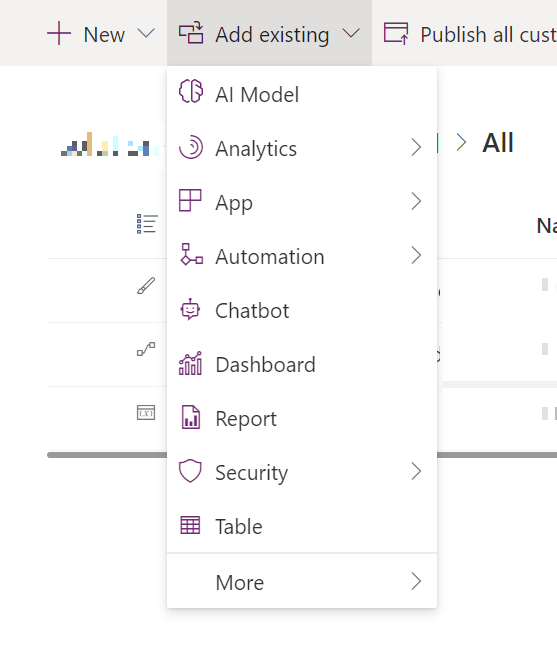
For new and unmanaged solutions, makers can create New or Add existing project assets. Besides apps, flows, and bots, makers can include Table, Report, Choice, Component Library, Connection Reference, and Environment variable objects to augment their Power Platform projects:

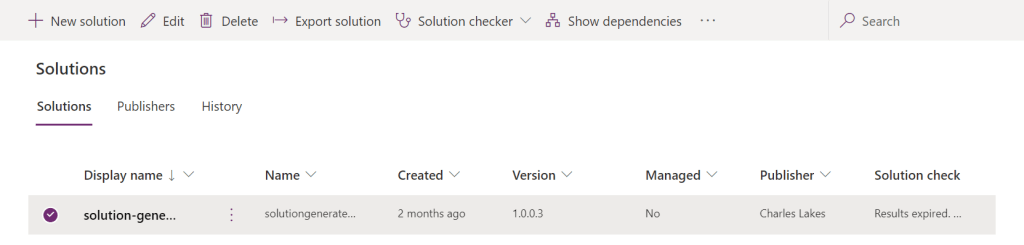
Finally, with the solution ready to deploy, return to the top-level Solutions view, select the solution in question and choose to Export solution, which exports the project to a .zip file. This .zip file is then imported into other environments, hopefully as a managed project. Doing so ensures only approved changes are copied between environments, following proper application lifecycle management. When changes are requested, build in DEV, get them approved in QAT, then deployed to PROD:
Conclusion:
Solutions are ideal for managing Power Platform projects between environments. Build and manage in one environment, then deploy to others as necessary, but only make changes in the single environment as the single source of truth. Otherwise, people are forever cursed to compare and contrast solution versions, to track where changes need to be properly implemented.
“Remember to keep yourself alive, there is nothing more important than that.”
Afeni Shakur
#BlackLivesMatter
 console.log('Charles');
Pingback: Power Automate: Ticketing System | Microsoft Teams + SharePoint Online [managed solution] | console.log('Charles');