Power App canvas apps are easily personalized, but at the moment, not as easily styled as websites. Web developers can share and reuse their stylesheets across projects. Canvas apps, not so much. Even so, there are some similarities with styling scopes. There are three approaches to personalizing and branding canvas apps…
Approach #1: Inline
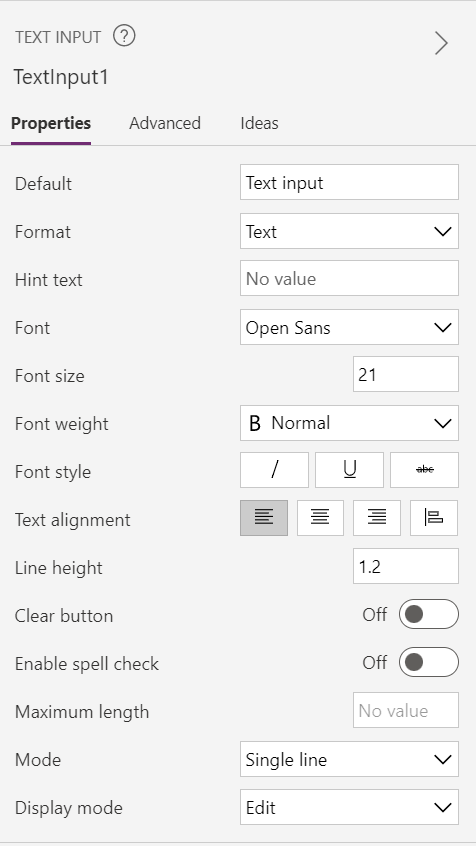
Every control has properties, and these properties can be updated via the right-hand property pane, like a text input’s:
- Default value,
- Font weight,
- Hint text,
- etc.
The pro, every screen control can be uniquely formatted. For many single-screen apps, this is perfect!
The con, when every control is uniquely formatted, it can become tedious when updates need to be implemented. Even more so with multi-screen apps. Yes, controls can be multi-selected and have their properties modified en masse, but that is per screen. Again, changes become a bit more complicated with multi-screen apps.
Approach #2: Internal
Quickly reiterating, “inline” styling isn’t ideal for multi-screen apps. Instead, makers should adopt an “internal” styling approach and use control references. Makers can create “hidden” app screens, which app users can’t navigate to, and add their personalized controls for other screen controls to inherit from.

For an example of a control reference, add an input control to the hidden screen, title it, personalize it, then use it to format other input controls on other app screens. With other screen controls referencing this hidden, personalized control, they are immediately updated whenever the hidden control is updated:
E.g., referencing Font property of hidden control.

Approach #3: External
Lastly, there is an “external” styling scope approach. Using “inline”, app makers can personalize each and every control, but this isn’t ideal for multi-screen apps or quick style changes. Using the “internal” approach, makers can update dozens, if not hundreds, of controls at once as long as these controls are referencing the hidden, branded controls. However, these changes are app specific. Alternatively, makers can reference “external” styles in their apps using component libraries, which can be shared across environments and used in dozens of apps.
Component libraries are useful because they have output properties of simple data types like Text, Number, and Date and time values. But components can also output more complex data objects like Record, Table, Image, and Screen values:

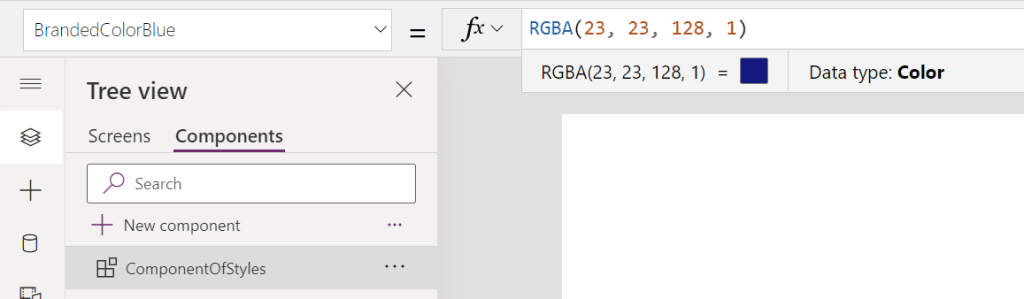
For this component, the app controls need to be branded with the company colors. Create an output property and choose Color as the property type. With the property created, assign a new color to the default property value, then reference it in the canvas app. Now, if there is a branding change, the changes are made in the component library and individual makers can choose to inherit the pushed changes in their apps, which would update every control referencing the component color property:

Conclusion:
There are a few ways to personalize apps and app screens. The number of environments, number of apps, number of screens, and the rough number of controls will help determine which option is better for long-term app management.
“Proud to take a knee, and to stand tall against social injustice.”
Bill Russell
#BlackLivesMatter
 console.log('Charles');
Pingback: Power Apps: Canvas App | Best Practices + Tips | console.log('Charles');