Power Automate is versatile. As the automation engine of the Power Platform, it can connect with dozens of data sources to build repeatable work processes. And to enumerate datasets of these data sources, the Apply to each control is used to loop through the data records. But as datasets grow, expect the flows to take longer to process loop actions.
Longer duration times are expected with larger datasets, so this isn’t necessarily a bad thing. Still, flow makers can be proactive and optimize their loops where possible. How? By enabling concurrency and taking advantage of parallelism, which essentially multithreads the Apply to each control actions. Imagine a simple Power Automate flow iterating 160 SharePoint Online list items sequentially. This results in an average duration time of 21 seconds:


Honestly, 21 seconds isn’t bad. But what if things could be faster? Click the three dots (. . .) of the Apply to each control block, then click Settings:

Now, concurrency is turned off by default. Turning it on uncovers a slider control, which specifies the loop’s Degree of Parallelism. Instead of sequential processing, this tells Power Automate to process several loops at the same time. To a point, the dataset is now processed in batches, thus reducing the flow’s duration time:

NOTE: If loop actions need to be iterated in a specific order, then do not enable concurrency. With parallelism, Power Automate multithreads things as it sees fit.
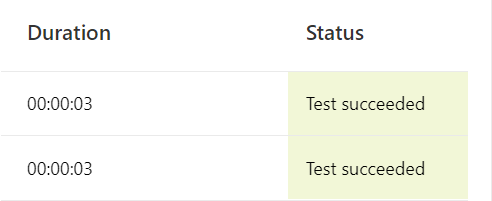
With concurrency enabled, the 21 second duration time easily drops to 3 seconds.
Conclusion:
Enable parallelism when it doesn’t matter the order in which data items are processed. This optimizes the flow, but also reduces the duration times. Not much of an impact with smaller datasets, but flow makers can get ahead of future larger datasets.
“The thing about Black history is that the truth is so much more complex than anything you could make up.”
Henry Louis Gates
#BlackLivesMatter
 console.log('Charles');