Cost-conscious businesses typically have narrow profit margins. And because of that, they’re likely hesitant to purchase too many third-party app licenses for their employees. Luckily though, if their employees are already licensed for Microsoft 365, then a handful of tech-savvy business users could build many of these apps in-house using Microsoft Lists.
As the name implies, Microsoft Lists is an app to track and organize lists of items. Essentially an Excel worksheet-like experience, but with better data integrity and more robust security. Also, as with Excel workbooks, lists can be created from scratch or created using a template. But more similar to SQL tables, list data can be ordered, sorted, formatted, and grouped many, many different ways using “views“.
Getting into things, Microsoft has endowed Lists with a lot of power out-of-the-box. However, OOB isn’t the end all be all. Those previously mentioned tech-savvy business users can customize their lists by applying some JSON formatting. For them to do so, create a new List using one of the Microsoft provided templates. Or use an existing list:

Note that the Microsoft-provided template comes with some JSON formatting already applied. E.g., the choice column colors for Category and Progress:

Diving in though, click the New button and open the right-hand pane. By default, the list columns are vertical and relatively vanilla, but can easily be tweaked:

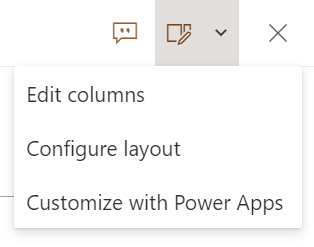
To customize this list form, click Configure layout, along the top-right corner of the New item pane:
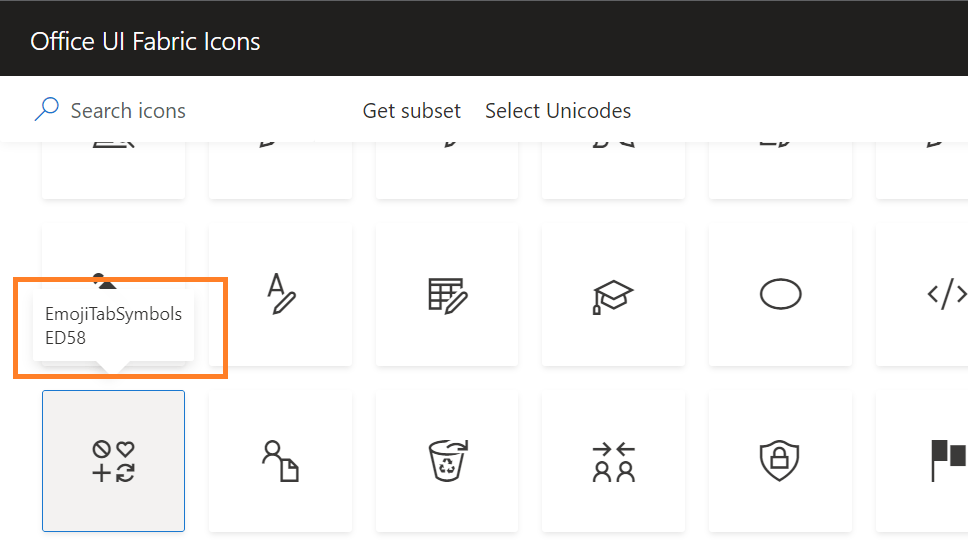
The list form JSON is simple to apply. With minimal effort, the savvy business users can insert headers and footers using some declarative JSON. And when applicable, include icons by referencing them by name:
"children": [
    {
        "elmType": "div",
        "attributes": {
            "iconName": "EmojiTabSymbols",
            "class": "ms-fontSize-42 ms-fontWeight-regular",
            "title": "Details"
    },
    ...
]
Building on the form header and footer, JSON can also be used to create list form sections. To group list columns into a section, with or without a provided displayname, reference the list fields using either their internal or display names. This shifts the layout away from a vertical-only display. Important to note though, no more than four columns can be on a single row before they wrap:
{
    "displayname": "Section #2",
    "fields": [
        "Progress",
        "Priority",
        "StartDate",
        "Due date",
        "Assigned to"
    ]
}


FYI, find these JSON samples and more on my GitHub.
Conclusion:
Microsoft List templates address many common scenarios, but not all. If there isn’t a template available, or even if the template isn’t just quite right, power users can customize the list to fit their scenario, and reduce expenditures on third-party app licenses…
“History isn’t something you look back at and say it was inevitable, it happens because people make decisions that are sometimes very impulsive and of the moment, but those moments are cumulative realities.”
Marsha P. Johnson
#BlackLivesMatter
 console.log('Charles');