Microsoft Lists are powerful. Especially when they’re used to organize things like project tasks, support requests, product logs, etc. But regardless of the list’s purpose, lists are created for either the individual or the group. If the individual, then the list is created in that person’s [OneDrive for Business] site. Otherwise, the list is saved to one of their [SharePoint Online] team sites. All the same, Power Automate developers need to use the SharePoint connector to work with this list data…
When creating new lists via the Microsoft Lists web interface, the default Save to location is My lists, the individual’s OneDrive:
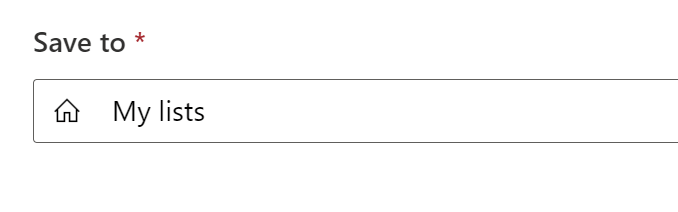
However, expanding the dropdown, there are some recommended SPO team sites. For team sites not listed, just add the site path as a custom URL:

With the lists created, open the Power Automate portal, create a cloud flow, then add a SharePoint trigger.
- E.g., When an item is created.
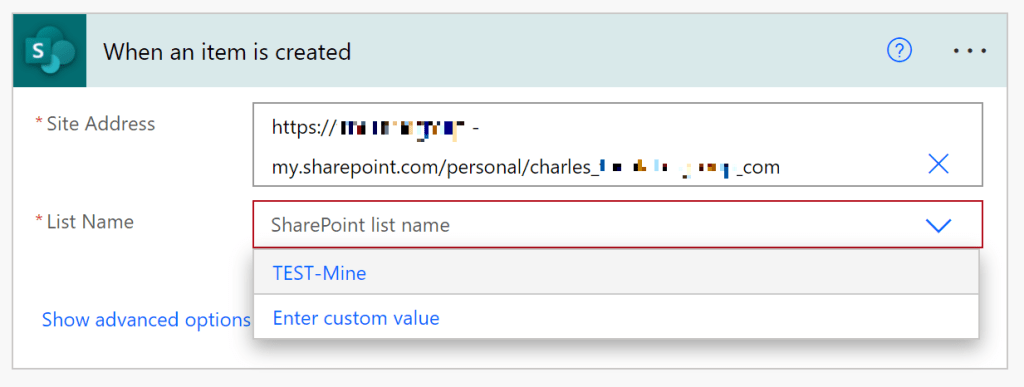
If the list was saved to My lists, then Enter custom value and provide the target OneDrive site path. Else, provide the target SPO team site path:
Conclusion:
OneDrive for Business sites are SharePoint Online sites. They’re created using different site templates under a different managed path, so features will differ, but for Power Automate flows, lists are manipulated using the same connectors, regardless of their parent site template.
“The difference between treason and patriotism is only a matter of dates.”
Alexandre Dumas
#BlackLivesMatter
 console.log('Charles');