Microsoft Lists is growing in popularity. As the solution is augmented using Power Automate, citizen developers should know that [SharePoint Online] is the backend of Lists. With this in mind, remember that List flows are built using SPO triggers and actions.
As these lists grow in size, large datasets need to be queried and iterated as efficiently as possible. Unless necessary, don’t loop through and process every item. Instead, use the Filter Query property of the Get items action and work with data subsets:

FYI: The SP2013 REST API filter resource is still a valid reference.
Before getting started, it is also important to note that ODATA filters require the column internal names, not their user-friendly display names:

To find the internal name of a column, open its settings page via the respective list/ library settings, then look for the $Field= parameter of the query string:

Now, using the column internal name, slice the dataset with one or more filters. For Single line of text columns, eq, ne, ge, gt, le, and lt are literal matches. Use substringof() and startswith() for wildcard and partial matches:
substringof('Char', First_x0020_Name)
startswith(First_x0020_Name, 'Char')
NOTE: Spaces are encoded as _x0020_
NOTE: Multiple lines of text fields aren’t filterable.
Choice columns are also filtered as string literals:
Status eq 'In Progress'
Status ne 'Completed'
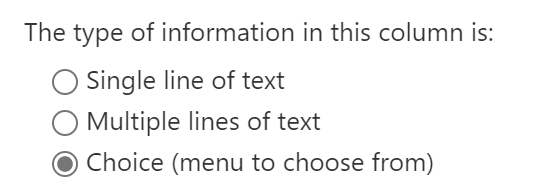
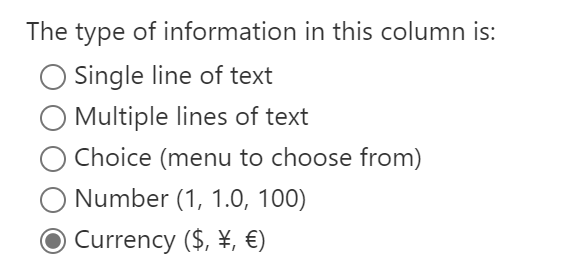
Number columns store integers, doubles, decimals, and floats. Not string literals, but numbers are filtered using the same comparison and logical operators:
- eq, ne, gt, lt, ge, le, and, or
Capacity gt 45
Capacity ge 75 and Capacity le 80

Currency columns are also number fields:
Invoice le 4500.00
Invoice ge 19500
Jumping back to string literals, Date and Time columns are filtered as text, but have to be properly formatted:
Date_x0020_Due eq '2022-04'
Date_x0020_Due eq '2022-04-25'
Date_x0020_Due eq '2022-04-25T05:00:00Z'

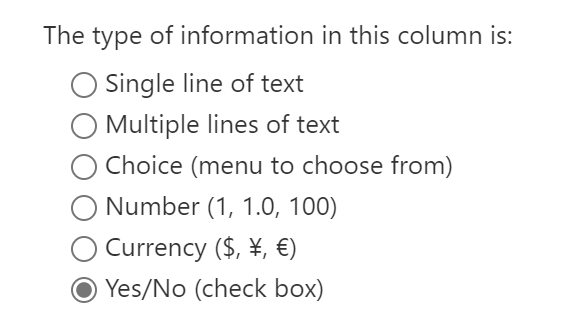
Lastly, Yes/No columns are bit fields. Though, if the column is created after list data is already populated, then the default values are empty:
Is_x0020_Active eq null
Otherwise, FALSE records are zeros:
Is_x0020_Active eq 0
And TRUE records are ones:
Is_x0020_Active eq 1
Conclusion:
Lists can support millions of items, but typically, people only need to handle subsets of data at any given moment. Use the filter parameter and break the dataset into more digestible chunks. Bonus, this makes the Power Automate flows more efficient.
“Nothing should be overlooked in fighting for better education.”
Roy Wilkins
#BlackLivesMatter
 console.log('Charles');