Closing out this story, the Power Automate flow built to copy Outlook emails to [SharePoint Online] should have copied the email attachments as well. Though not every email has attachments. Tweak the flow and check for attachments, then copy when necessary…
Reviewing a previous flow run, examine an export of the tempObj variable. Take note that every message includes a Boolean hasAttachments value.
Additionally, every message has an array of attachments. If hasAttachments is false, then the array is empty:
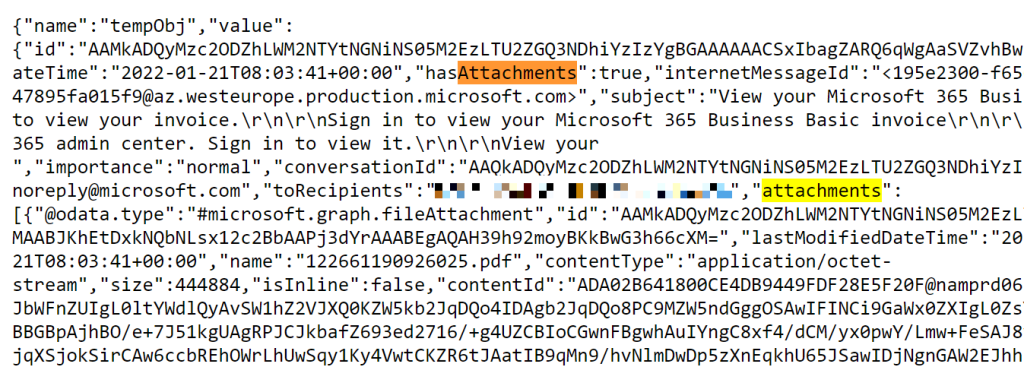
Skimming the attachments array, also note that every attachment has an ID. These IDs are necessary to retrieve individual files:

Editing and building out the flow, add a Condition control after the Get email action and check for email attachments:
variables('tempObj')['hasAttachments']

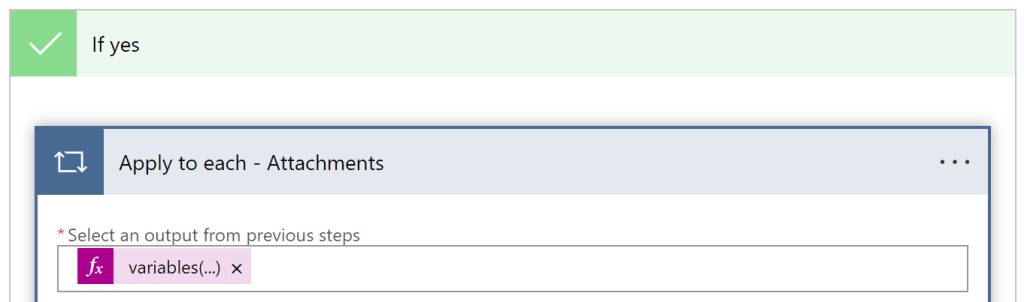
“If no”, then do nothing. “If yes”, then nest an Apply to each control and loop through the attachments array:
variables('tempObj')['attachments']
Inside this new loop, assign the Current item to a different object variable, add the Get Attachment action, then provide the attachment ID:
variables('attachmentObj')['id']
On top of that, provide the Get Attachment action with the message ID from earlier:
variables('tempObj')['id']
And lastly, specify the SPO target site and folder path values of the Create file action:

After a successful re-run, the flow creates the email file AND creates each attachment:

Conclusion:
Whether copying emails or copying attachments into SharePoint Online, all files have to be created anew. Power Automate will need their respective file IDs to retrieve their content/ body.
“In a sane, civil, intelligent and moral society, you don’t blame poor people for being poor.”
Andrew Young
#BlackLivesMatter
 console.log('Charles');