Once upon a time there was a very special user. This user was great at their job and worked with us for many years. Throughout the years, their job responsibilities required that they catalogue and archive legal records for the business. Unfortunately, soon enough, they were ready for new career opportunities. Now, they needed to transfer ownership of these legal records.
An important reminder, but as with many businesses, legal records are often received as emails. Alas, these emails were never exported. Nay, they dwelled within a maze of nested folders inside this user’s Outlook. As the business migrates to [SharePoint Online], these emails need to be copied to SPO, along with the rest of the business data.
Furthermore, not too surprising, this user created hundreds of folders and organized thousands of emails over the years. At this point, they can’t manually export these emails to SPO in a reasonable timeframe. Automation is the only option…
Power Automate is Microsoft’s workflow solution. Part of the Power Platform, anyone can build and schedule automations as cloud flows. Though, to not overtax this automation, the flow will process one Inbox folder at a time.
Not shown here, but there is a full list of the target Outlook folder paths stored in SPO. Wading through this list, the flow reads a new folder every 30 minutes and grabs emails in batches of 25:
Inbox/Legal/Cass - Cielo Cases
Inbox/Legal/Lucy v Mikey
Inbox/Legal/Sam + Dean (disputes)
etc.
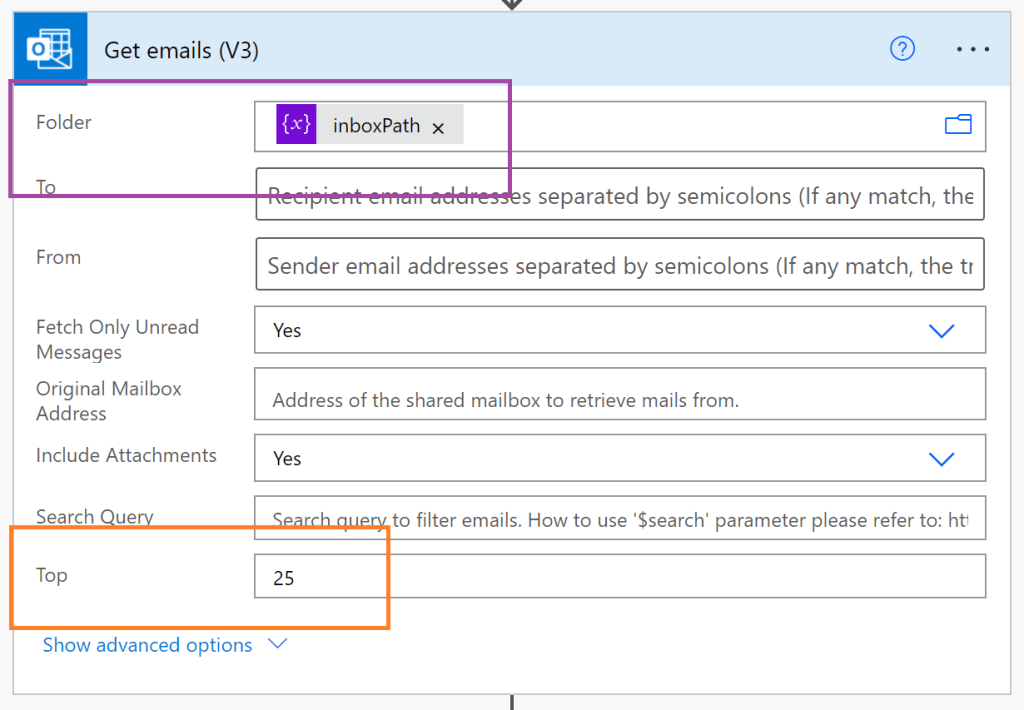
For the flow’s next step, the Get emails action returns a collection of email objects. To loop through this collection, add the Apply to each control and drop in the Get emails‘ “value”, then assign the Current item to an object variable:

FYI: The Outlook Get emails action can only return 25 messages at a time. For larger directories, use the Delete email action to purge already copied emails, then target the path again.
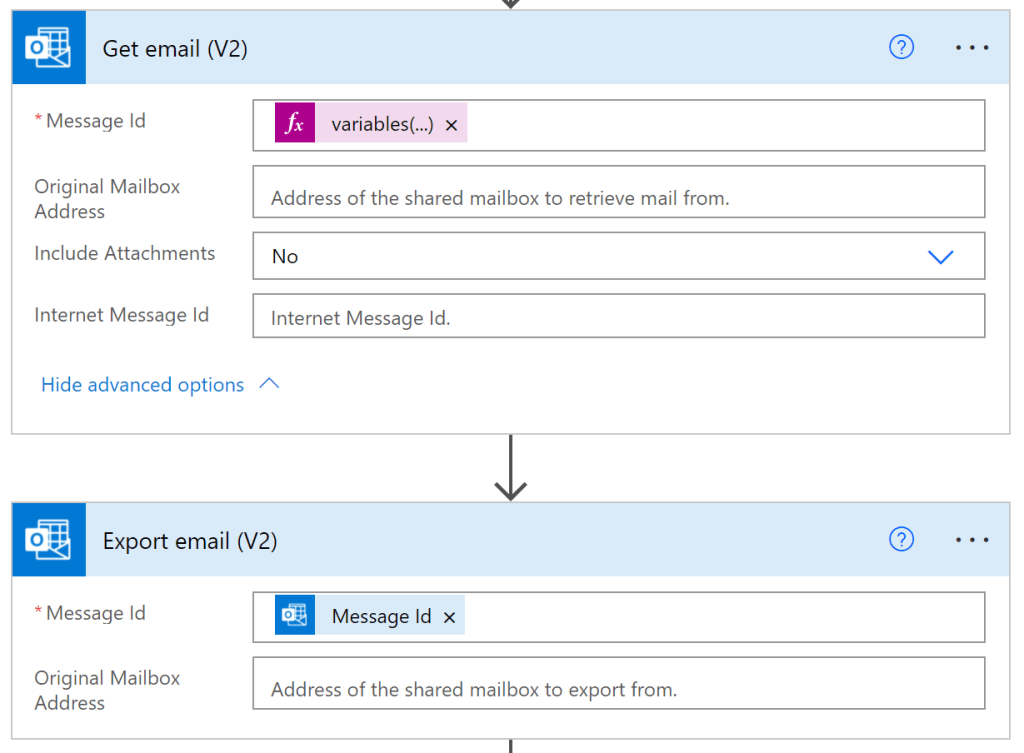
As the flow iterates the email collection, it needs to copy messages individually. Get the message ID from the object variable and Get email:
variables('tempObj')['id']
Now, to copy a file to SPO, the file is actually created as a new file. To create these new files, the flow needs the content of each file. Export email gets the email body for the creation step:
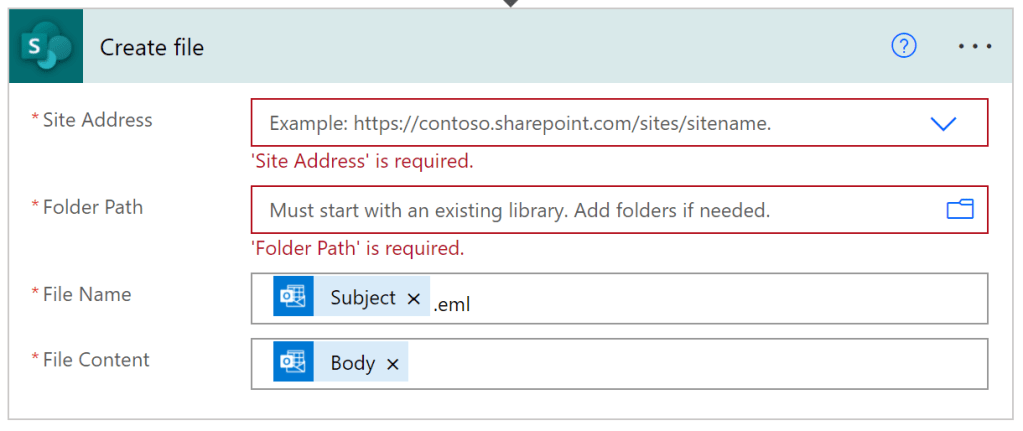
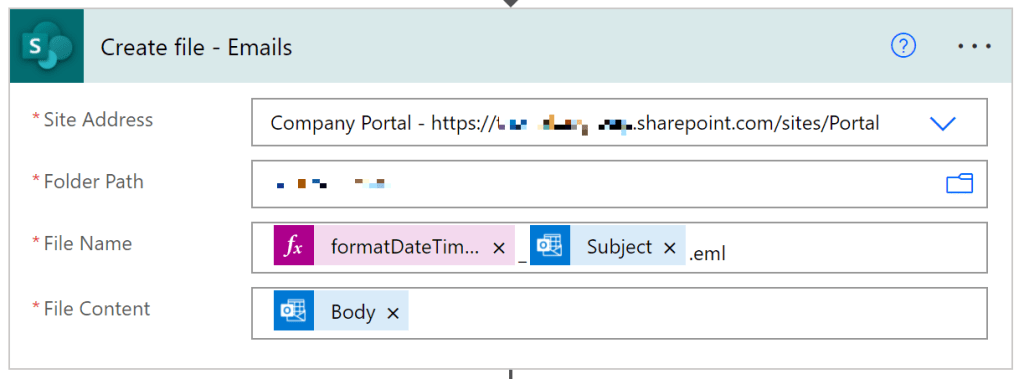
Finally, the Create file action requires just four parameters. Specify the target SPO site and target library, then provide the file a name and supply the file Body:
With that, the flow is complete. Simple enough to build, but there are a few things to be wary of:
- Replace (or remove) special characters in email subjects.
- E.g., # : / \
- Conditionally check email messages for subjects.
- Ensure files have unique names.
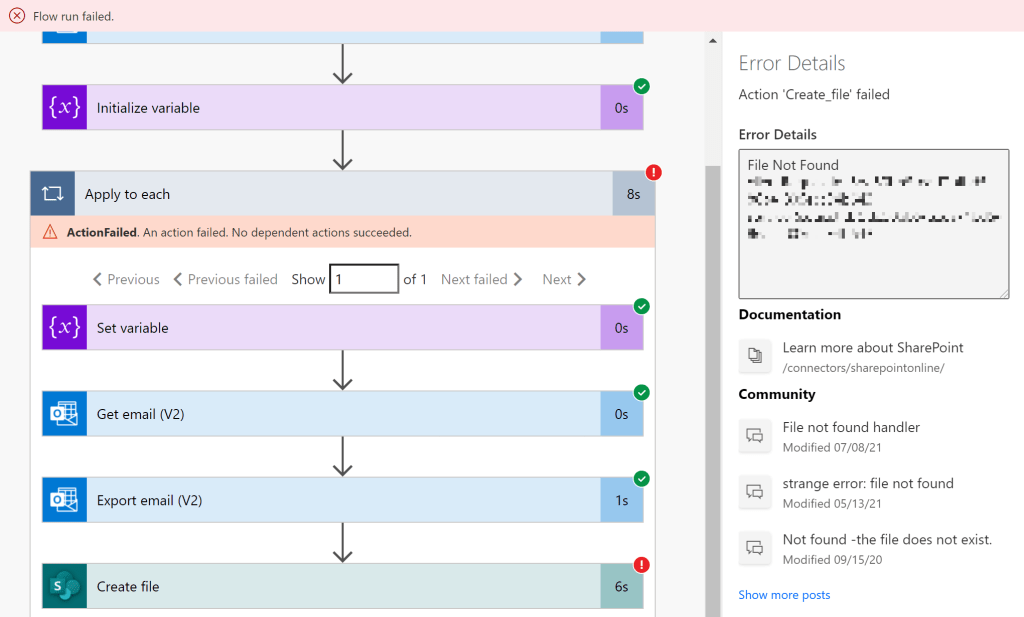
Error #1: To sanitize the email “Subject”, use a string variable, then replace (or remove) illegal characters:
replace(replace(replace(replace(variables('emailSubj'), '#', ''), '/', '-'), '\', '-'), ':', '_')
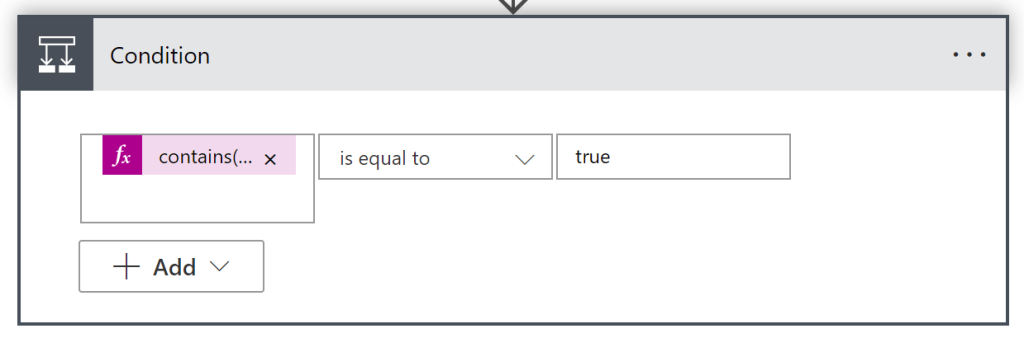
Error #2: To check emails for a subject, use the Condition control and the contains() expression:
contains(variables('tempObj'), 'subject')
Error #3: To ensure unique file names, there are several options. One approach, append the message ID to each file. Another approach, append the received date/time to each file:
formatDateTime(variables('tempObj')['receivedDateTime'], 'yyyyMMddhhmmss')
Finally, finally, the flow works as expected. Folders are processed one at a time and emails are grabbed in batches before being copied individually to SPO:

Conclusion:
The core logic is simple and there’s plenty of room to build out the flow.
For the not shown SPO list, the flow only processes folders marked “Yes” under choice column Target. Once the folder is processed, the choice is toggled to “No”. This ensures that the flow doesn’t get stuck processing the same folder every run…
“They have learned that resistance is actually possible. The holds are beginning to slip away.”
George Jackson
#BlackLivesMatter
 console.log('Charles');
Pingback: Power Automate: Copy Emails + Attachments to SPO | console.log('Charles');