Automation is already a thing in our lives, in particular:
- Email –
- Inbox rules.
- Scheduled emails.
- Automatic replies.
- Banking –
- Balance alerts.
- Scheduled autopay.
- Monthly transfers
- Digital Assistants –
- Set a reminder.
- Schedule <event>.
- Call <person>.
However, these are usually single action workflows. Something, the “trigger”, prompts an activity, the “action”. Depending on the activity, people may still need to carry out some additional tasks. Though these additional tasks are often repetitive and could be candidates for automation. Why? Because people could be working on things more worthy of their creativity. Introducing Power Automate, Microsoft’s workflow builder, it can often improve and automate many of these repetitive tasks…
For tasks that can be automated, Power Automate uses connectors to create processes called “flows”. And for simplicity, connectors could be viewed as microservices. They’re lightweight representations of various apps bundled with:
- Triggers – Set of activities to initiate a flow.
- E.g., scheduled jobs, received emails, signed contracts, etc.
- Actions – Set of activities to be performed during the flow.
- E.g., sending emails, uploading documents, posting messages, approving requests, etc.
Understanding that flows are composed of a single trigger and one or more actions is foundational. Building on that, Microsoft offers two types of connectors:
Standard connectors – Available to any person with a Power Automate license.
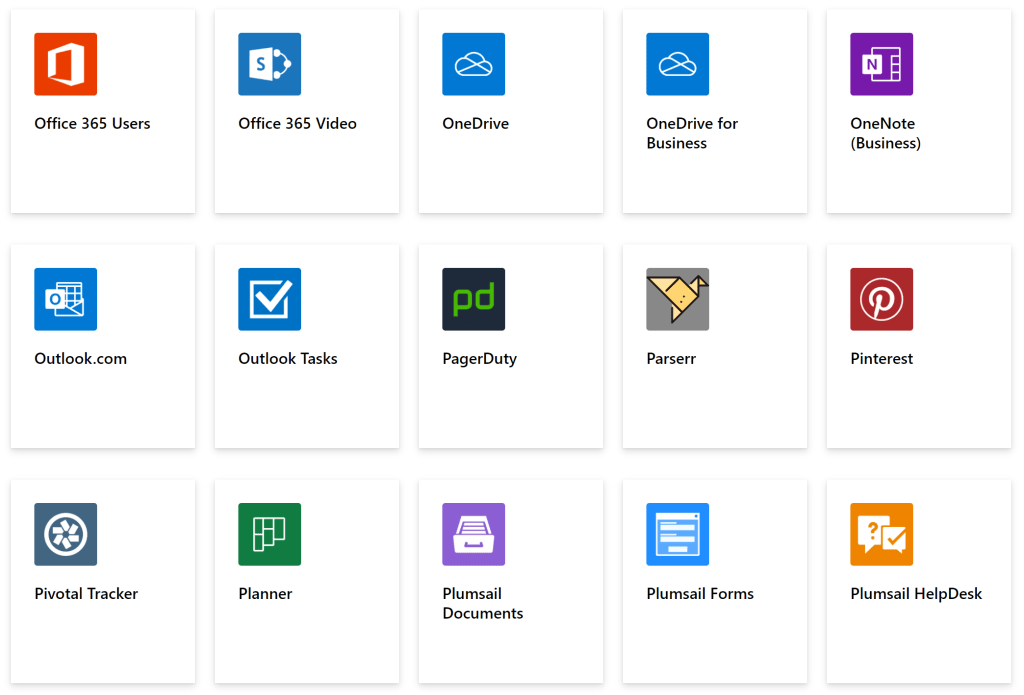
Premium connectors – Requires special licensing and additional cost.

Anyhow, whether using standard or premium connectors, each action waterfalls into subsequent actions:
Sample workflow:
- Get uploaded file from SFTP server.
- Create (/copy) file to SharePoint Online.
- Email someone a status report.

To initiate the sample, it requires a trigger, When files are added or modified on the SFTP – SSH:
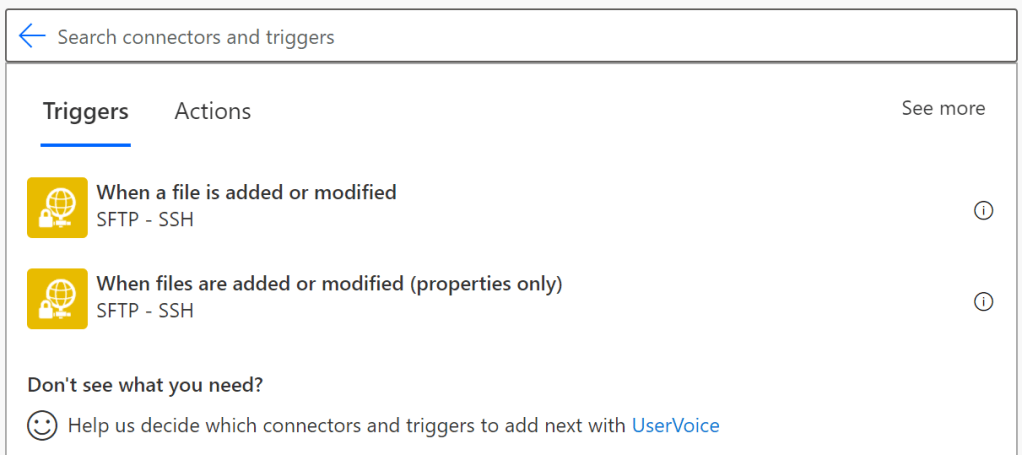
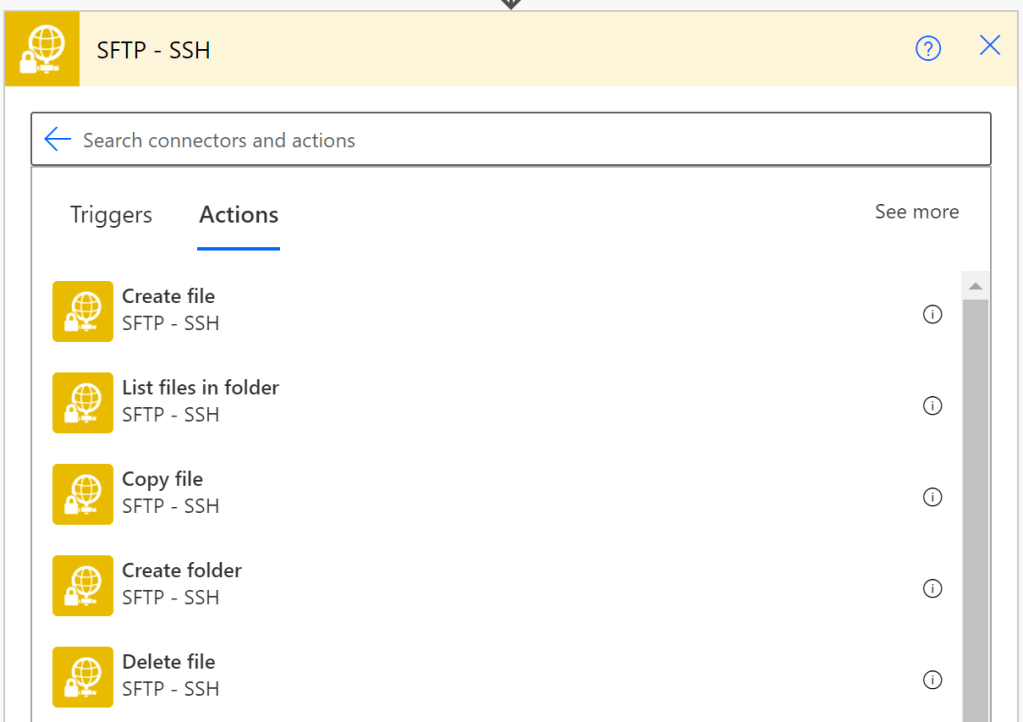
Following the trigger, every flow includes a series of actions. As previously mentioned, connectors come with bunches of actions. But for this flow, List files in folder:
Taking advantage of the cascading action properties, this flow uses the File Content property from the previous SFTP action. Copying files to SharePoint Online actually requires that the file be created. Provide a target site address and target folder path, then provide the file name and file content:

Last but not least, the Gmail Send email action prompts for different information than the other actions. Different actions will require different parameters. Some prompt for user credentials while others prompt for web server addresses.
Nonetheless, blocks are easily interchangeable. Instead of SharePoint Online, the file could have been copied to OneDrive, Box, Google drive, Azure, and/ or another file server. Instead of Gmail, the email could have been sent using Outlook, a generic Email app, or a premium connector like PoliteMail.

Conclusion:
Power Automate flows are comprised of “triggers” and “actions”. Every connector has unique triggers and actions, but premium connectors require special licensing. And similar to dominoes, actions are sequential and can branch, but every action is dependent their predecessor. Still, Power Automate lets people build custom and repeatable automations…
“A minimum of comfort is necessary for the practice of virtue.”
Patrice Lumumba
#BlackLivesMatter
 console.log('Charles');