Microsoft Teams has gained a lot of traction these past few years. Replacing Skype for Business as the go-to business communication tool, it has cemented itself as a centralized hub for collaboration. And as Microsoft continually rolls out more enhancements, Teams becomes more accessible to more people.
To encourage collaboration, Teams can tie-in dozens of Microsoft and third-party apps within its teamwork space. Assign project tasks using Asana, update product wikis in OneNote, review department expenses with Power BI, link training videos from YouTube, etc. But because there are so many app options, admins may choose to allow some and block others. Though, narrowing options without limiting productivity is tricky…
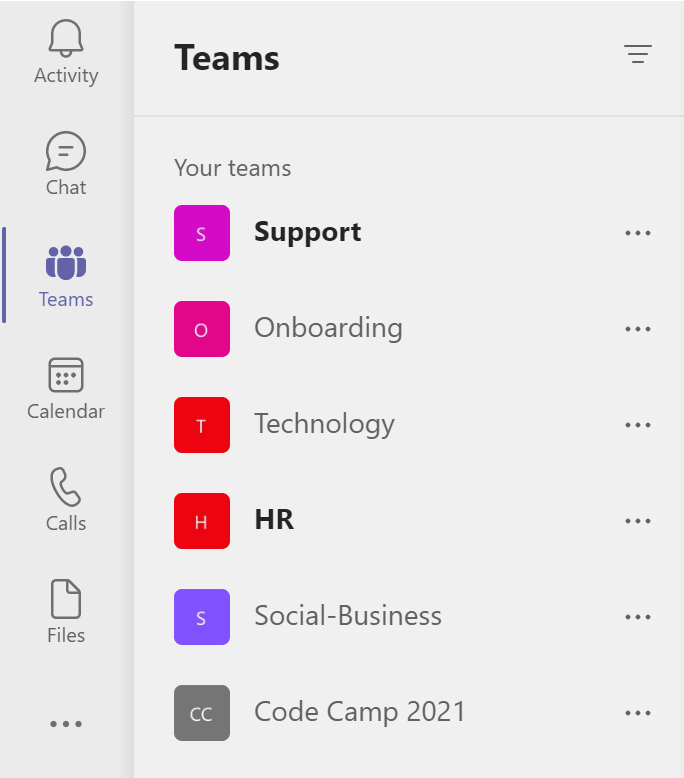
Those familiar with Teams will recognize this view. For those unfamiliar, Microsoft Teams promotes the creation of “teams”. These are dedicated spaces for groups, departments, business units, and/ or project members to collaborate:
- E.g.,
- Marketing
- Holiday Party Planning
- Company Townhall
- Compliance and Security
- etc.
Yes, creating “teams” in Microsoft Teams can be confusing…
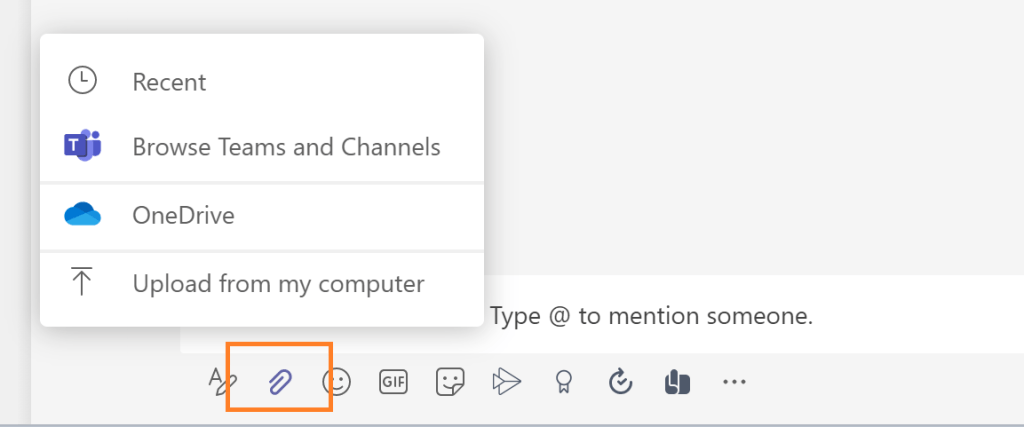
Within each “team”, there are channels to facilitate group conversations. Channel members can start new conversations or reply to existing conversation threads. Often these threads include attachments for the group to collaborate on. Worth noting, these attachments can be linked from other Teams and Channels that members are a part of, their OneDrive content, or uploaded from their local computer:
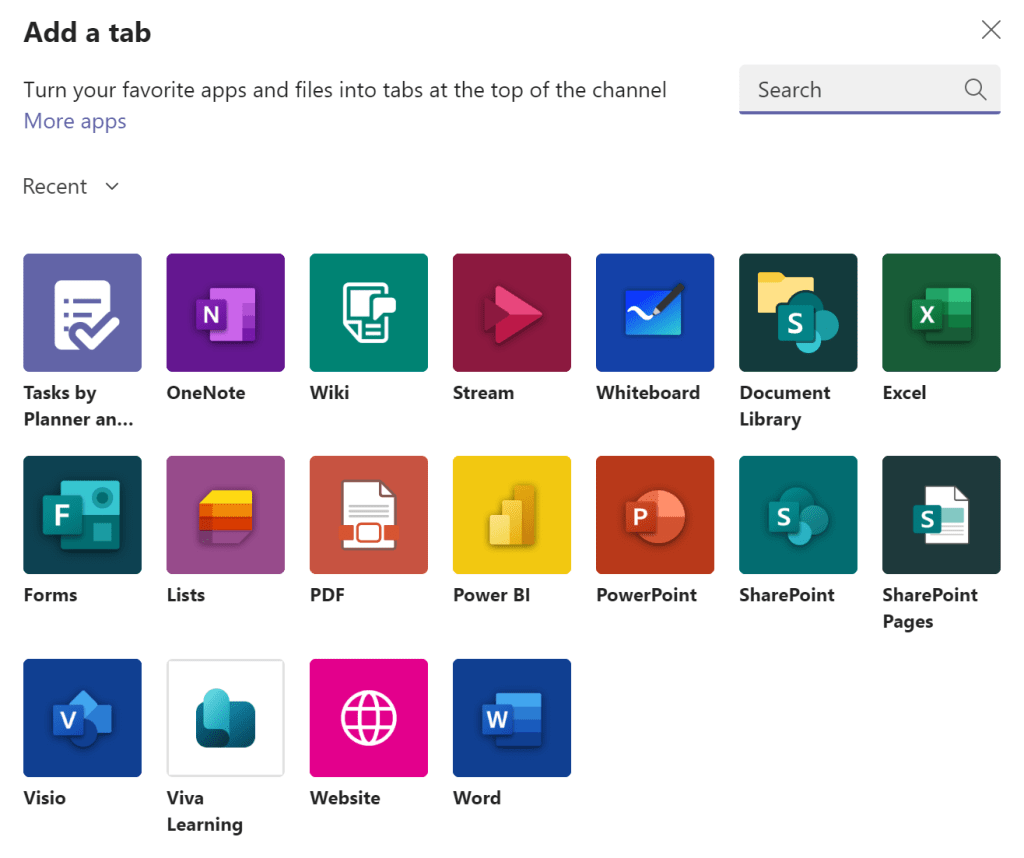
However, attached content can easily get lost in busy channels. To anchor the content, link to it using channel tabs as shortcuts. Along the top of every channel are three predefined tabs: Posts, Files, and Wiki. Currently, these three cannot be removed, reordered, or renamed, but new tabs can be added:

Microsoft products play well with other Microsoft products, so Teams easily links with several other Microsoft 365 apps:
- Forms – create team survey requests.
- Visio – share diagrams for group review.
- Lists – track member action items.
- etc.
Additionally, there are many dozens of third-party apps available like Box, Nuclino, Polly, monday.com, Zoom, etc.
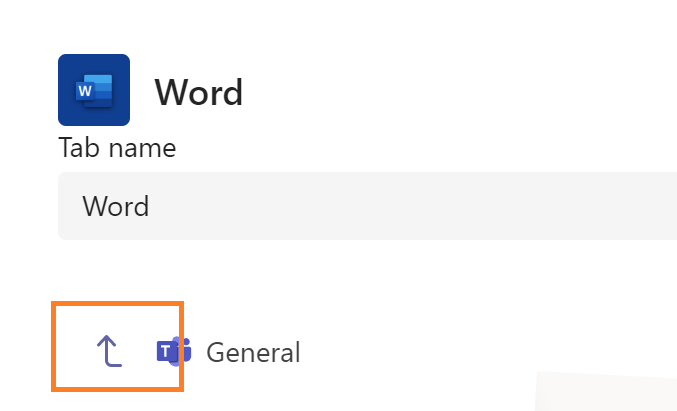
Though, if linking to an Office file like Word, Excel, or PowerPoint, Teams supports both the linkage of files from the current channel and linkage to files from other channels:
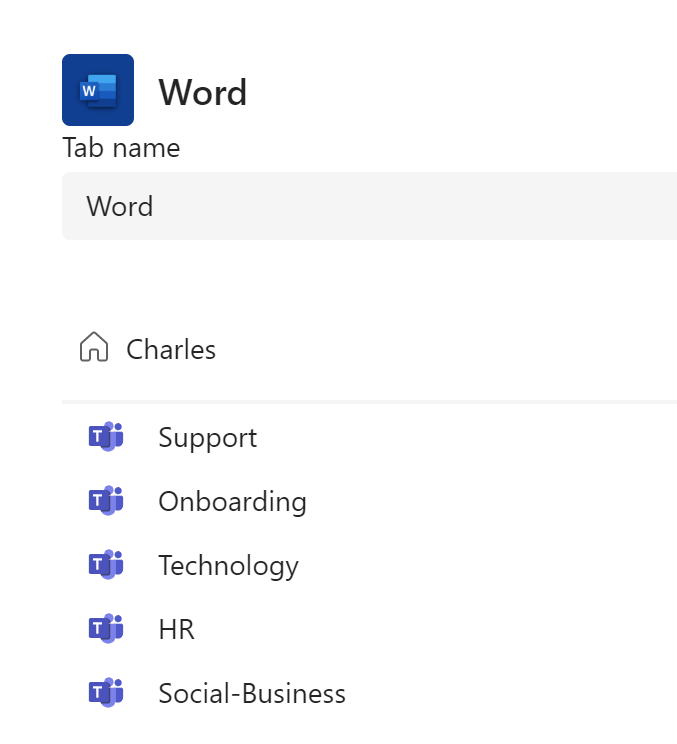
Once the new tabs are added, the channel navigation reflects the change. Navigation is unique per channel, but the same tabs can be added in multiple channels:

NOTE: New channel conversations are optional to notify the “team” when new tabs are added:
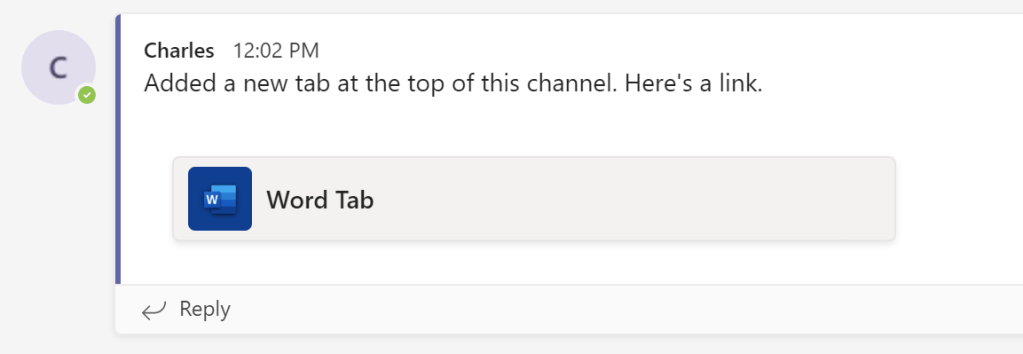
Lastly, there are sometimes security concerns with specific apps. Many apps are okay, but business leaders may request that others are blocked. Why? Because most businesses don’t want their business data floating around in too many third-party systems.
Admins can navigate to the Microsoft Teams admin center, then open Manage apps panel under the Teams apps header:
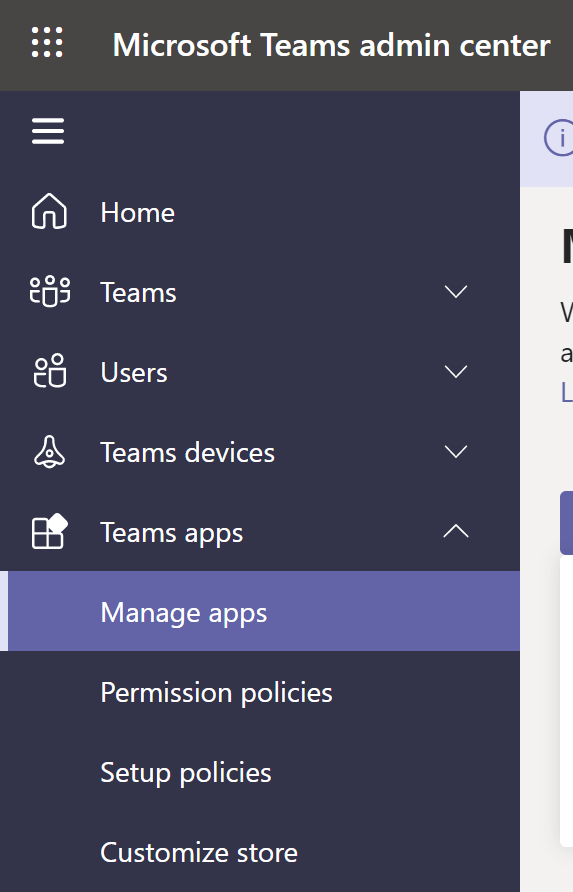
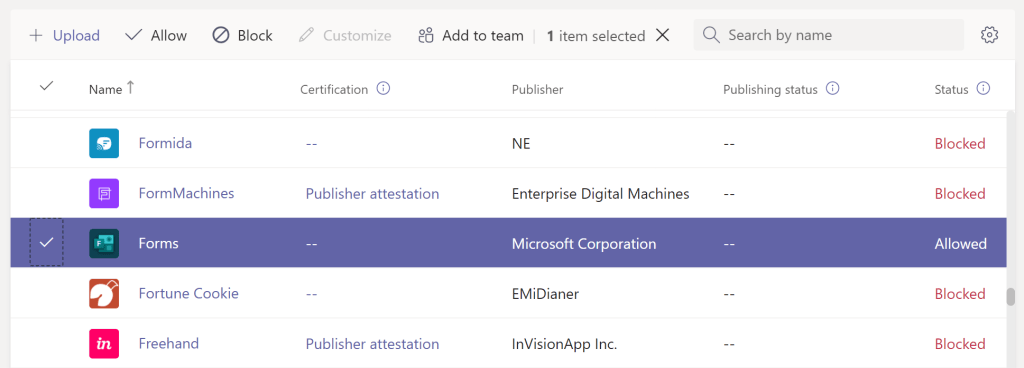
From this screen, admins can toggle individual apps to allow/ block, or simply disable all third-party apps. Still, this creates a safer, more controlled environment for group collaboration within Teams using third-party app connections:
Conclusion:
Microsoft Teams is great for collaboration, but can people collaborate better? Can people collaborate more safely? Yes…
“We live in a world where black humanity is a relatively new idea.”
Marc Lamont Hill
#BlackLivesMatter
 console.log('Charles');