Power Automate is the workflow engine of Microsoft’s Power Platform, and flows come in many shapes and sizes. Often though, flows are created just to move data between systems. All data moves involve an ETL process, but to properly transform data, the extracted data must be properly structured. For example, extracting and formatting datetimes values.
E.g., formatDateTime() function accepts two parameters:
– DateTime input value
– DateTime output format
formatDateTime(
    <DateTime Input>,
    'MM/dd/yyyy hh:mm:ss tt'
)
But what is considered a valid datetime input? To test some patterns, SharePoint Online lists are always easy to work with. Create a dummy list and add two extra string columns: formatDateTime() and IsFormatSuccessful.
Essentially, the flow is triggered whenever an item is added, then tries to format the entry:

The initialized string variable formats and stores the result. If the formatting is unsuccessful, then the flow fails and stops here:

Update item sets the initial value of IsFormatSuccessful to FALSE. If the formatting is successful, then Update item 2 changes IsFormatSuccessful to TRUE and populates the formatDateTime() field:

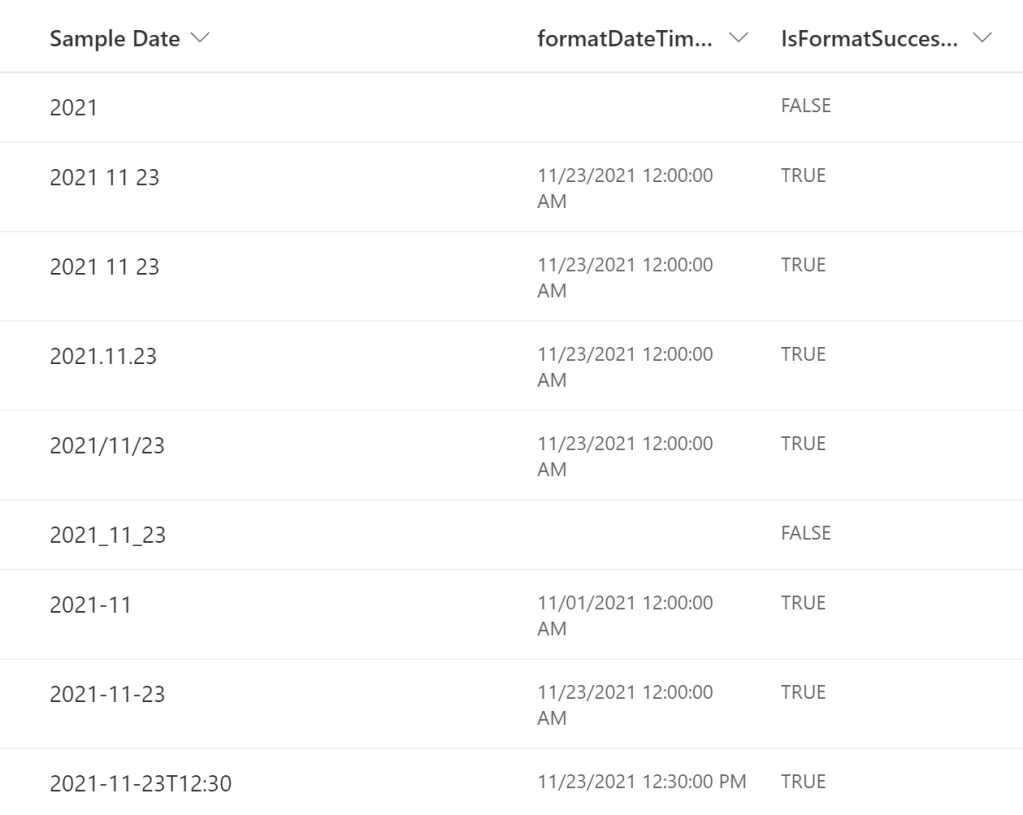
The result, a series of pass/ fail results. Dates starting with the month must also include either a day or year.
For date delimiters, spaces, dashes, dots, and back slashes are supported. Interesting enough, delimiters can be multiple spaces.
Spaces and dots are not supported delimiters for time values.

No surprise, but there are no successful datetime formats that start with the date day.
E.g., en-us

Though, starting with the year is supported. And again, two parameters are required; include either the month or day. Dashes are supported delimiters, but not underscores.
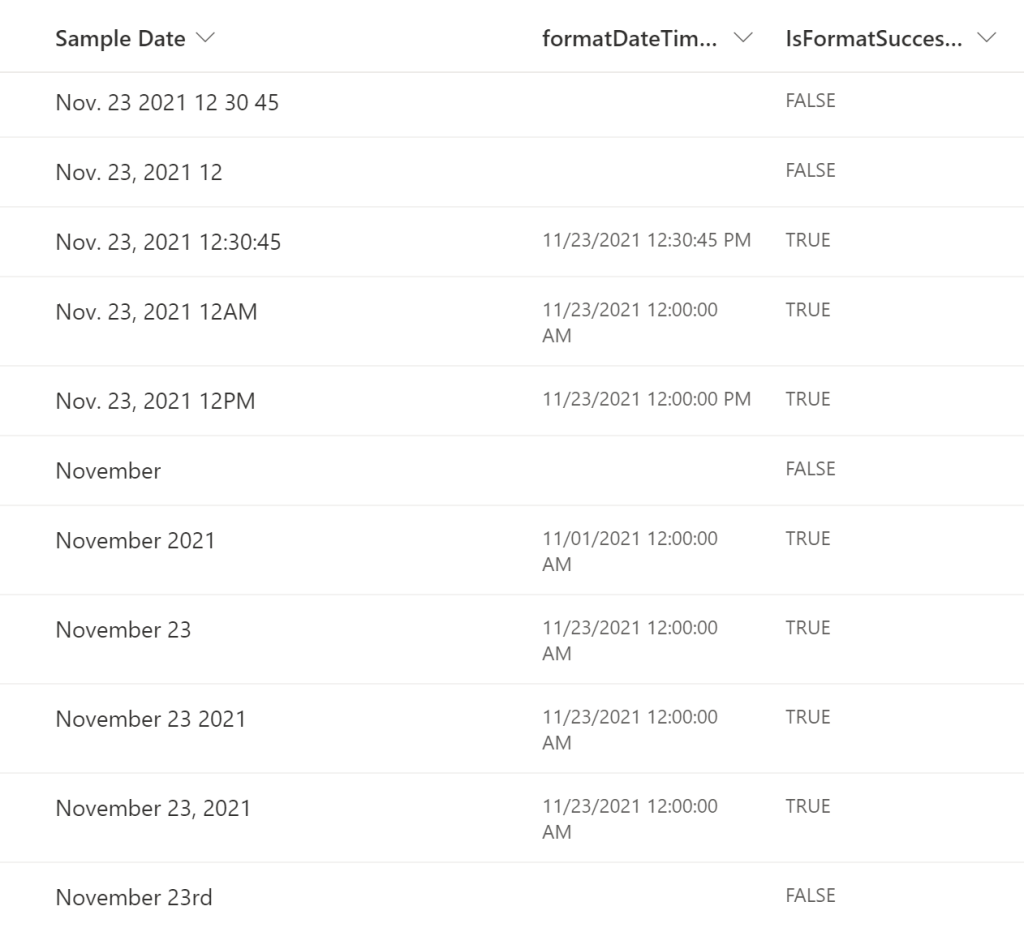
Additionally, the full month name and abbreviated name are supported. Though, the day MUST be a numerical value:
E.g., Nov. 23rd is not valid.
Conclusion:
During the ETL process, data integrity is essential. If necessary, Power Automate can output a report of PASS / FAIL results…
“The greatest weapon in the hand of the oppressor is the mind of the oppressed.”
Steve Biko
#BlackLivesMatter
 console.log('Charles');