The Power Platform is a Microsoft offering of tools to help organizations meet challenges effectively. Among these tools, there are some notable standouts…
- Power Automate – Create automated business processes.
- Power Apps – Create custom forms and portals.
- Power BI – Create rich charts, graphs, etc.
With their powers combined, one could easily build in-house solutions using [SharePoint Online] lists. One such solution, a manager approval system for employee reimbursements. Continuing from the solution skeleton, open the Reimbursement list and click Customize with Power Apps from the new item screen:

And with the Power Apps Studio open, create 3 new variables under the OnEdit property. Two variables should capture user email addresses and one variable should check if the emails match…
Set(vNameCurrent, User().Email);
Set(vNameApprover, First(DataCardValue4.SelectedItems).Email);
Set(IsNameMatch, (vNameCurrent = vNameApprover));
- vNameCurrent – Email of the current user.
- vNameApprover – Email of the requestor’s manager.
NOTE: OnView, OnEdit, and OnNew properties are available under SharePointIntegration object.
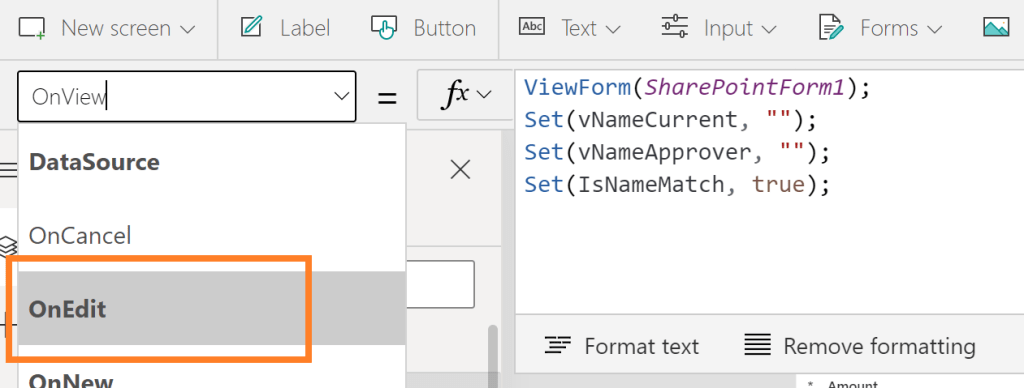
Alternative: Create a single variable.
Set(IsNameMatch, (User().Email = First(DataCardValue4.SelectedItems).Email));
The Approver and Status columns can be visible on the view screen, but should be hidden on the new screen. And they should only be visible on the edit screen if the current user matches the approver.
- E.g., use the IsNameMatch variable to toggle these fields:
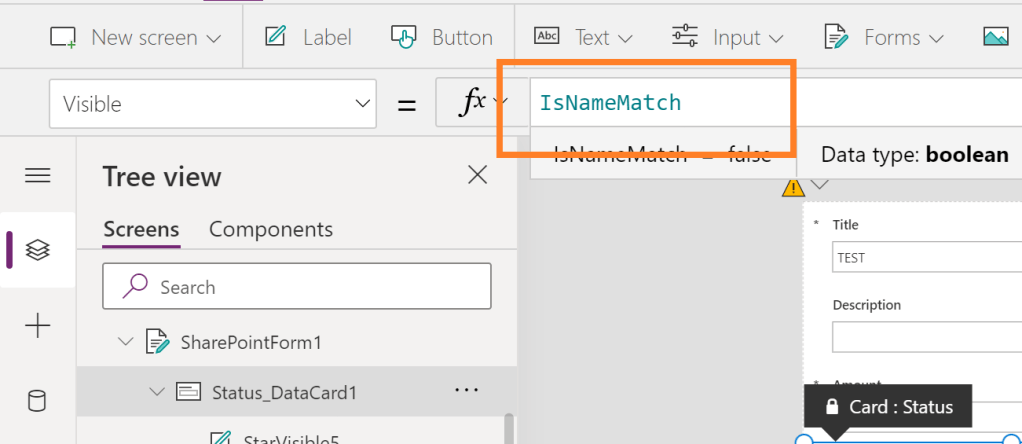
E.g., visible Approver field on the view form:

E.g., hidden Approver field on the edit form:

Conclusion:
Power Apps is variable dependent. Updating variables can change screen text, but also toggle views dynamically…
“What a liberal really wants is to bring about change that will not in any way endanger his position.”
Stokely Carmichael
#blacklivesmatter
 console.log('Charles');