[OneDrive for Business] is typically synced locally to a user’s computer. However, Microsoft is embracing a browser-first model for many of their roll-outs. Because of this, everyone should get more comfortable working within the browser. But heavy Office users often aren’t impressed with the Online versions. Instead of choosing to open their Excel, Word, and PowerPoint files in the desktop apps, some prefer that their Office files default to the full clients:
E.g., choosing to Open in app.

Toggling this is more direct in [SharePoint Online], but ODfB requires a few extra steps. With a single file or folder selected:
- Open the Information pane.
- Click to Manage access.

NOTE: Account must be a Site Collection Administrator.
The Manage Access panel lists the selected item’s permissions. Does it item inherit from the parent? Has it been shared with colleagues? Have anonymous links been created? Etc…
- Click Advanced in the bottom-right corner.

The next screen is a back-end view of the item permissions. Mirroring [SharePoint Online], ODfB sites use waterfall permissions for its document libraries. This screen indicates whether the item inherits permissions or not.
- Click Documents to view parent permissions.

NOTE: Documents is the default library of all ODfB sites.
- Click Browse and collapse the ribbon.
- Click Settings.
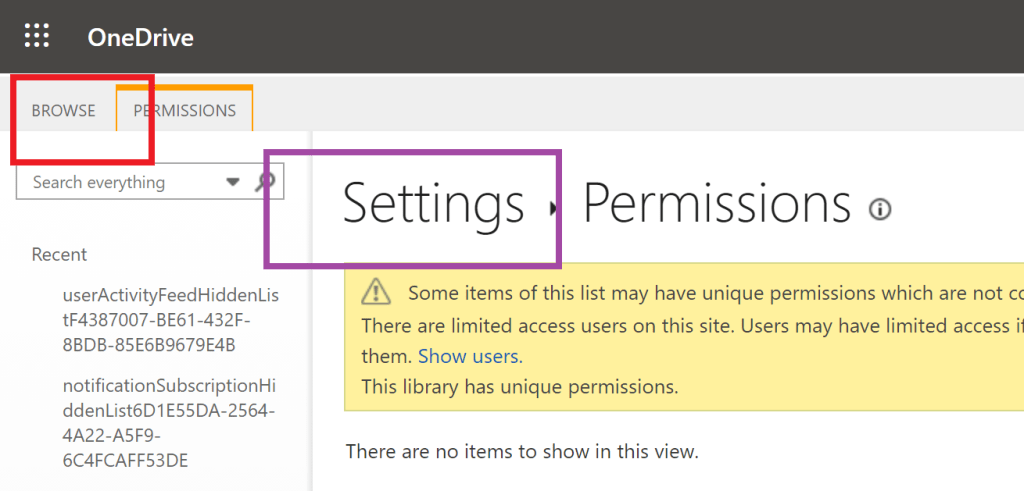
This screen is exactly like the Library settings of SPO document libraries:
- Click Advanced settings.
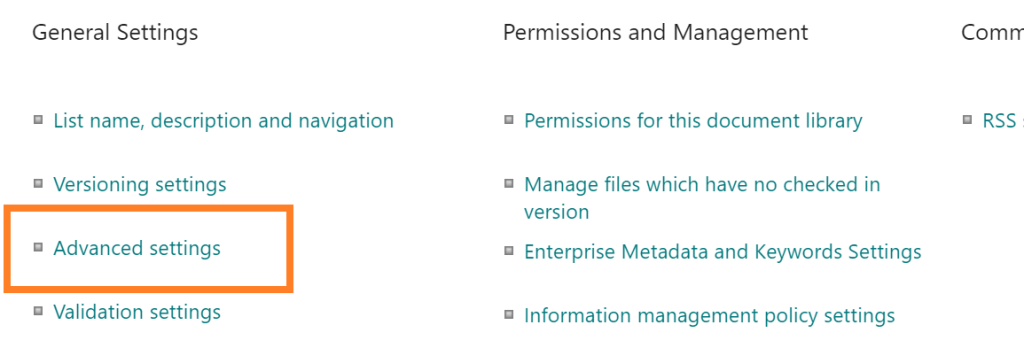
- Select Open in the client application.
- Click OK to save the changes!

Conclusion:
OneDrive for Business sites are SharePoint Online-lite sites, so there is overlap of features and functionality. Within this overlap is the ability to toggle default open behavior for the Office files…
“If I am truly free, who can tell me how much of my freedom I can have today?”
Fannie Lou Hamer
#blacklivesmatter
 console.log('Charles');