The Power Platform is a Microsoft offering of tools to help organizations meet challenges effectively. Among these tools, there are some notable standouts…
- Power Automate – Create automated business processes.
- PowerApps – Create custom forms and portals.
- Power BI – Create rich charts, graphs, etc.
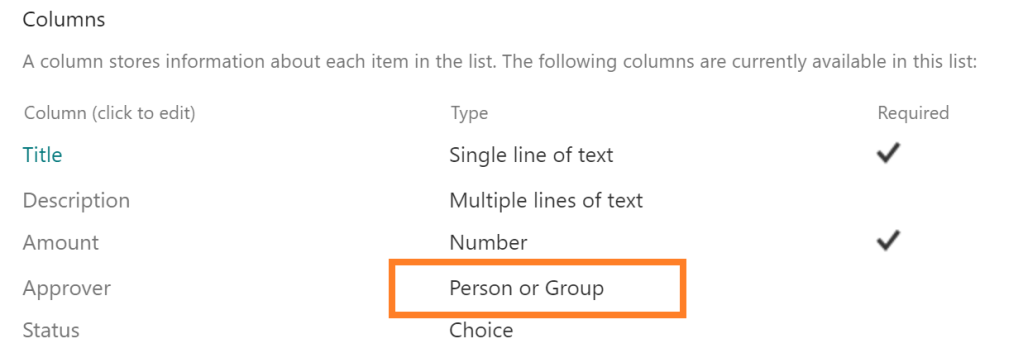
With their powers combined, one could easily build in-house solutions using [SharePoint Online] lists as the back-end. One such solution, a manager approval system for employee reimbursements. To build the solution skeleton, create a new SPO list and add the required columns:
- E.g.,
- Amount as a number column.
- Approver as a person column
- Status as a choice column.
- Pending; Approved; Denied
With the SPO list configured, open Power Automate and create a new flow. Because Power Automate can streamline repetitive tasks, the application is perfect for querying the manager of each employee request. And this flow is triggered when an item is created:

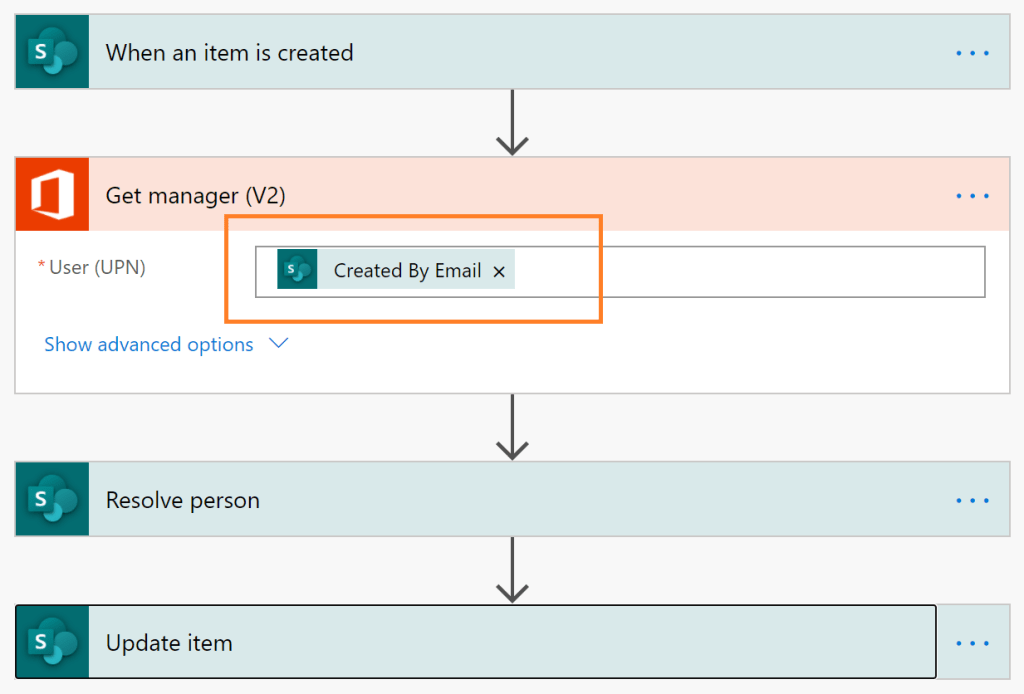
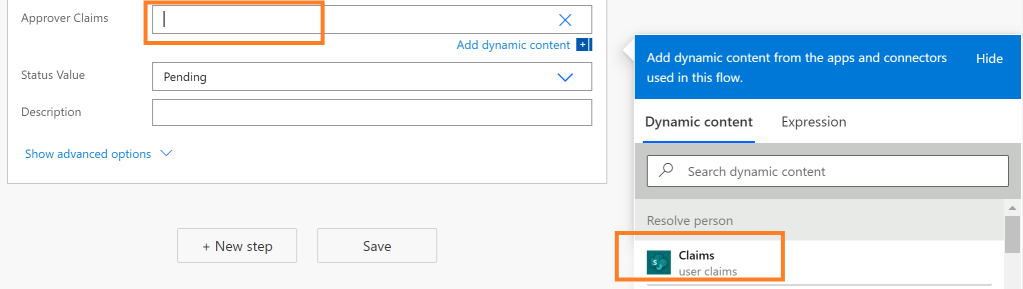
At the flow’s core, it will consist of 1 trigger and 3 actions. Get manager returns the Office profile of the Created By person’s listed manager in [Azure Active Directory]. Resolve person uses that manager’s User Principal Name to resolve their account against the target SPO site. Lastly, Update item assigns the claims of the resolved manager as the Approver:
E.g., Claims of Resolve person assigned within the Update item action.
ERROR: “This action violates your org’s data loss prevention policy.”
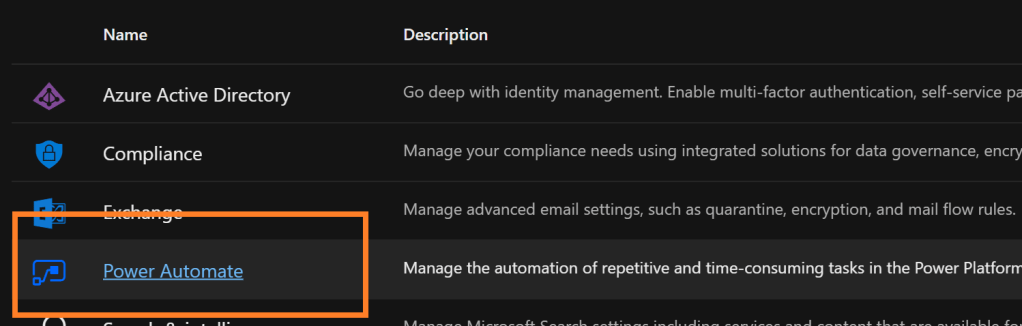
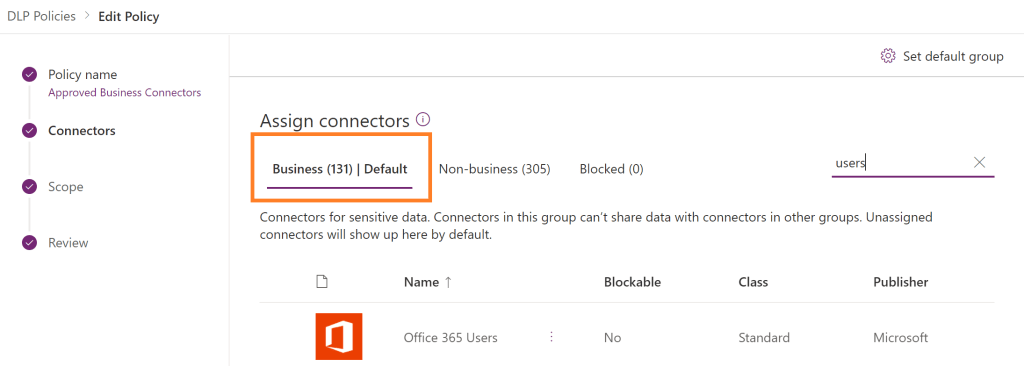
If this wild error message appears when saving the flow, then the Office 365 Users connector needs to be listed as an approved business connector. From the Microsoft 365 admin center, open the Power Automate admin center:
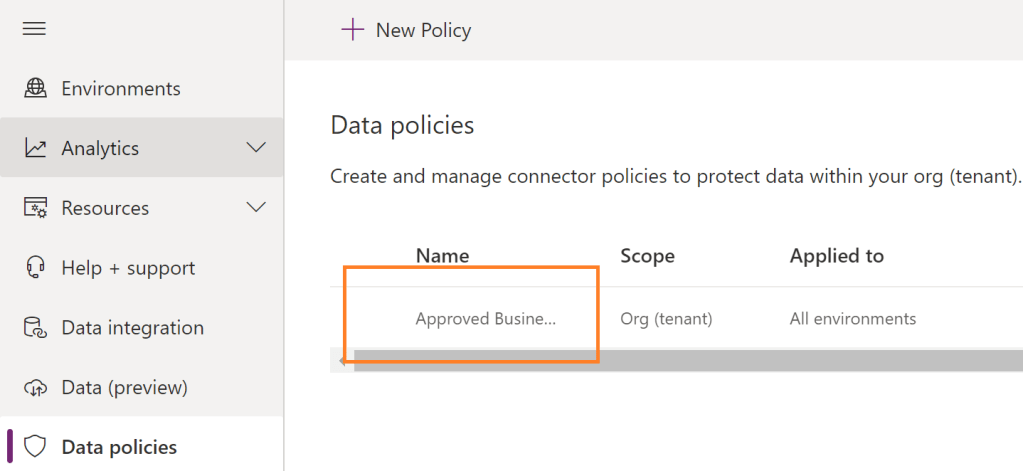
Then access the Data policies and edit the Approved Business Connectors:
Make certain that the Office 365 Users connector is listed under the Business approved connectors, not Non-business.
Last but not least, create a test record in the SPO list for reimbursement…

Conclusion:
The core of the solution is easy to build; maybe 5 minutes. But with a bit more effort, extra actions or flows could be added to generate automated emails:
(1) Email for requestor – submission received.
(2) Email for approver – approval required.
(3) Email for requestor – submission approved/ denied.
Simple, in-house solutions can be created and customized in an hour….
“We know that in order for change to be real, to be effective, it has to include everyone. We know that diversity and inclusion cannot be seen as an add-on. It has to be integral to every part of the way we conduct business and the way we lead.”
Anita Hill
#blacklivesmatter
 console.log('Charles');