Migrating to [Azure Active Directory] has companies correcting their local [Active Directory] structures. Considering AD was so forgiving, best practices weren’t always adhered to. But an enterprise offering like AAD enforces better practices. Silver lining, this is great for custom solutions because user properties are now more consistent…
How it Started…
I created an overly complicated on-premise solution some years back:
- PowerShell script runs on [SharePoint Server] 2013 app server.
- Connected to Windows Task Scheduler,
- Queries SQL tables for user properties,
- Formats and imports data into site lookup list.
- HTML file embedded into SPS list form using a [Content Editor Web Part]
- Included JavaScript to query lookup list using REST API.
- Included CSS to format the returned REST API content.
Why? Because the user properties in AD were hit-or-miss and it was “easier” to build a workaround using…
| Task Scheduler | Html | JavaScript |
| PowerShell | CSS | Content Editor Web Part |
How its Going…
I needed to migrate this legacy solution to SPO, so it was time for a rebuild. And ideally, a simpler solution. Luckily, most of the AD inconsistencies were corrected during the migration to AAD. Now the rebuild only needs:
- Power Apps
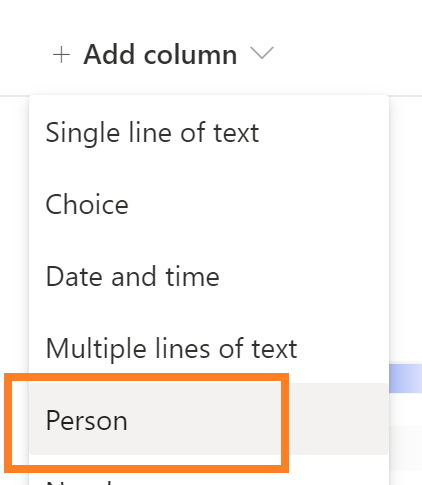
To get started, create a SPO list and add a Person column:
Then click the New button and Customize with Power Apps:
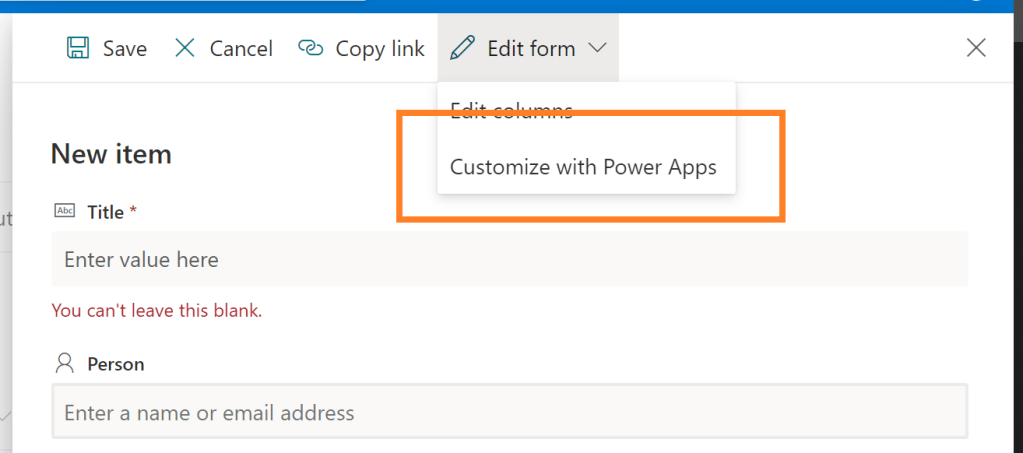
Note: Customization isn’t available for those with Contribute or Read permissions.
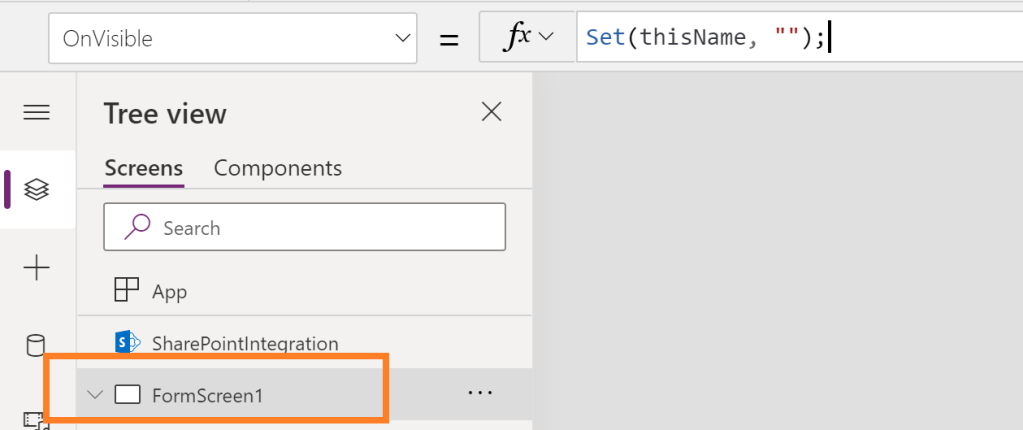
The Power Apps Studio should now be open. Select FormScreen1 under the Tree view and create an empty variable:
- E.g., thisName
Next, insert a Label and assign the variable to the Text property:
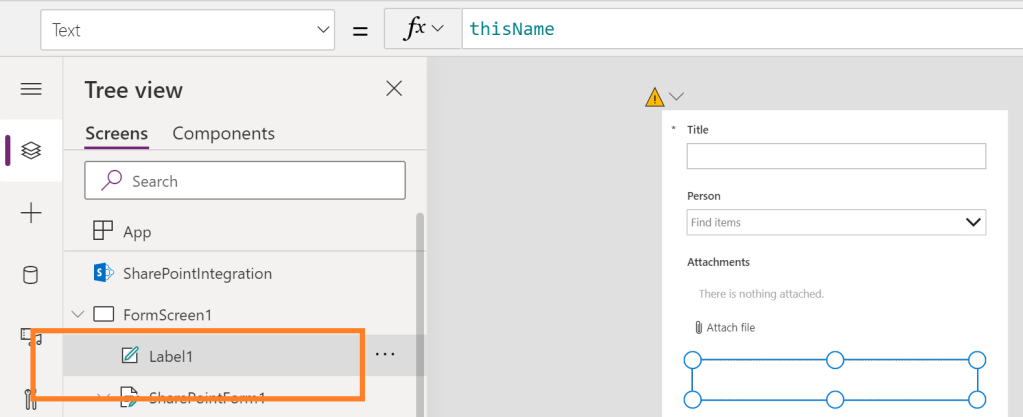
Note: Labels are dynamically changed using variables. Change the variable value and change the label text.
Lastly, select the people picker dropdown and update its OnChange property. The SelectedItems of this DataCard are returned as a table. To get the resolved name, grab the first record of the table and specify which user property to retrieve:
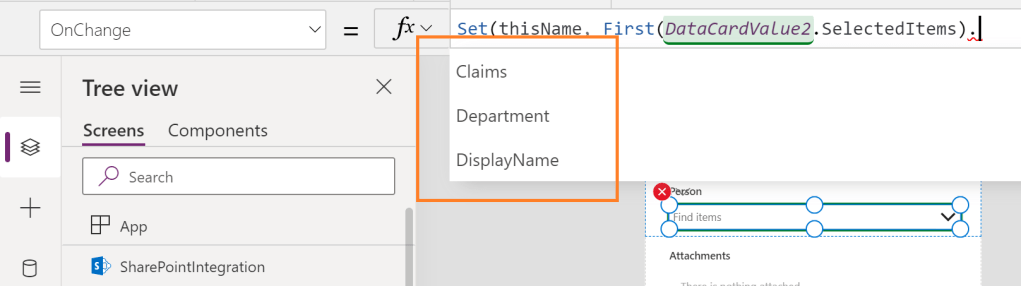
Bonus: Toggle the the Default mode to New for testing within the Power Apps Studio.

Finally things are rigged up, so publish the app and create a new SPO list item:

Conclusion:
There’s a change in approach when rebuilding on-premise solutions in Microsoft 365, but the cloud tools actually do most of the heavy lifting. Things should likely be rebuilt either way. The requirements, features, and audience have surely changed over the years. During this time, the Microsoft tools have evolved…
“The day I stop fighting for equality and for people that look like you and me, will be the day I am in my grave.”
Serena Jameka Williams
#blacklivesmatter
 console.log('Charles');