Unlike [out-of-the-box] features, custom solutions incur a bit of technical debt. Though, OOB features often come with some nuances and quirks to be wary of…
Scenario, use cascading columns to:
- Select a region,
- Select a state,
- Select a city, and
- View a dynamic list of artists.
Again, SQL tables are great, but [SharePoint Online] lists are easy to scaffold. With that said, create a single SPO list…

The Title column is renamed to Artist, but create 3 new columns: City, State, and Region.

Gotcha #1:
Choice columns are important for consistent form entries, but the Power Apps dropdowns can’t use them as data sources. The workaround? Create a calculated column to hold the string value.
=[Region]
Moving on to the Power Apps solution, create a canvas app from blank. Choose the tablet view for a larger area, then build a “presentable” looking app with:
- 3 labels,
- 3 dropdowns, and
- 1 data table.

Sample…

The SPO list hasn’t been added as a data source yet, so don’t forget to include it:

The first dropdown is ddlRegion. Again, the Region choice column won’t be an available option. Instead, use the calculated column:

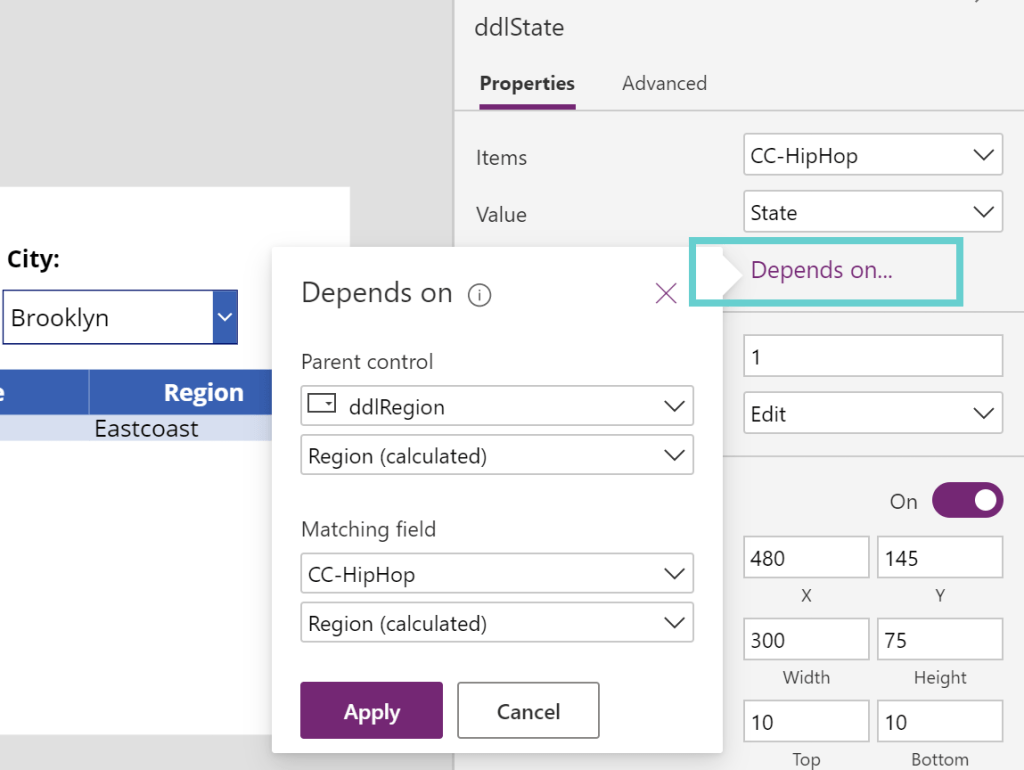
The second dropdown is ddlState. The goal here is to select a region and have the available options dynamically change the list of states. Lastly, the same is done for ddlCity:
FYI #1:
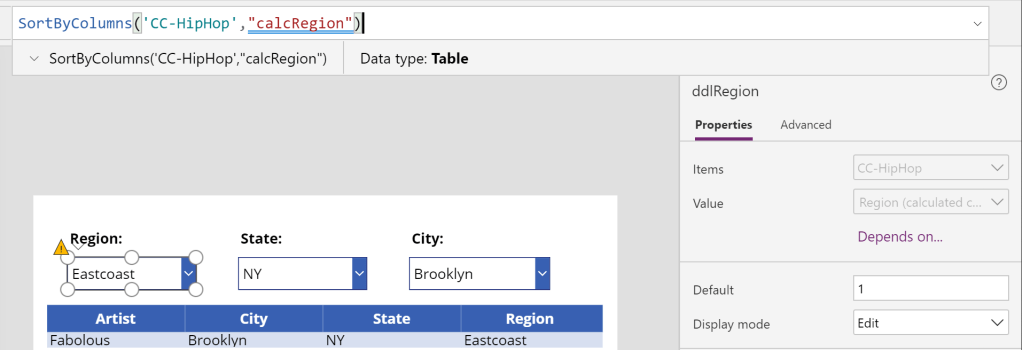
The SortByColumns() method can order the dropdown options, but will generate a warning. However, this won’t cause problems during execution.
Note: The sort method uses the internal name of the column:
FYI #2:
Once the dependencies are configured, ddlState and ddlCity, the Items property of each dropdown is updated respectively.
Note: The filter method uses the display name of the column:
Filter(
   'CC-HipHop',
   'Region (calculated)' = ddlRegion.Selected.'Region (calculated)'
)
Filter('CC-HipHop', State = ddlState.Selected.State)
Finally, bind the data to the table and filter the results…
Filter(
    'CC-HipHop',
    ddlCity.SelectedText.Value = City
)
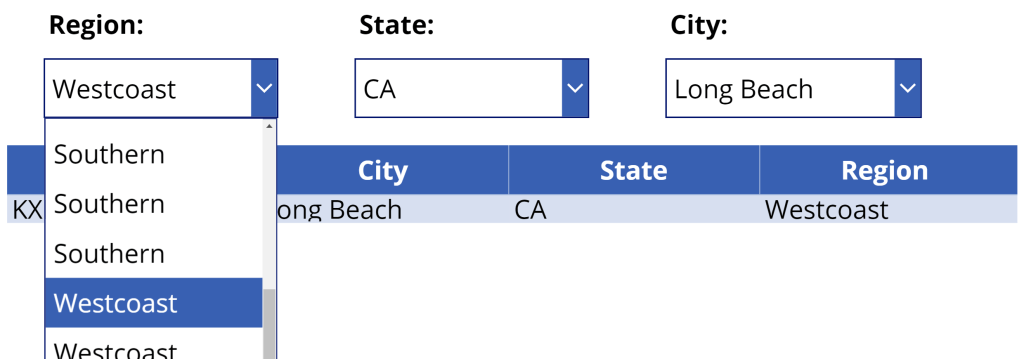
And lastly, test the solution:
Gotcha #2:
The OOB solution doesn’t limit the dropdown options to unique values. And using the Distinct() function produces an error. Because of this, the dynamic selections are one-to-one for each dropdown, not one-to-many…
Conclusion:
Sometimes what is available isn’t good enough. It “works” for some, but not for all. Creating a unique solution will best suit everyone…
“If you’re not hopeful and optimistic, then you just give up. You have to take the long hard look and just believe that if you’re consistent, you will succeed.”
John Lewis
#blacklivesmatter
 console.log('Charles');