Cascading columns are important to many applications, but often require custom solutions. Although the functionality is available out-of-the-box in Power Apps, custom solutions are still fun to build… For the uninitiated, cascading columns are essentially dropdowns that control the available selections of the next dropdown:
e.g.,
- Dropdown #1 – US States
- Dropdown #2 – US Cities
- Dropdown #3 – US Zip Codes
One would expect that selecting a state (Dropdown #1) would list only the applicable cities (Dropdown #2). Likewise, selecting a city would then list the applicable zip codes (Dropdown #3). If not, then what’s the point? #rhetorical
Note:
The successor of InfoPath is Power Apps. InfoPath solutions can be rebuilt as Power App solutions.
Data Source – SharePoint Online:
The data could be housed in SQL or Excel, but [SharePoint Online] works, too. There will be two SPO lists:

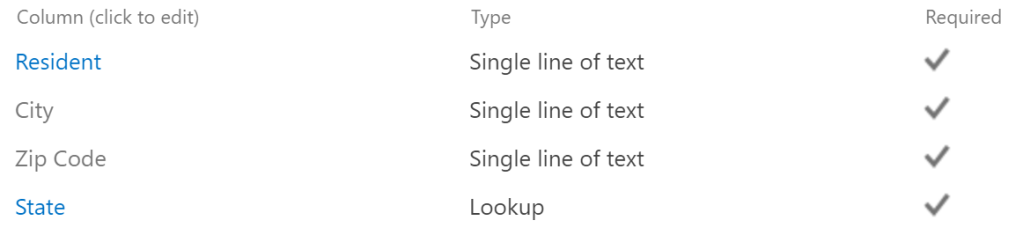
CC-States will list the US States and territories. CC-Residents will list US residents. Each resident entry will include their city, state, and zip code:
Note:
The master list of states will enforce unique values.
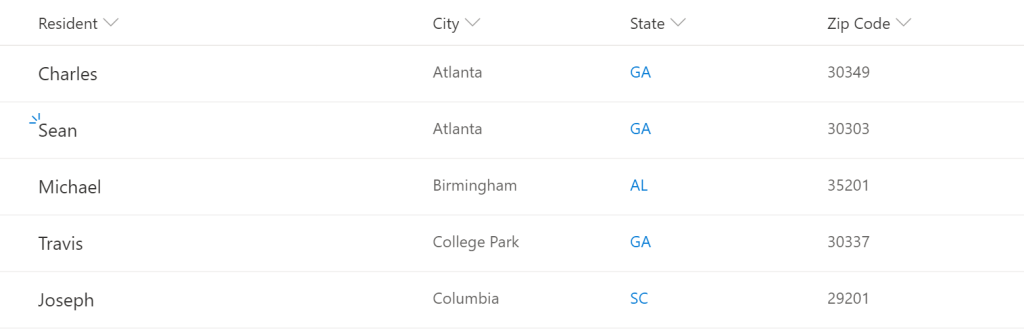
Once the SPO lists are created, add some entries to CC-States, then add some entries to CC-Residents. The data sources are now configured…
Data View – Power Apps:
The back-end data is hosted in SPO, but Power Apps will present the content. To build the front-end, create a canvas app from blank, then insert:
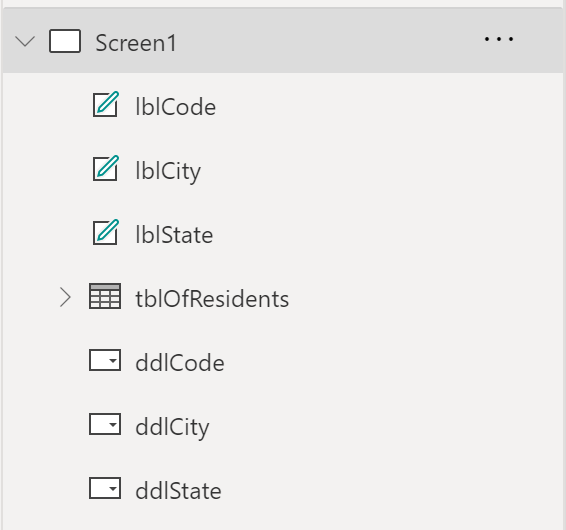
- 3 labels,
- 3 dropdowns, and
- 1 table.
The elements are renamed to represent their roles…
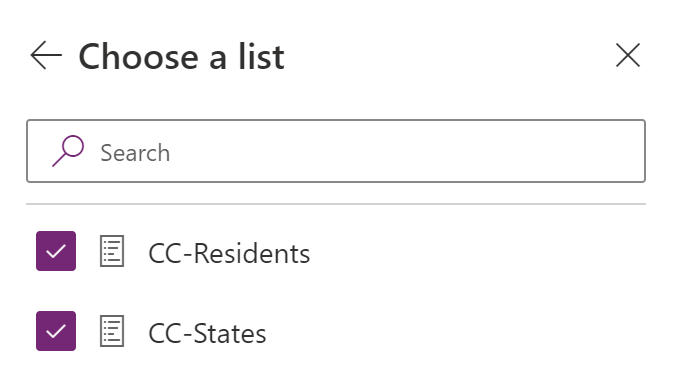
Next up, connect to the SPO lists so the Power App can leverage the data…
Using the Excel-like formulas of Power Apps, add these formulas to the OnVisible property of Screen1:
- Initialize 3 empty string variables
- Initialize 4 collection variables
- Populate default dropdown selections.
- Populate collection of residents for data table.
Set(varState, "");
Set(varCity, "");
Set(varCode, "");
ClearCollect(listOfState,
    {
        Title: "(please select)",
        Value: ""
    }
);
ForAll('CC-States',
    Collect(listOfState,
        {
            Title: Title,
            Value: Title
        }
    )
);
ClearCollect(listOfCity, {
        Title: "(select city)",
        Value: ""
    }
);
ClearCollect(listOfCode, {
        Title: "(select zip code)",
        Value: ""
    }
);
ClearCollect(listOfResidents, {});
Collect(listOfResidents,
    ForAll('CC-Residents',
        {
            ID: ID,
            Resident: Resident,
            State: State.Value,
            City: City,
            Code: 'Zip Code'
        }
    )
);
The listOfState collection will be the data source of ddlState element. Additionally, this collection should be sorted, so update the Items property :
SortByColumns(listOfState, "Title")
Once the app loads, the OnVisible property of Screen1 is processed. But for dynamic selection, the following formulas are added to the OnChange property of ddlState:
- Store ddlState value in varState.
- Clear the listOfResidents collection.
- Populate the listOfResidents collection:
- Filter on the selected state.
- Clear the listOfCity collection.
- Populate the listOfCity collection.
- Filter on the selected state.
Set(varState, ddlState.SelectedText.Value);
ClearCollect(listOfResidents, {});
Collect(listOfResidents,
    ForAll('CC-Residents',
        If (varState = State.Value,
            {
                ID: ID,
                Resident: Resident,
                State: State.Value,
                City: City,
                Code: 'Zip Code'
            }
        )
    )
);
ClearCollect(listOfCity, {
    Title: "(select city)",
    Value: ""
});
Collect(listOfCity,
    ForAll('CC-Residents',
        If(varState = State.Value,
            {
                Title: City,
                Value: City
            }
        )
    )
);
Note:
The listOfCity collection is the data source of ddlCity.
The listOfCode collection is the data source of ddlCode.
To ensure unique dropdown options, use Distinct to remove duplicates.
Distinct(SortByColumns(listOfCity, "Title"), Title)
Distinct(SortByColumns(listOfCode, "Title"), Title)
The selected state would have filtered the city dropdown and the resident table. The next batch of formulas are added to the OnChange property of ddlCity:
- Store ddlCity value in varCity.
- Clear the listOfResidents collection.
- Populate the listOfResidents collection:
- Filter on the selected state.
- Filter on the selected city.
- Clear the listOfCode collection.
- Populate the listOfCode collection:
- Filter on the selected state.
- Filter on the selected city.
Set(varCity, ddlCity.SelectedText.Value);
ClearCollect(listOfResidents, {});
Collect(listOfResidents,
    ForAll('CC-Residents',
        If (varState = State.Value && varCity = City,
            {
                ID: ID,
                Resident: Resident,
                State: State.Value,
                City: City,
                Code: 'Zip Code'
            }
        )
    )
);
ClearCollect(listOfCode, {
    Title: "(select zip code)",
    Value: ""
});
Collect(listOfCode,
    ForAll('CC-Residents',
        If(varState = State.Value && varCity = City,
        {
            Title: 'Zip Code',
            Value: 'Zip Code'
        })
    )
);
Finally, the OnChange property of ddlCode is populated with these formulas:
- Store ddlCode value in varCode.
- Clear the listOfResidents collection.
- Populate the listOfResidents:
- Filter on the selected state.
- Filter on the selected city.
- Filter on the seelcted code.
Set(varCode, ddlCode.SelectedText.Value);
ClearCollect(listOfResidents, {});
Collect(listOfResidents,
    ForAll('CC-Residents',
        If (varState = State.Value && varCity = City && varCode = 'Zip Code',
            {
                ID: ID,
                Resident: Resident,
                State: State.Value,
                City: City,
                Code: 'Zip Code'
            }
        )
    )
);
And lastly, add the listOfResidents collection is set as the data source of the data table! The variables have been now been bound to their respective elements….
Complete – Now test:
- Run the app:

- Select a US State:

- Select a US City:
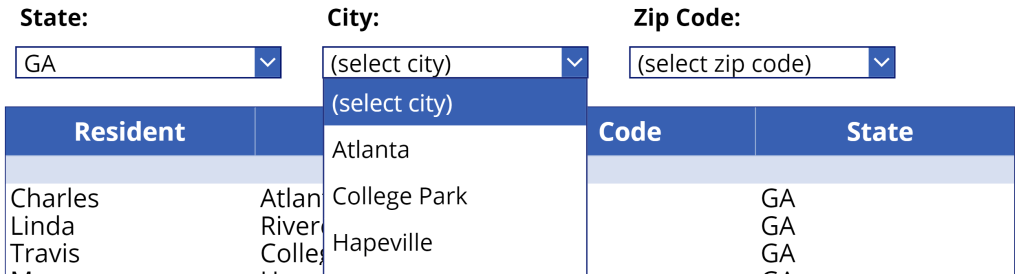
- Select a US Zip Code:

Conclusion:
The formulas are incremental, but build upon one another. Assign the variables as data sources, then manipulate the variables throughout the solution. These variables are the back-bone of the solution and foster the changes…
“… until justice rolls down like waters and righteousness like a mighty stream.”
Martin Luther King Jr.
#blacklivesmatter
 console.log('Charles');