Power Apps is a Microsoft offering to quickly build business apps using pre-built templates. The content of these business apps is housed in various data sources, but presented via data connectors. Data connectors are essential to these business apps…
Noteworthy, the [SharePoint Online] connector is a common Power App connection. For many organizations, if they’re using Power Apps, then they’re also leveraging SPO. This connector works great for list items, but is limited for library files:
- E.g., Direct uploads to SPO libraries is not supported.
Not supported may be a bit harsh. Rather, the OOB functionality to upload documents is not currently present. If a scaffolded Power App is created using a SPO data source, then options are presently limited to selecting custom lists.
However that’s not to say that documents can’t be uploaded. There are suggestions to use REST APIs and others recommend Azure Blog Storage. But if the requirement is SPO, then there is still a way to upload documents…
Recipe:
The basic gist of the solution, upload the file as a list item attachment using a Power App. That new list items triggers a flow in Power Automate and that flow creates the attachment as a file in the target document library:
- 1 part(s) – Power Apps
- 1 part(s) – Power Automate
- 2 part(s) – SharePoint Online
SPO will be the data source. This part of the solution requires that two SPO apps are created:
- Custom List
- Document Library
The custom list functions as a temporary staging location. List items are created with metadata and attachments, then recreated in the document library.
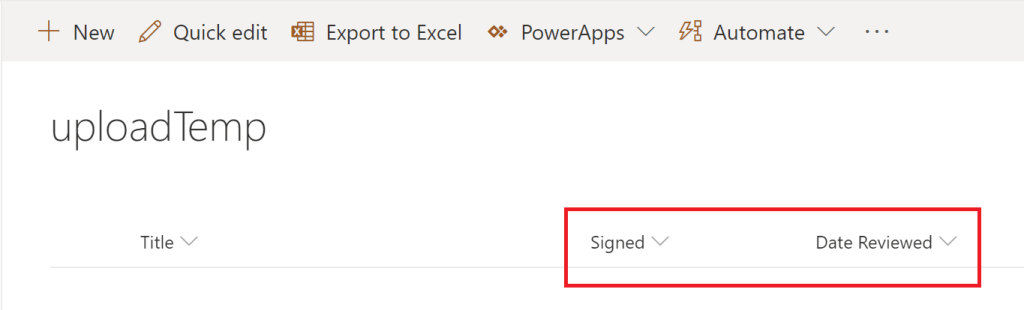
Next up, create the document library and mirror the metadata of the custom list. Order of the metadata doesn’t matter though…
Note: The metadata of the custom list MUST be a part of the document library.

The data source is configured, so the SPO portion of the recipe is complete. Now, moving on to Power Automate. Create a flow and choose the When an item is created trigger for SharePoint:
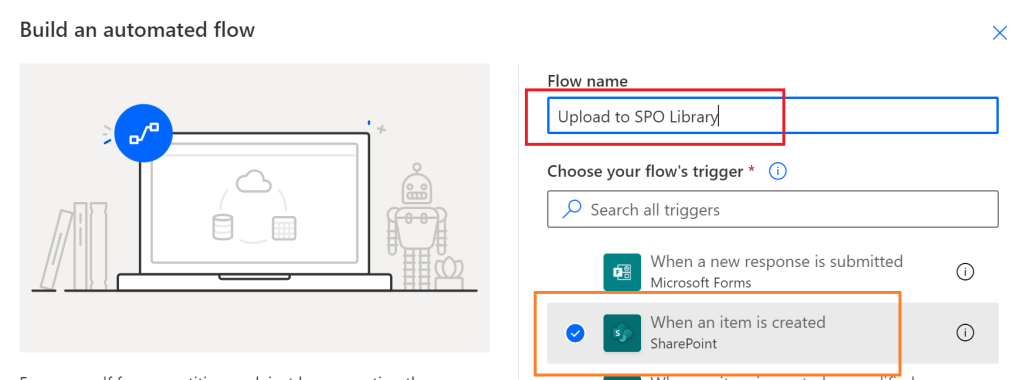
The flow isn’t complicated though. When items are created, query the list attachment, get the attachment content, then recreate the attachment in a document library…
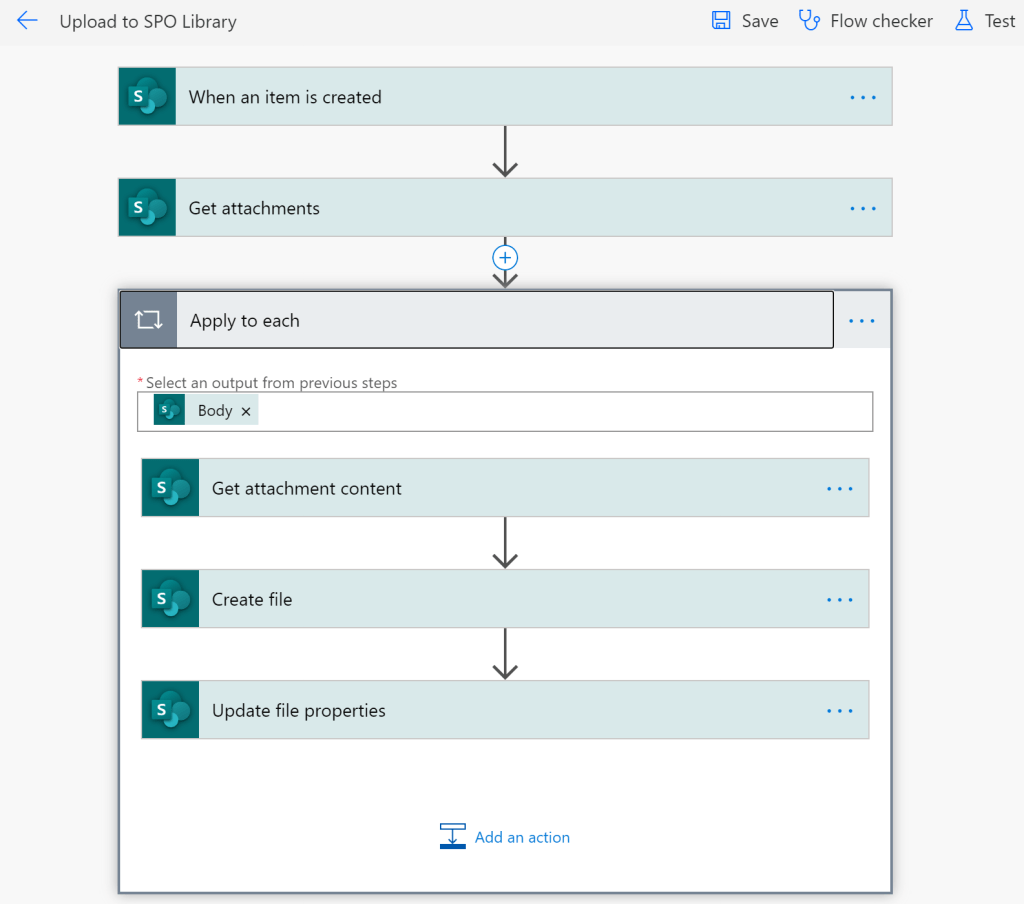
Note: Under create file, set the Title field of the list item as the file name
Optional: Add a final step to delete the list item.
Time to test the flow… Save the changes, then open the SPO list and create a TEST item. Don’t forget to include an attachment.
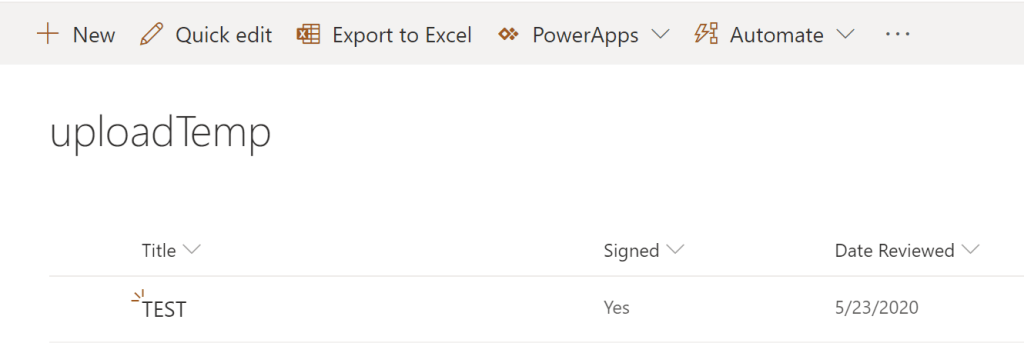
If the flow mapped the metadata properly, then the created file should have the same values as the list item:
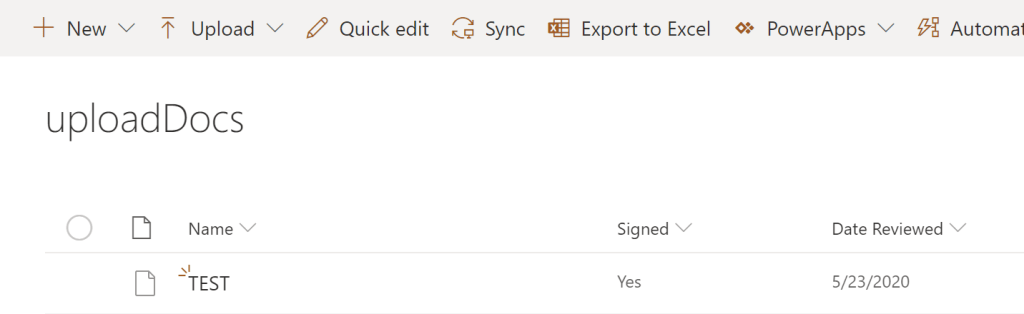
Boom, the recipe is almost complete. Last up, build the Power App… Open the Power Apps studio, create a new app and start from SharePoint data:
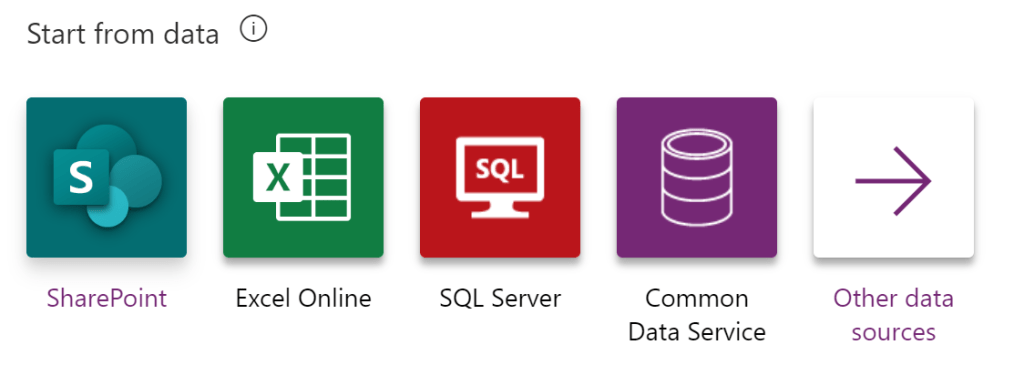
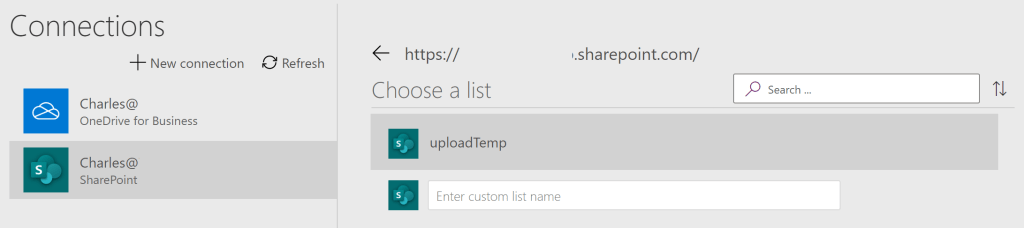
As mentioned earlier, the data sources are limited to custom lists. Use the list from above:
This scaffolds a generic app with CRUD operations to the list. Build/ run the app and click the plus icon to add a new list item:

The flow was already proven to work, but this just confirms that the file can be uploaded from a Power App. Add some data and include an attachment, then click the check icon to save the item:
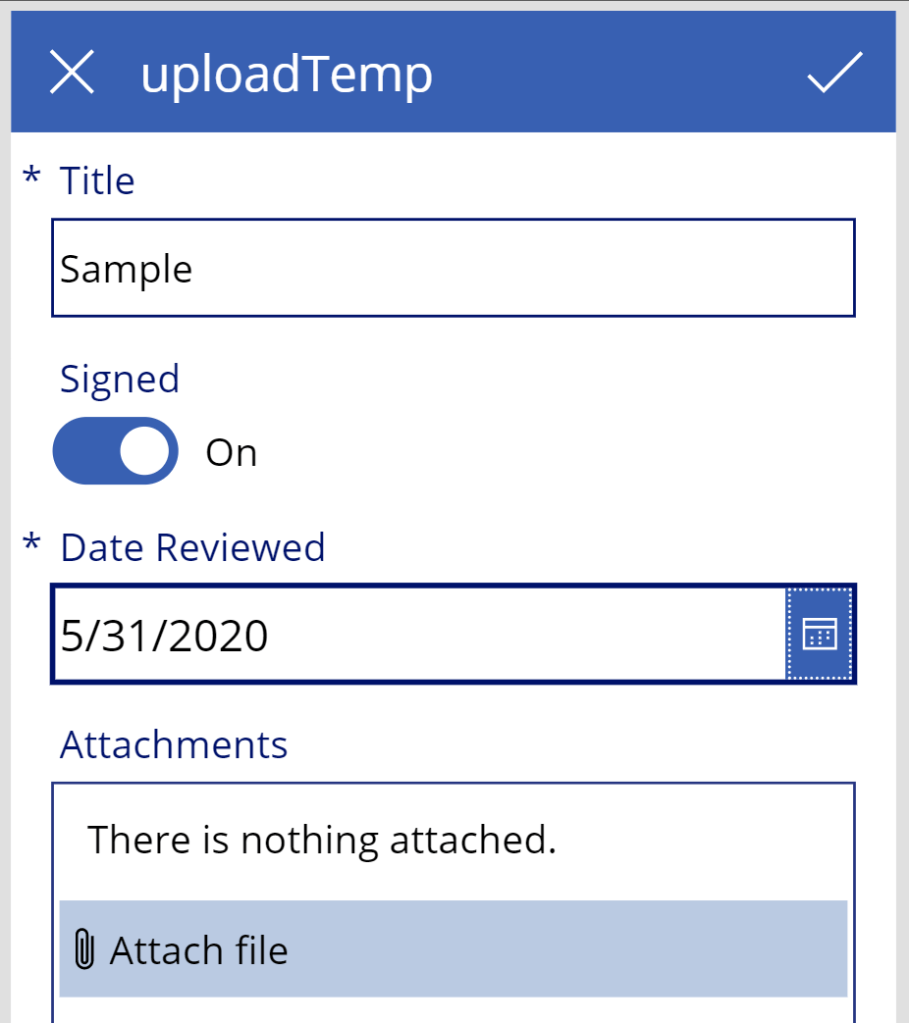
Note: Limit the attachments to 1 unless all documents will share the same metadata.
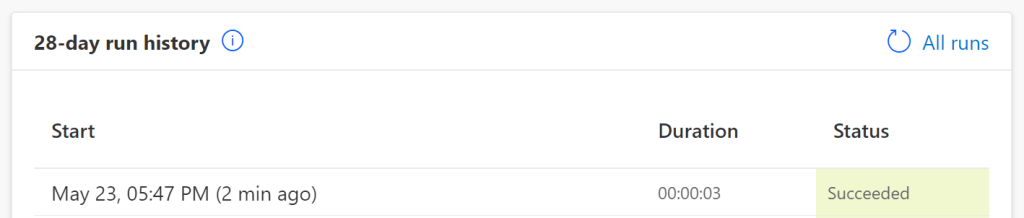
Checking the flow in Power Automate, success…
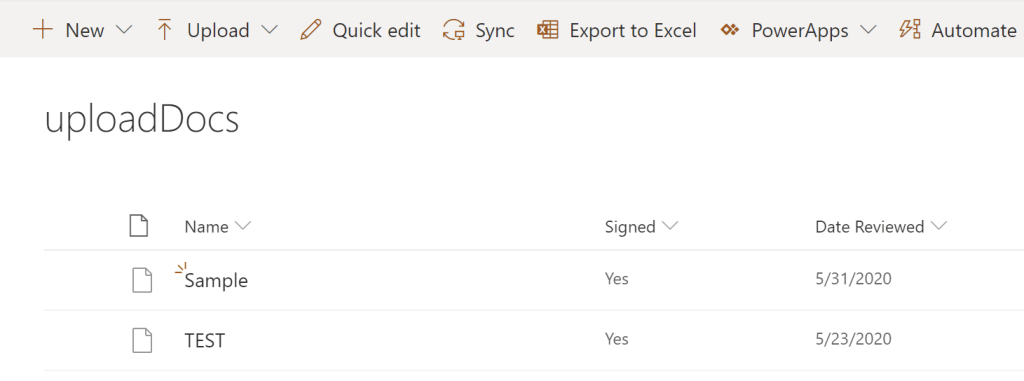
Checking the target library, success:
Conclusion:
Probably not an ideal solution, but a suitable workaround. Batch uploads require that all the attachments share the same metadata. Otherwise, upload the documents one at a time…
“Differences in experience, points of view and opinions aren’t what pulls us apart. It’s what pulls us together.”
Tracee Ellis Ross
 console.log('Charles');