End-users delete a lot of content. So many “accidental” deletions… Anyway, they can delete content and often enough, they delete the wrong file!
*gasp*
Note: Another lengthy post, but w/ pictures…
Deleted files go to the Recycle bin. The process is routine at this point… SharePoint Online files can be restored from the site’s Recycle bin, and the same holds true for OneDrive for Business accounts. But what if someone deleted the SPO file months ago? At this point, thousands of files could have been deleted since… However, this is where PowerShell saves day! Putting together a script, I can query the entire Recycle bin and filter my results. But wait, my script is unable to find the file!?
*gasp*
Odd… Typically I can easily restore the missing file from the site’s Recycle bin. Now what? Search the site? Maybe my script filters were flawed. Maybe the files were moved, then deleted… Let me try a site search. Interesting, I see entries from the Preservation Hold Library in my search results. Why is this interesting? Because I hadn’t considered the Preservation Hold Library a repository to recover files from. But opening this hidden library (because I’m the admin) and narrowing my search, I’ve found the missing file!
*gasp*
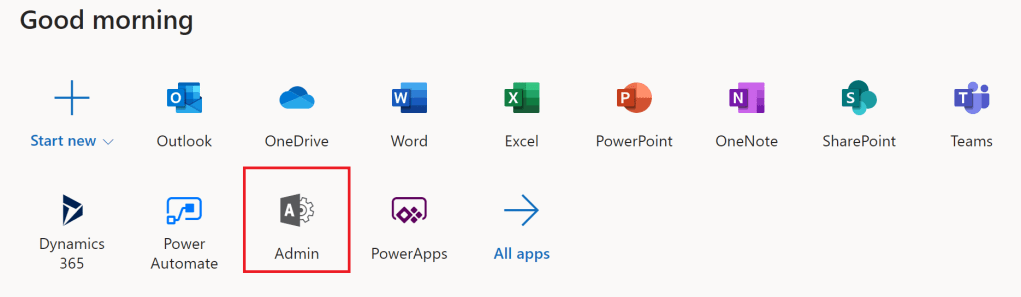
To take advantage of the Preservation Hold Library, I first needed to create a retention policy. Luckily, I’m an Office 365 administrator. I don’t need the keys to the kingdom, but it helps. From my Office.com landing page, I click and open the Admin portal:
I’m now viewing my Microsoft 365 admin center. This admin center serves as a central point of my tenant. On the left-hand side, under Admin centers, I want to click and open my Security & Compliance center:
Note: If the list of Admin centers aren’t visible, click to “Show all”.

The Security & Compliance portal is now visible. There is a lot to explore here, but my focus is Retention under the Information governance section. This is where I create my policy…

There aren’t any existing policies, so I Create one. Indeed…

My policy should be descriptive, so I titled it “3-Year Retention”. However, the title doesn’t matter as much as what I need it to do. I want my policy to retain files for 3 years based on when the content was last modified. After this retention duration, the content can be deleted. Now, I’m finished with this screen…

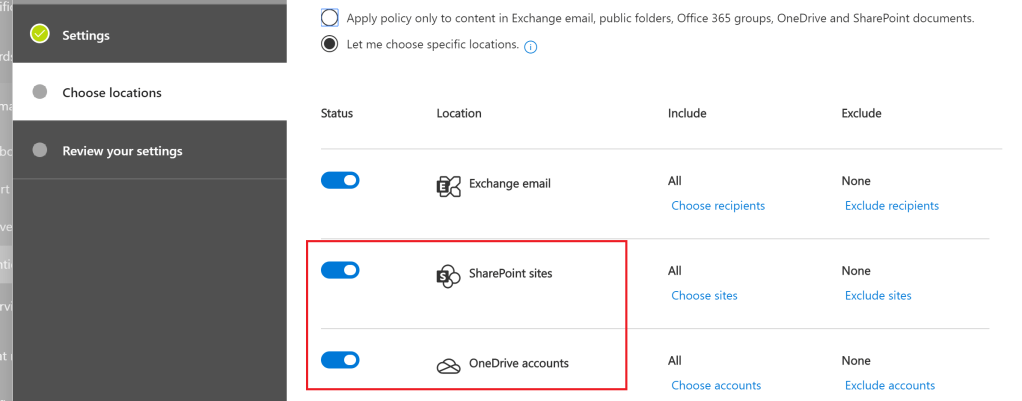
Next, I choose my locations. Specifically, I need my new policy to target SharePoint sites and OneDrive accounts. Everything else is a bonus, but optional. Now, I’m finished with this screen…
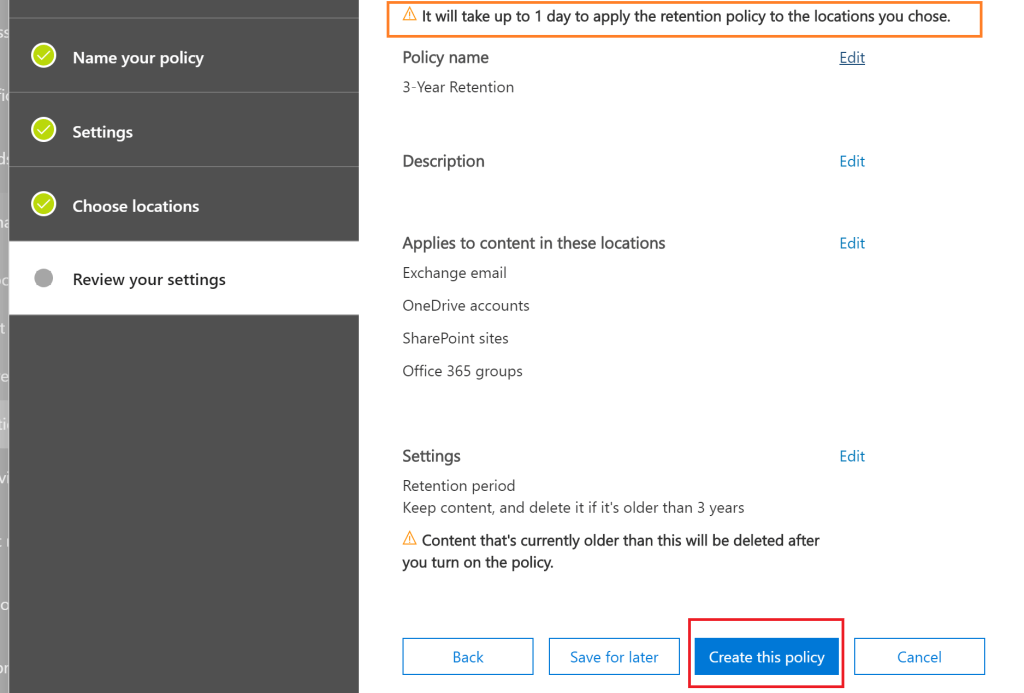
Finally, time to review my settings. Everything looks good, but I have to note that it could take a while for the policy to completely take affect. Fair enough… Create this policy!
Success, my retention policy has been created!
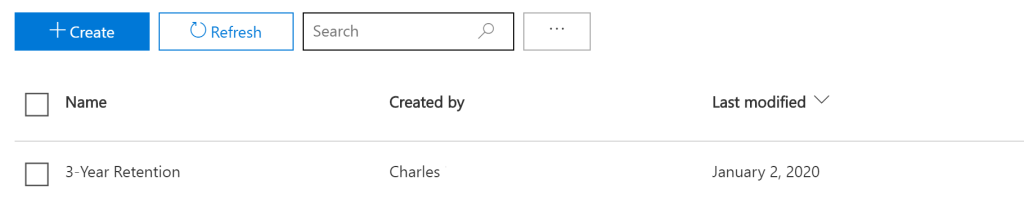
“Some time later”… The retention policy is in effect! Time to delete a file for testing:

I could easily retrieve this file from the site Recycle bin. Easily… But instead, I navigate to the site’s Preservation Hold Library:
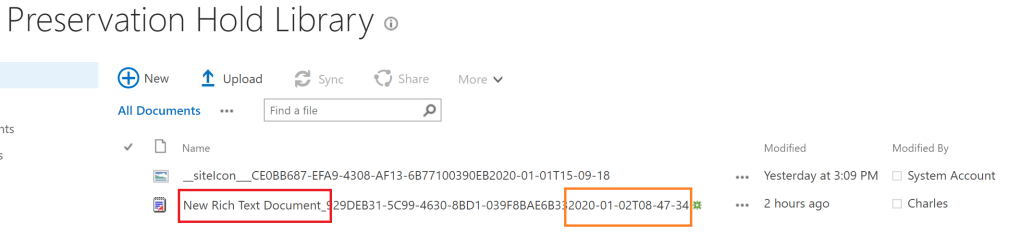
https://{tenant-name}.sharepoint.com/{relative-path}/PreservationHoldLibrary/The Preservation Hold Library is a hidden document library of my site. FYI, it isn’t a modern document library. Regardless, I’ve found my deleted file…
Conclusion:
The Preservation Hold Library came in handy. The retention policy was originally put into place for legal reasons, but this was an unintended bonus. I knew that the library existed and how to find it, but I never considered it as an alternative backup to the Recycle bin…
Additional observation, the Preservation Hold Library will also track the versions of a file. However, the major version of the file will append the date:
{file-name}_{file-guid}YYYY-MM-DDTHH-MM-SS
“A writer has to take all the risks of putting down what he sees. No one can tell him about that. No one can control that reality.”
James Arthur Baldwin
 console.log('Charles');