ServiceNow is great at what it does and this is not a co-sign. But I do enjoy being able to email the system and it generate a ticket on my behalf.
However, some people would rather not use ServiceNow. Maybe the UI isn’t what they’re looking for. Or maybe they would rather build something using SharePoint. I’ve seen a few custom ticketing systems on-premise, but nothing in the cloud. Yet the Microsoft 365 suite offers the tools to build my own…
Warning: Long post, but w/ pictures…
Because I’m going to use SharePoint Online, I need a new SPO site. My template of choice is the Team site. Why? Because I want the generated Office group that’s created in the background. The Communication sites are not associated with Office groups.
Site name: Support Group
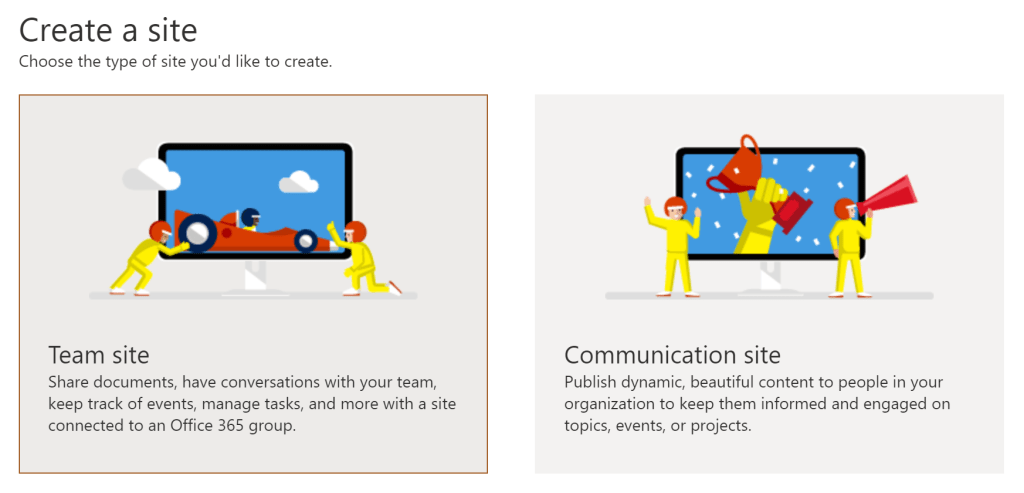
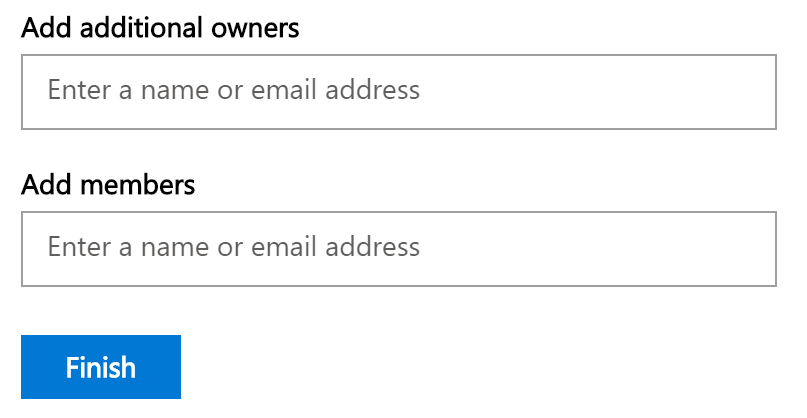
I’m not adding anyone else at the moment, so I click Finish. No one should be peeking while I work, but they can be added later…
My Support Group site is created and ready to be used. So nostalgic that the site navigation is along the site’s left-hand as with classic SharePoint sites…
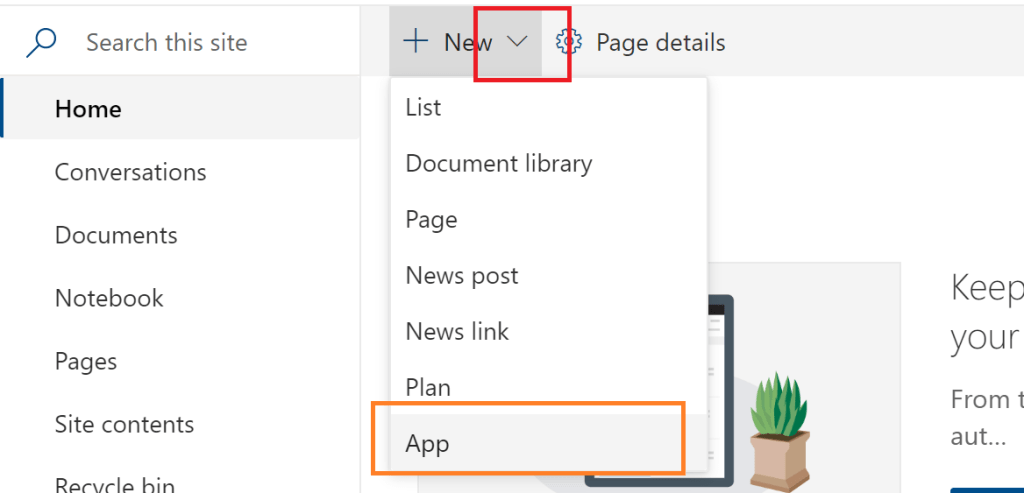
Anyway, I need a Tickets list, so I add an App:
My next screen lists several app types. Document Library and Custom List are arguably the most popular, but I want a Tasks app. I would need to create all of the columns from scratch if I chose Custom List. However, the Tasks app will do most of the work for me… And again, I’m naming my new app Tickets.
Note: Additional apps needed to be enabled.
Set-SPOSite "{site-url}" -DenyAddAndCustomizePages 0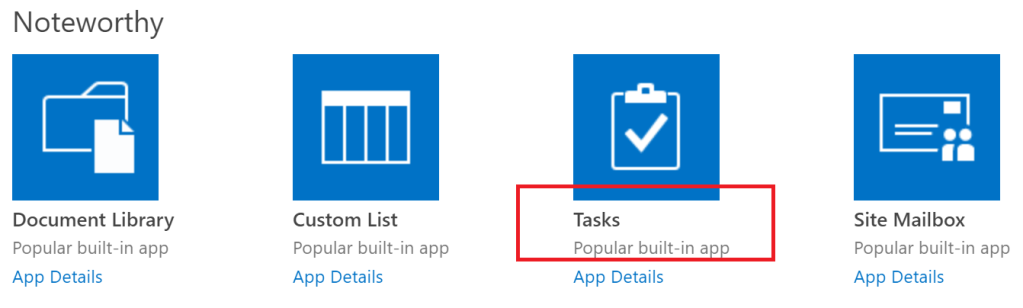
The Tasks app generated most of the columns that I needed. Emphasis on “most”… But for my ticketing system, I want to include a Requestor column. This will be a people picker field that only allows a single entry:

Part I: SharePoint Online steps complete!
- Created Support Group site
- Created Tickets task list
Proceeding to the next phase, I return to the home page. Under my left-hand navigation is the option to associate Microsoft Teams with my Support Group site. This kicks off a background process to create my Team…
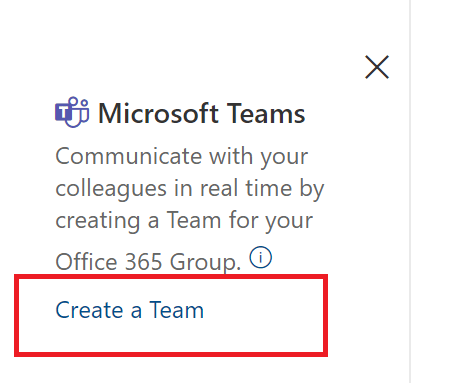
Generating the Team is a quick process. And because I created the Support Group site, I am now the owner of this new Team. Wielding my owner powers, I can create additional channels! I’m going to create a channel titled Tickets. My creativity is through the roof…
The Tickets channel is created! Now I need its email address, but I’m setting this aside for later…
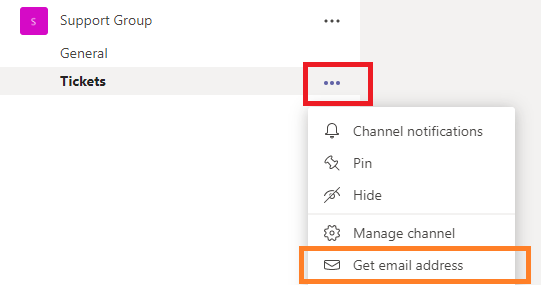
Part II: Microsoft Teams step complete!
- Created Support Group team
- Created Tickets channel
- Copied Tickets channel email address
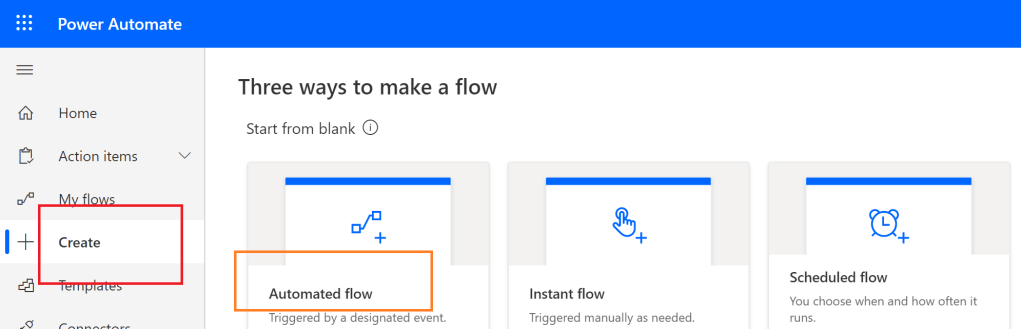
Now, time for the ribbon to tie everything together: Power Automate! Opening Power Automate, I want to create a new Automated flow. Because I can, I’m calling my new flow Tickets.
https://us.flow.microsoft.com/en-us/
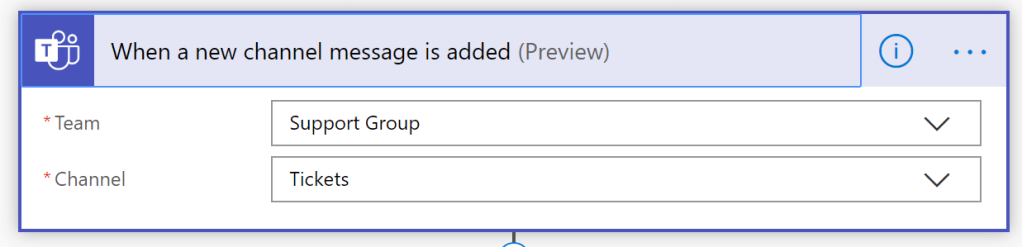
Overview: My flow consists of two steps:
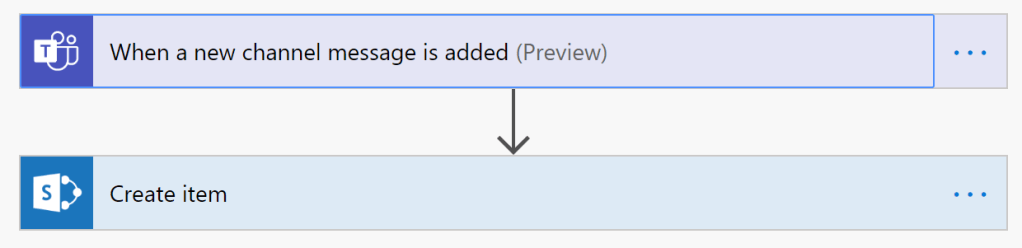
Step #1: I email my Tickets channel. This will post a new message to the channel, then pass along the message parameters to the next step…
Step #2: I accept the parameters from the previous step and create a Task list item in SharePoint Online…
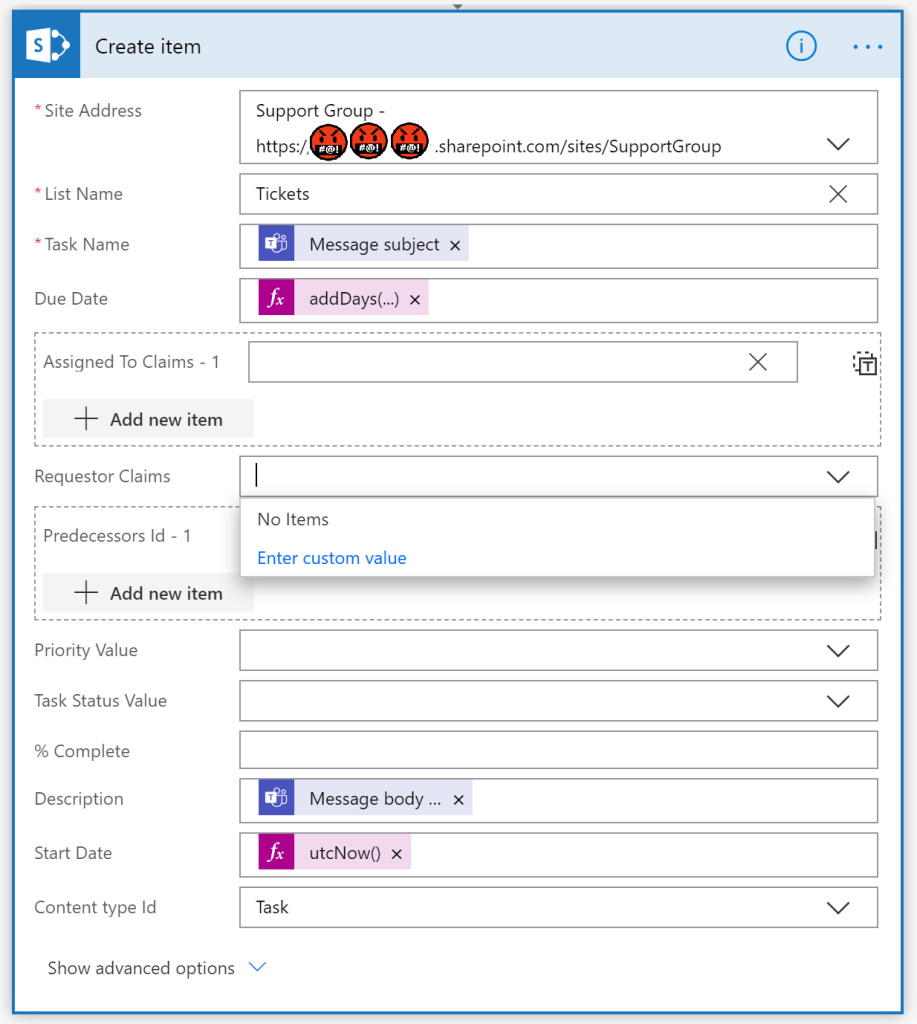
FYI, I want all tickets due 14 days from submission.
addDays(utcNow(), 14)Note: The List Name drop-down only populates Custom Lists, so I manually entered my Tickets task list name.
Lastly, for my Requestor column, I chose to “Enter custom value” and selected this passed parameter:
Message from user displayName
Part III: Power Automate steps complete!
- Created Power Automate trigger from Teams channel
- Created SharePoint Online list item from parameters.
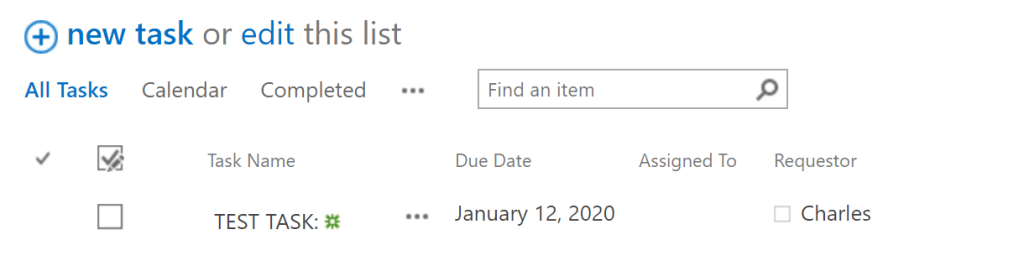
Alright, so boom… The pieces are in place and I’m ready to test. I save my flow, then compose a sample email request. That email address that I set to the side earlier will be my recipient. Hit send…
Navigating back to my Tickets task list, success!
Conclusion:
Surprisingly, this was easier to put together than I expected. I don’t expect this to replace ServiceNow though. There are definitely several missing features, but this isn’t bad for ~10 minutes of work. Considering Microsoft 365 does all of the heavy lifting, I could easily expand upon this during lunch…
“Go beyond. Plus ultra!”
Toshinori Yagi
 console.log('Charles');
Pingback: Power Automate: Ticketing System | Microsoft Teams + SharePoint Online [managed solution] | console.log('Charles');