So yeah, Xamarin… Honestly, not overly complicated, but there is still a learning curve. And because I’m a pseudo-perfectionist, I typically commit when learning something new. Basically, I wanted a few uninterrupted days to tinker a bit…
<sarcasm>
So I decided learn Xamarin while on PTO because its a bundle of joy.
</sarcasm>
Note: I didn’t schedule PTO just for this.
Nonetheless, now I have a grasp of Xamarin and XAML styling. I’ve worked as a web developer, so it was easy to compare XAML styles to CSS:
https://docs.microsoft.com/en-us/xamarin/xamarin-forms/user-interface/styles/xaml/
Inline
Inline styling is probably the easiest way to tweak the aesthetics of an HTML page. Definitely how I first learned to work with CSS. Honestly, I still default to inline styles for testing and mock-ups.
E.g., if I wanted to style a button in HTML:
<input type="button" value="Submit" style="color: #FFF; background-color: #67CFCF; font-weight: bold;" />or…
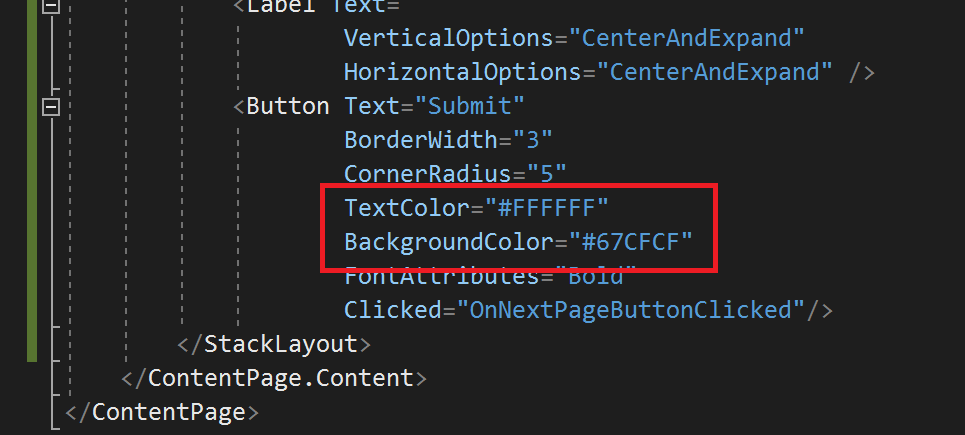
<button style="color: #FFF; background-color: #67CFCF; font-weight: bold;">Submit</button>XAML isn’t all that different. I opened my XAML page, not the .cs page, and added a <Button /> to the <StackLayout>…</StackLayout>. Also, I included attributes for:
- Border width,
- Text color,
- Background color,
- etc.
Internal
Inline works, but isn’t easily scalable for multiple elements. Copying the styles from a Submit button to a Cancel button is easy, but now its redundant work. Programmers abhor redundant work. I abhor redundant work! If I need to use it more than once, then I abstract it…
E.g., redundant work…
<button style="color: #FFFFFF; background-color: #67CFCF; font-weight: bold;">Submit</button>

<button style="color: #FFFFFF; background-color: #67CFCF; font-weight: bold;">Cancel</button>E.g., non-redundant work…
<style>
     .myButtonStyle {
          color: #FFFFFF;
          background-color: #67CFCF;
          font-weight: bold;
     }
</style>

<button class="myButtonStyle">Submit</button>

<button class="myButtonStyle">Cancel</button>
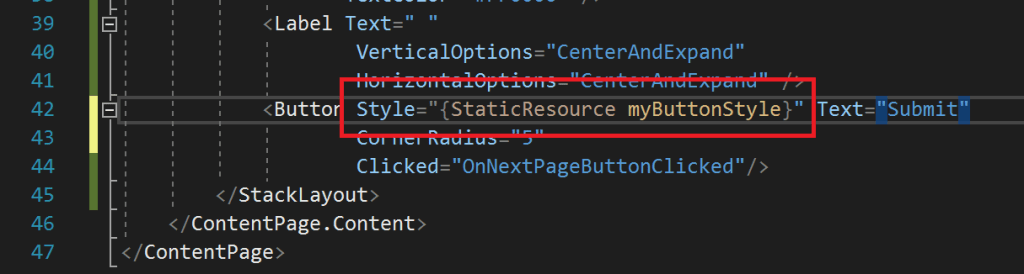
Xamarin internal styles are part of the <ContentPage.Resources> section of the .xaml page. This section isn’t generated automatically, so I needed to add it and I did so above the <ContentPage.Content>. And I added the <ResourceDictionary> with my style attributes, then gave my <Style> a x:Key and TargetType:

My style has been created! Now, I remove the individual attributes from the XAML button, then assign my Style property. This points to the style defined above in the <ResourceDictionary> and inherits my style(s).
https://docs.microsoft.com/en-us/xamarin/xamarin-forms/user-interface/styles/xaml/inheritance
External
Finally, more abstraction. If the styles are embedded within a page, then they are only accessible from within that page. The downside of inline and internal styles of an HTML page. However, external styles can be made available to all of my pages.
App wise, I could build a Xamarin project with 50+ pages and each page reference the same style source. External/ global XAML styles are added to the <Application.Resources> tag of my App.xaml file and referenced throughout the Xamarin app. Again, this is the .xaml page, not the .cs page:

https://docs.microsoft.com/en-us/xamarin/xamarin-forms/user-interface/styles/xaml/application
Result
All done, so now I Build and run my project. I have an emulator, but I could also use my phone:

Conclusion:
Initially, I thought working with Xamarin would be a pain, but nah… Or that I would despise XAML styles, but nah… Instead, I just needed some time to absorb some new content…
“If you don’t at least try, then you ain’t sure.”
Jason Terrance Phillips
 console.log('Charles');