The Graph API has a learning curve, but is powerful. If you’re working with Office 365, then the Microsoft Graph is definitely worth exploring.
Note:
You can test and work w/ the APIs via the Graph Explorer.
Task / Goal: Move a PowerPoint file from the “Marketing” folder in a source library to the “Human Resources” folder in a target library.


Actions / Steps: Incremental process…
- GET — SPO site ID
- GET — Source library ID
- GET — Source file ID
- GET — Source file Name
- GET — Target folder ID
- GET — Target folder ID.
- PATCH — API w/ JSON object
- GET — Source library ID
Note:
Both libraries are in the same site for this post.
GET — SPO site ID:
The site id is comprised of three parts. Copy the entire value for use in the following steps. Microsoft has pretty good documentation on this:
https://graph.microsoft.com/v1.0/sites?search={site-name}&$select=id,webUrl
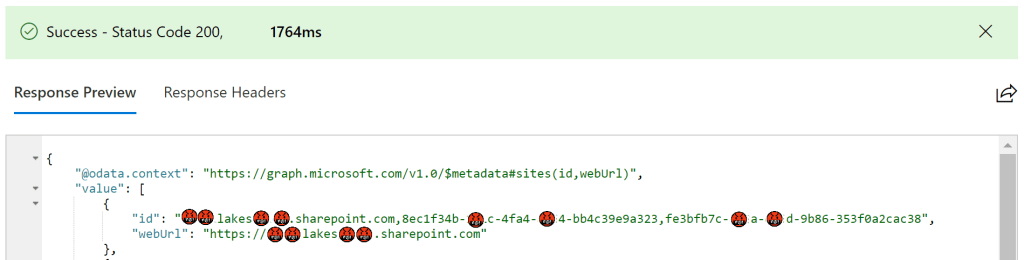
GET — Source && Target library IDs:
Site ID acquired! Now, you’ll need the IDs of the source and target document libraries. Why? To get the IDs for the “Marketing” and “Human Resources” folders. Reminder, check out Microsoft’s documentation.
https://graph.microsoft.com/v1.0/sites/{site-id}/drives?$select=name,id

GET — File ID && File Name:
Using the source library/ drive ID and relative folder path, get the PowerPoint file’s ID and Name.
https://graph.microsoft.com/v1.0/sites/{site-id}/drives/{drive-id}/root://Marketing:/children?$select=id,name,parentReference
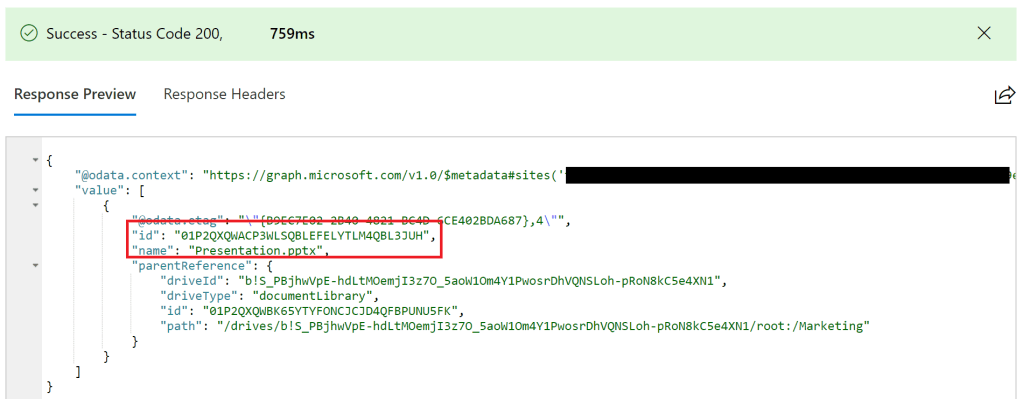
GET — Target folder ID
Using the target library/ drive ID and relative folder path, get the ID of the target folder, Human Resources.
https://graph.microsoft.com/v1.0/sites/{site-id}/drives/{drive-id}/root://Human Resources:/?$select=id,name

PATCH — API w/ JSON Object:
Almost there… We’ve only used the GET verb until now. However, the move requires PATCH. FYI, the Graph API uses a POST to copy a file and PATCH to move a file.
https://graph.microsoft.com/v1.0/sites/{site-id}/drives/{source-drive-id}/items/{item-id}

Also, don’t forget the JSON object. Basically, the Graph API move updates the parentReference ID.
{
  "parentReference": {
    "id": "{target-folder-id}"
  },
  "name": "{file-name}.pptx"
}
Note: You should expected a code response of 200, but I typically get a 404. Either way, the file was moved.
Conclusion:
The process is incremental, but can be automated. Check out Microsoft’s documentation and utilize the Graph Explorer for testing.
“Move b!*$#, get out the way.”
Christopher Brian Bridges
 console.log('Charles');