SharePoint is good platform to build on, but it continues to impress me what can be done with minimal effort. My background is programming and programmers like to build custom solutions. However, Microsoft has built so much into SharePoint that I haven’t had to build any large custom solutions for quite some time. Not that I can’t or won’t, but I don’t have to…
Tip #1: SharePoint supports column formatting for both modern and classic SharePoint lists. The formatting is very straightforward and uses JSON.
Column Formatting Link:
https://docs.microsoft.com/en-us/sharepoint/dev/declarative-customization/column-formatting
Tip #2: Don’t recreate the wheel! Plenty of examples already exist on GitHub with plenty of ways to use list column formatting.
Column Formatting Examples on GitHub:
https://github.com/SharePoint/sp-dev-list-formatting/tree/master/view-samples
For this post, I’m just going to make the .thisRowCell { background-color: yellow; }.
The reason for this, my end-user was using an Excel file with Macros. Honestly, the macros did nothing special. They projected some date values and this was easy enough to reproduce using calculated columns! However, to make the SPList look similar to the Excel file, I wanted to make the calculated columns yellow as shown below…
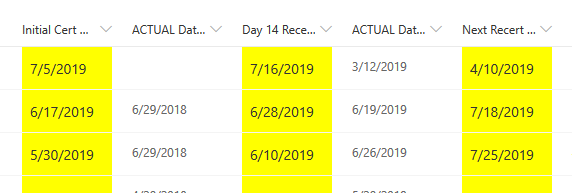
And to make the calculated column backgrounds yellow, I tweaked an example or two to create…
{
    "elmType": "div",
    "style": {
        "background-color": "Yellow",
        "color": "#333333",
        "white-space": "nowrap"
    },
    "children": [
        {
            "elmType": "span",
            "txtContent": "@currentField",
            "style": {
                "font-size": "14px",
                "display": "inline-block",
                "padding": "0 8px"
            }
        }
    ]
}
Conclusion: Column formatting is an easy win to mimic simple Excel formatting. SharePoint adoption primarily relies on usability and this helped one end-user gravitate to SharePoint. Keep it simple when you can…
“If you have time to fantasize about a beautiful end, then just live beautifully ’til the end.”
– Gintoki Sakata
 console.log('Charles');