Admin Center \ Security & Compliance
SPO easily allows sharing w/ external parties. The same is true w/ OneDrive for Business. However, this assumes that external sharing is allowed within your tenant. Some business requirements may require disabling this, but external sharing is not disabled here. Because of this, you may be required to audit and report on all externally shared content. If so, then here we go…
(1) If you have access to your tenant’s Admin center, then you’ll see ‘Admin’ listed in the app launcher. Click and open…

NOTE: IF you have access.
(2) The Microsoft 365 admin center centralizes a lot of reports, billing information, etc. However, we’re looking for the ‘Security & Compliance ‘ admin center. If not shown, then click to expand and show all…
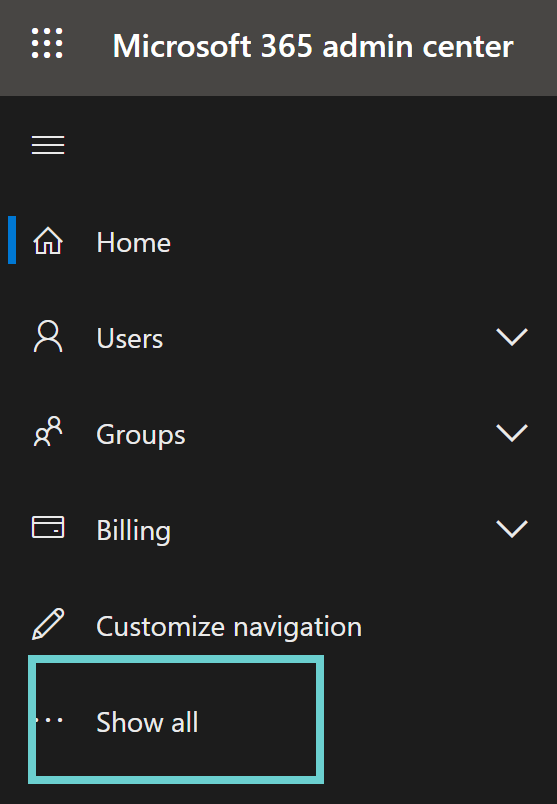
Note: Instead of checking each site collection, just come here.

(3) Admin center found!
(4) If you have access, then you will see ‘Audit log search’ beneath Search in the left-hand navigation…

EDIT: Your account will need the ‘Reports reader’ role assigned
(5) Almost there! Type ‘secure’ in the search box, select the created and used options, and click Search.

Note: Search may take a moment depending on your results.
(6) Now you have your filtered results. Fun fact, these results can be exported to Excel!

NOTE: Exporting to Excel is an option, but isn’t required. Just select a result and review the Details pane.
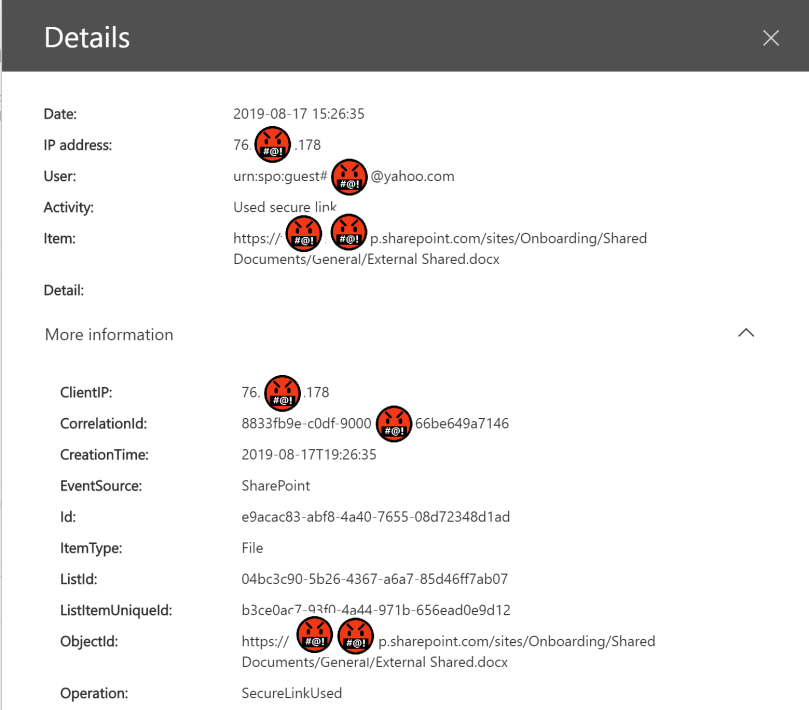
Conclusion: If you can access the ‘Security & Compliance’ admin center AND you can access the search logs, THEN you can audit your externally shared content. The results can be exported to Excel, including content from the Details pane content, but you can also select a result and review its detailed information. Hope this helps…
“The best thing you can do for a person is to inspire them. That’s the best currency you can offer: inspiration.”
– Ermias Joseph Asghedom
 console.log('Charles');